Automation Execution Monitor
Check that workflows ran, and look inside the ones that did not finish.
What the Monitor Shows
Open Monitoring → Automations. The page is titled Automation Execution Monitor and lets you monitor automation executions, inspect detailed logs, and diagnose the workflow registry and module schemas. It has two tabs, Execution History and Registry Health Check. The example is the Disposition Routing workflow.
Execution History
The Execution History tab lists every run of every workflow, newest first. Search by workflow name with the box above the table.
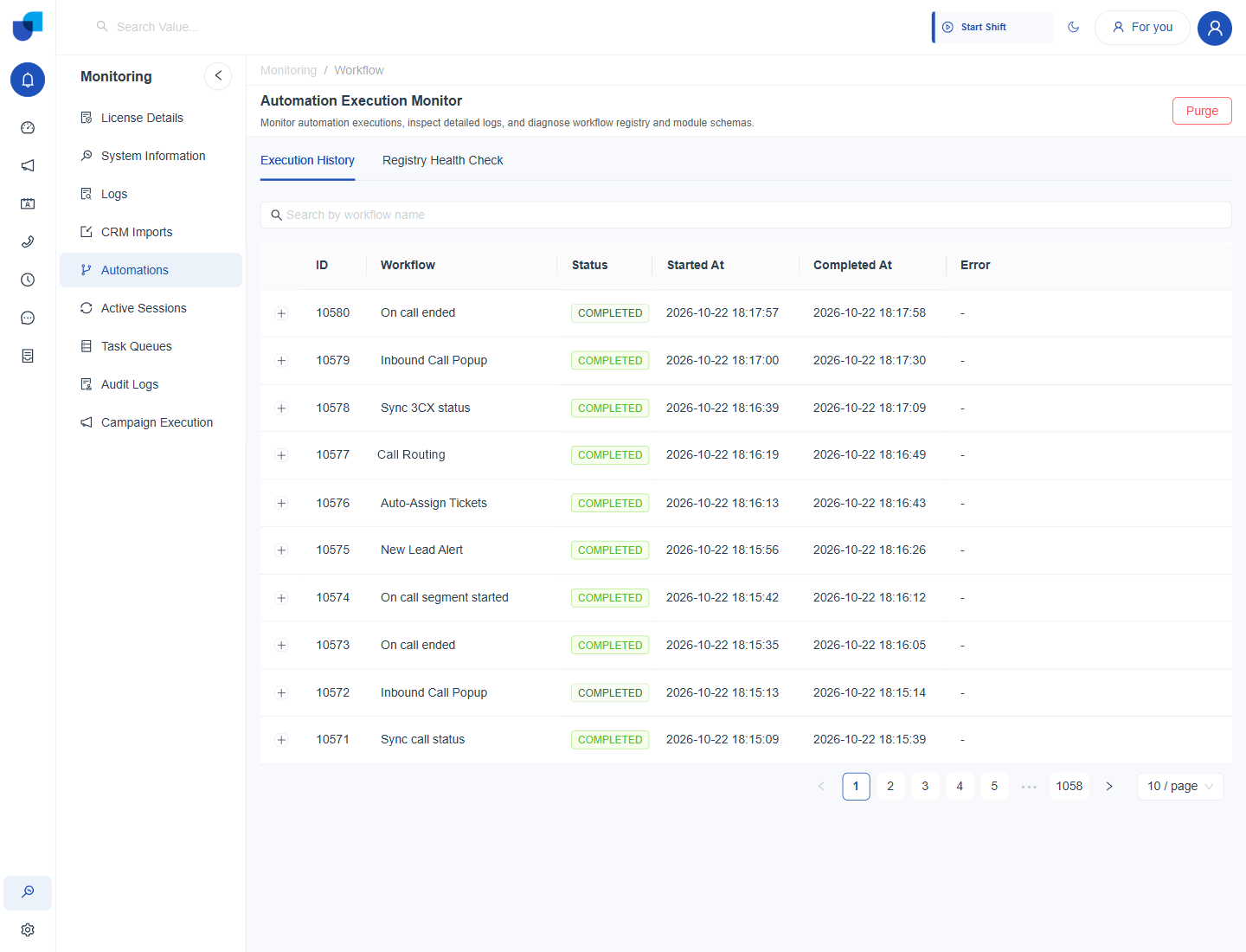
Figure 1. The Execution History tab, with the most recent runs of the system and custom workflows.
| Column | What it shows |
|---|---|
| ID | The number of the run. |
| Workflow | The workflow that ran. |
| Status | COMPLETED when the run finished, and DELAYED when it is waiting for a set time. |
| Started At and Completed At | When the run began and when it finished. |
| Error | The error message, when a run ended with one. A dash means none. |
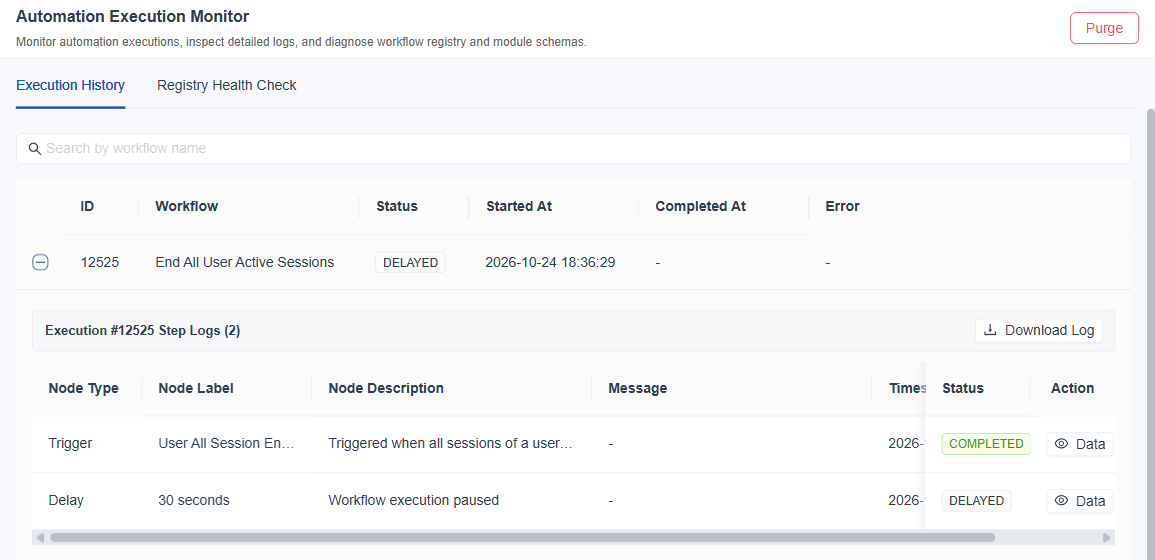
Figure 2. An expanded run, with its step logs. The Download Log button saves them.
The detail of a run lists its step logs: the Node Type, the Node Label, the Node Description, the Message, the time, the Status of the step and a Data button that shows what the step handled. A run that waits, such as one with a Delay step, shows DELAYED on that step until its time arrives.
Both the workflows that ship with the platform and the ones your team builds appear here. To read only one workflow, type its name in the search box, for example Disposition Routing.
Registry Health Check
The Registry Health Check tab validates the workflows against the modules they use. A banner at the top gives the result and the time of the last check. Four counters follow: Discovered Modules, Healthy Modules, Schema Warnings and Endpoint Errors.
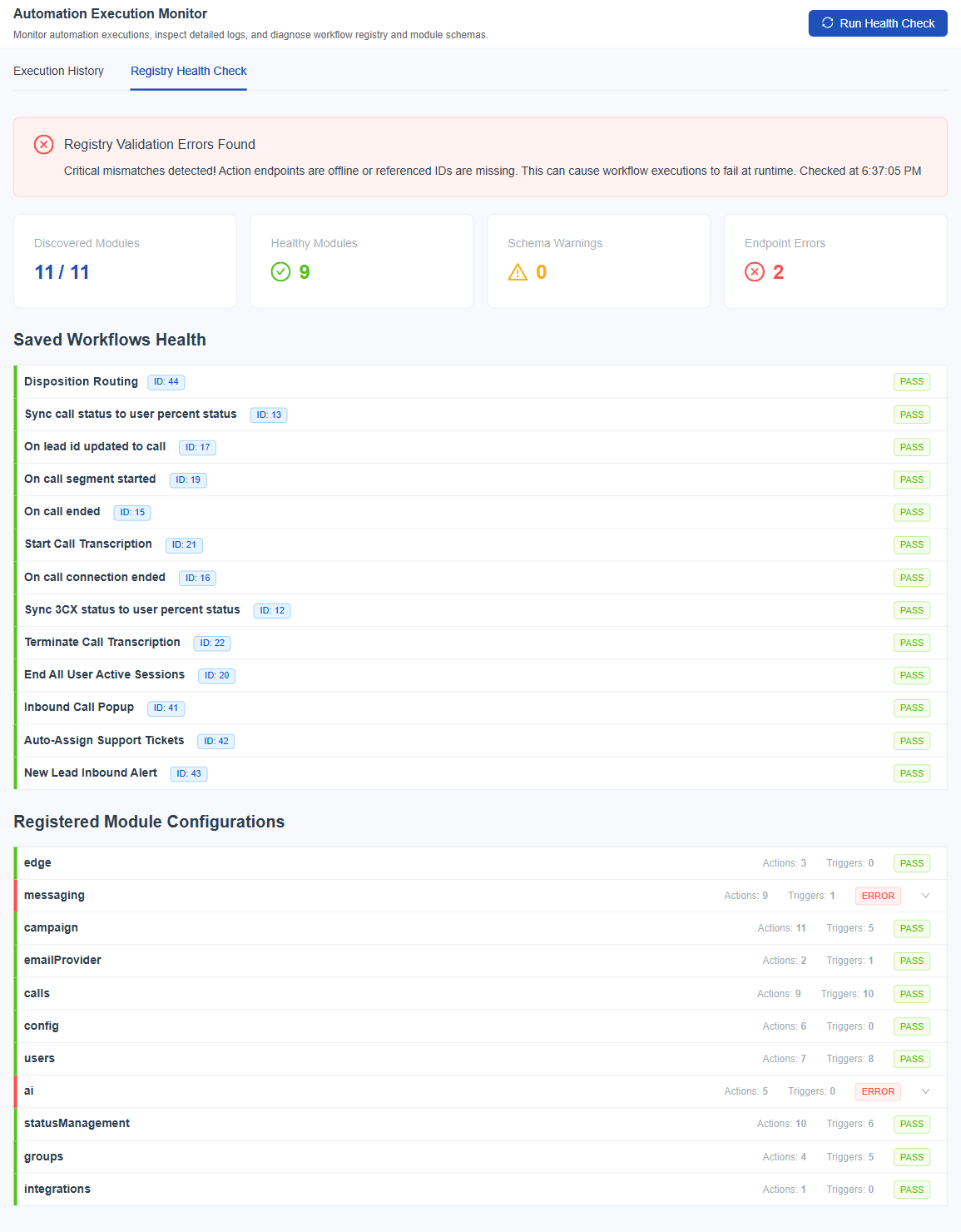
Figure 3. The Registry Health Check tab, with the banner, the four counters, the saved workflows and the registered modules.
Run Health Check at the top right runs the check again. A module that reports ERROR has an arrow at the right of its row, and the arrow opens the detail of what failed.
| Section | What it shows |
|---|---|
| Saved Workflows Health | Each saved workflow with its ID and a PASS result. |
| Registered Module Configurations | Each module that offers workflow actions and triggers, with the number of actions and triggers and a PASS or ERROR result. |
Run the check after you change a module, a connection or an API that a workflow uses. A workflow that refers to an action endpoint or an ID that no longer exists can fail when it runs, and the check names the module that needs attention.
Purge
Purge at the top right removes stored execution history. It is available to roles that have the Log Purge permission.