Active Sessions
See who is connected to the platform, and from which device.
What Active Sessions Shows
Open Monitoring → Active Sessions. The page lists the agent and user sessions that are connected at the moment. Each person who is signed in appears as one row for each device. Use it to confirm that an agent is connected before you look at anything else.
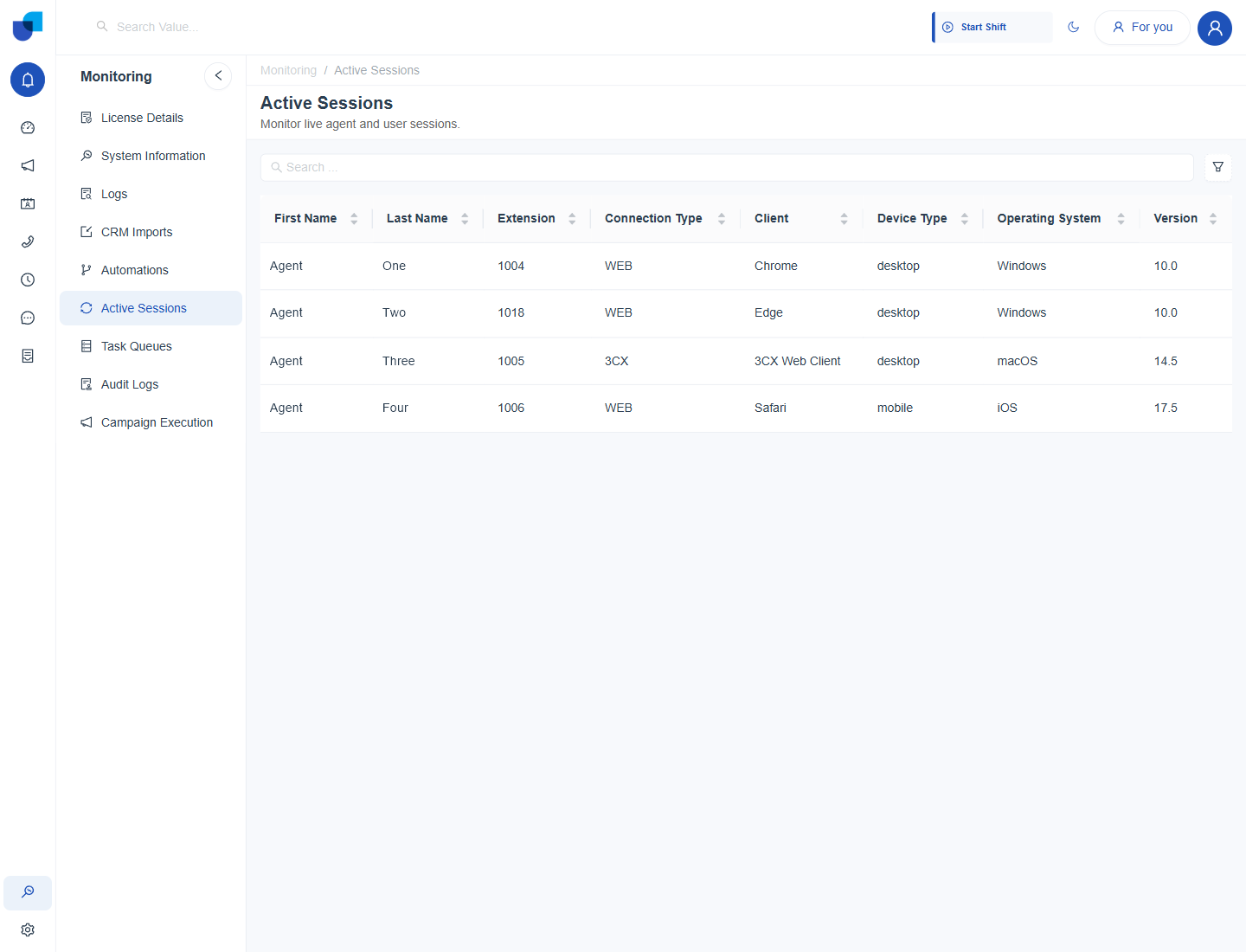
Figure 1. The Active Sessions page, with one row for each connected device.
The Columns
| Column | What it shows |
|---|---|
| First Name, Last Name | The person who owns the session. |
| Extension | The telephone extension linked to the user. |
| Connection Type | How the session connects. WEB is a browser session, and 3CX is a session through the 3CX client. |
| Client | The program in use, such as Chrome. |
| Device Type | For example desktop or mobile. |
| Operating System and Version | The device's operating system and its version. |
Click the arrows in a column heading to sort. The search box finds a person by name, and the filter button opens more options.
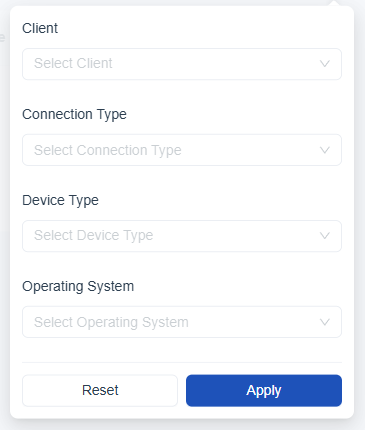
Figure 2. The filter panel, with Client, Connection Type, Device Type and Operating System.
The filter panel narrows the list by Client, Connection Type, Device Type and Operating System. Click Apply to use the filters, and Reset to clear them.
A session is a connection, which is different from a shift. A person can be listed here without having started a shift, and the Workforce Monitor shows the shift. See Active Sessions Monitoring in the Workforce documentation.
Common Uses
- Confirm a connection.
- Find a second device.
- Check the client.
The Active Sessions page is available to roles that have the Active Session permission. The permission has a scope of Own, Group or All, so a supervisor with Group scope sees the sessions of their own groups only.