Overview
User Management
Create people, give them roles, organize them into groups and keep their accounts healthy.
What User Management Covers
User Management is where administrators decide who can sign in, what each person can do, and which team each person belongs to. Everything is found under Configuration, User Management. Individual people also have a Profile page for their own details.
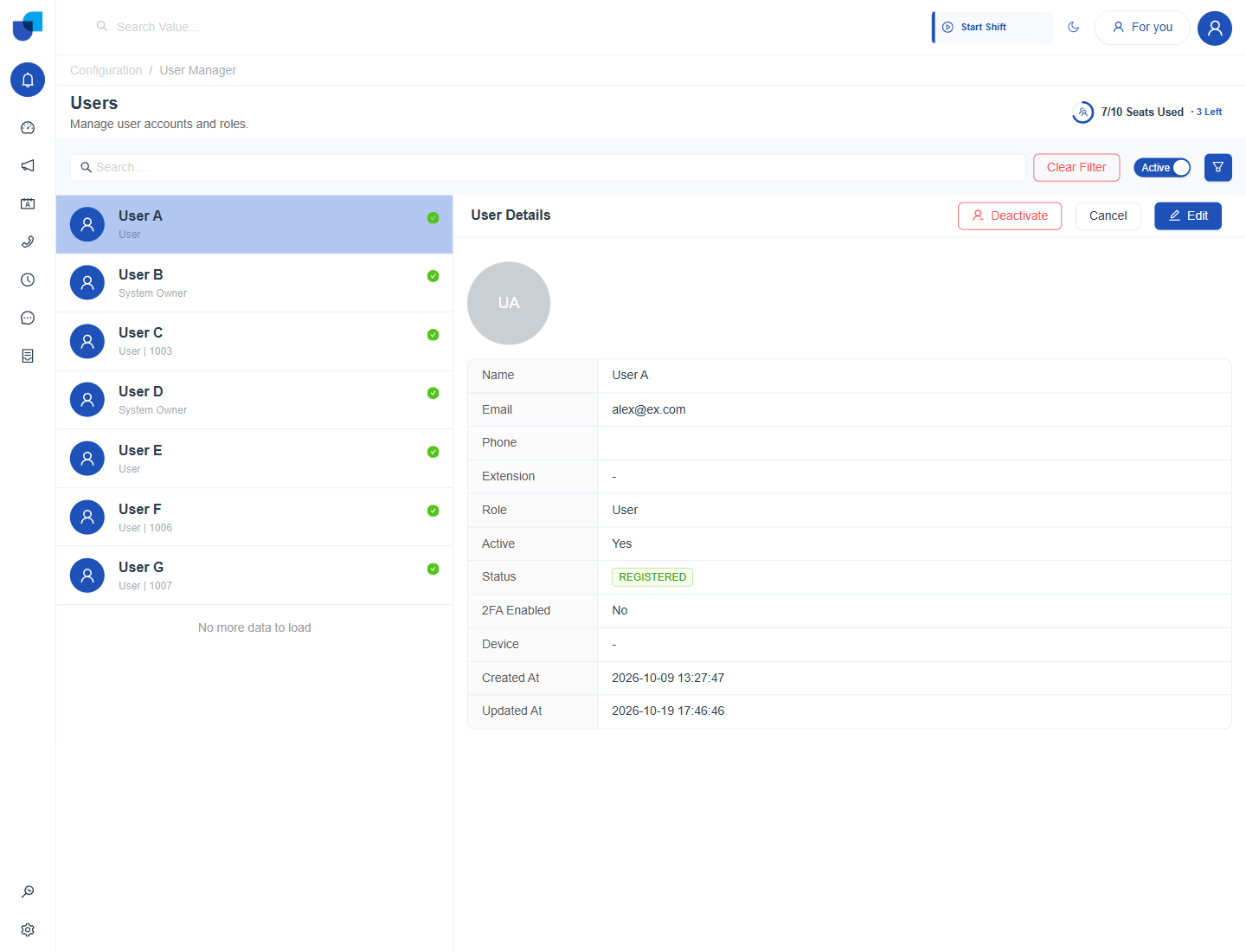
Figure 1. The Users page. The list on the left shows every user, and the panel on the right shows the selected user.
The Main Parts
| Part | What it is for | Guide |
|---|---|---|
| Users | Create, invite, edit, activate and deactivate accounts. | Users |
| Roles | Bundles of permissions, including field level access to CRM modules. | Roles |
| Groups | Teams of users used for scope, reports and call handling. | Groups |
| User Syncing | People brought in from a 3CX PBX or a company directory. | User Syncing |
| User Profile | The signed in person's own details, password and Edge Settings. | User Profile |
| Two Factor Authentication | An extra code at sign in for chosen accounts. | Two Factor Authentication for Users |
| Activity Logs | A history of shifts and statuses for one person. | User Activity Logs |
The Life of an Account
- An account appears. An administrator creates it, or it is synced from 3CX or a directory.
- The person is invited. The status shows Invited until a password is set. Synced people show Synced.
- The person sets a password and signs in. The status becomes Registered.
- The account is maintained. Roles, groups, phone numbers and Two Factor Authentication are updated as the person's work changes.
- The account is deactivated when access should stop. The record is kept, and the person can be activated again later.
Who Does What
| Person | Typical tasks |
|---|---|
| Administrator | Creates users, assigns roles, manages groups, turns on Two Factor Authentication and sets up syncing. |
| Supervisor | Views users and groups in scope, and reviews activity logs. |
| Any user | Edits their own profile, photo and password. |
Licensed Seats
The top right of the Users page shows how many seats are used, for example 7/10 Seats Used with 3 Left. Hovering over it explains that it compares active users with the licensed seat limit. Only active users use a seat, so deactivating a user frees one.
Info: When all seats are used, activate or create a user only after another user is deactivated, or ask your license administrator for more seats.