User Profile
User Management
Every person can view and update their own account details. The examples use one user, Alex Morgan.
Viewing and Editing Your Profile
Open your profile from the profile icon at the top right of the page. The Profile page has three tabs: User Details, Change Password and Edge Settings. The first tab shows your photo and your details.
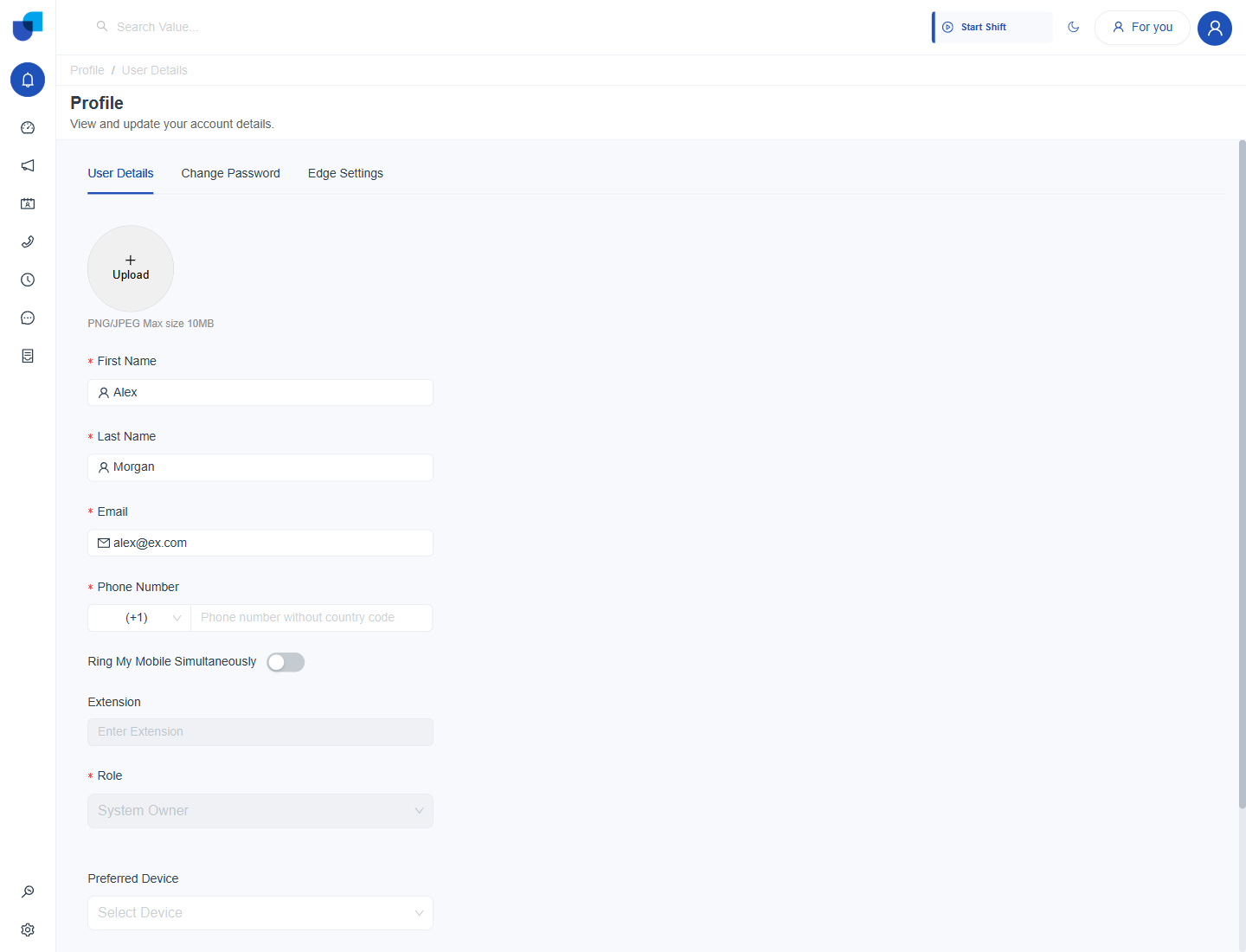
Figure 1. The User Details tab of the Profile page for Alex Morgan.
- Open the User Details tab.
- Change your First Name, Last Name or Email. A red message appears when a field is empty or the email is not valid.
- Update your Phone Number. Choose the country code and type the number without it.
- Set the options in Profile Settings. Ring My Mobile Simultaneously, Preferred Device and Enable 2FA are described in Profile Settings.
- Click Save. The message Configuration updated successfully! confirms the change. Click Cancel to leave without saving.
| Field | Can you change it? |
|---|---|
| First Name, Last Name, Email, Phone Number | Yes. |
| Extension | Read only here. It comes from the telephone system or an administrator. |
| Role | Read only here. An administrator changes it on the Users page. |
Info: If saving fails, the page shows Failed to save configuration. Check the red messages and try again.
Profile Photo
- Click Upload in the round area above your name.
- Choose a picture from your computer. Use a PNG or JPEG file up to 10 MB. Other types are refused with the message You can only upload JPG/PNG file!
- Check the preview in the circle.
- Click Save. Your picture appears next to your name in lists such as the Workforce Monitor.
Tip: Use a square picture with your face in the middle. The photo is cropped to a circle.
Changing Your Password
Open the Change Password tab. The page repeats the five password rules and shows three fields.
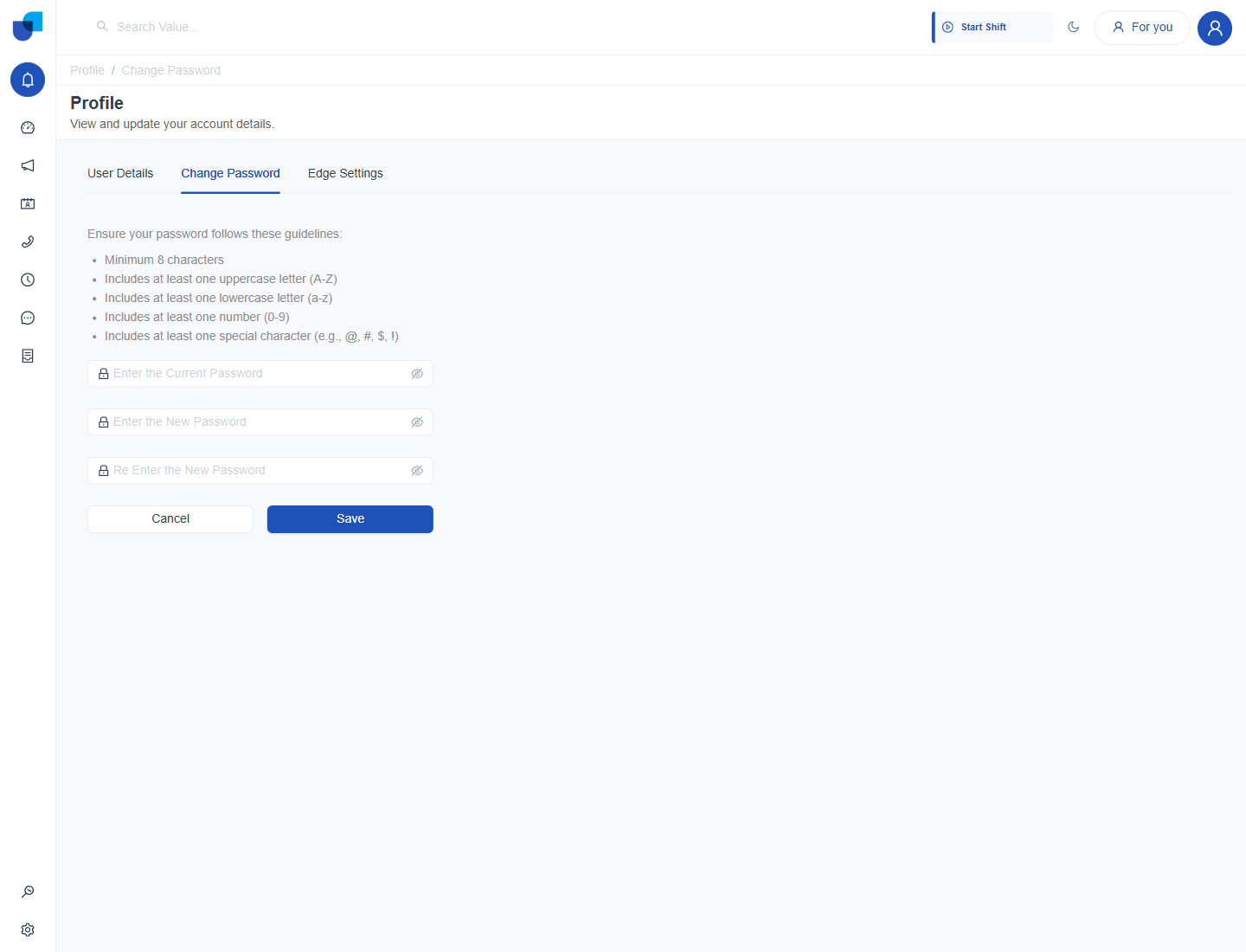
Figure 2. The Change Password tab with the guidelines and three password fields.
- Enter your current password.
- Enter the new password. It must meet every rule. Otherwise the page says Password must meet all requirements.
- Enter the new password again. If the two entries differ, the page says The two passwords do not match!
- If your account uses Two Factor Authentication, click Send OTP. A code is sent to your phone. The link then shows Resend in with a countdown, and you can ask for a new code when it ends.
- Type the code in the Enter OTP field. Only digits are accepted, and the length follows the platform setting.
- Click Save.
Important: After the password changes, you are signed out of every open session and the Login page opens. Sign in again with the new password.
The password rules are listed in Email Login. If you have forgotten the current password, use Forgot Password instead.
Edge Settings
Edge Settings control how your calling device handles audio. They appear as a tab when the Edge module is turned on.
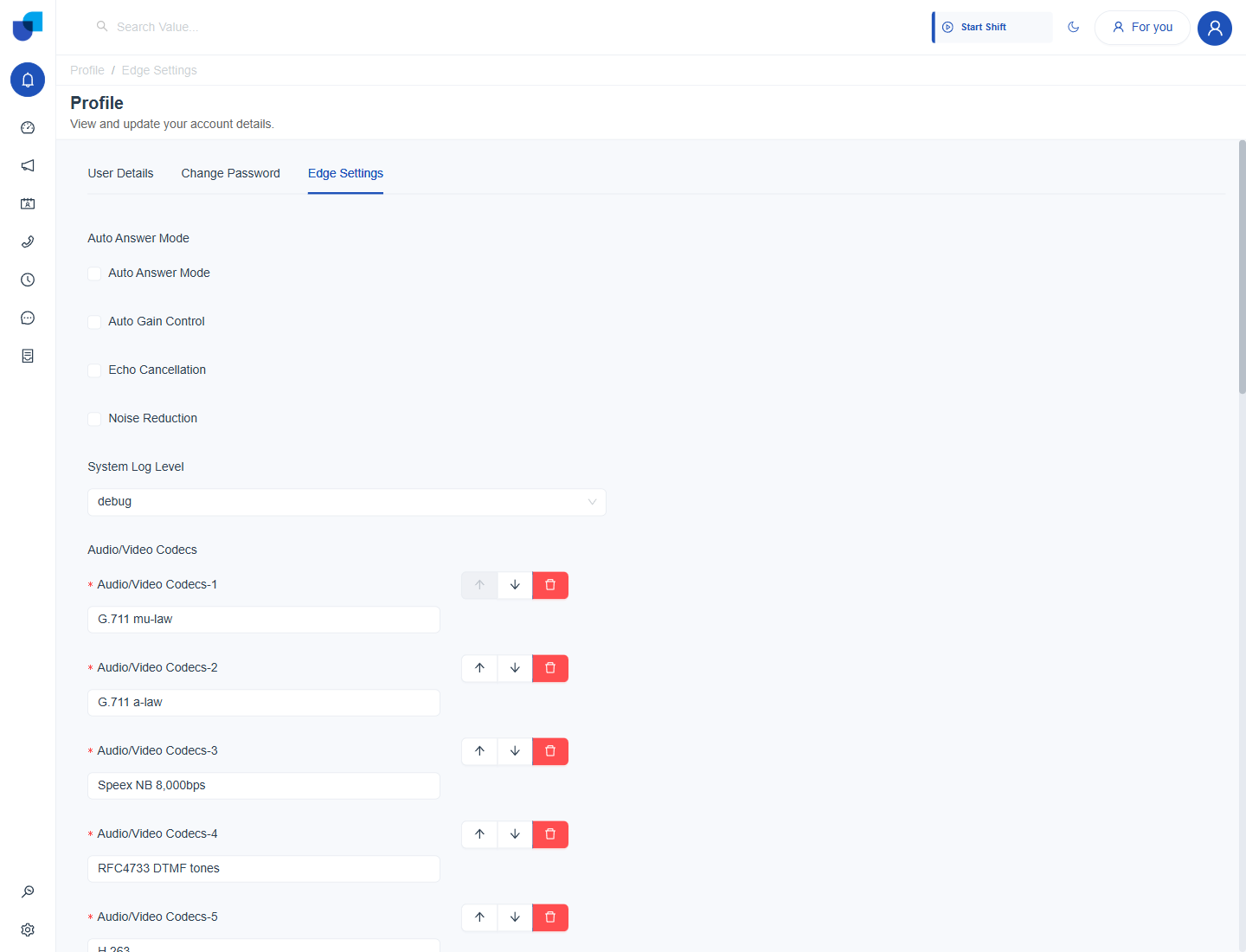
Figure 3. The Edge Settings tab with audio options, the system log level and the first codecs of the ordered list.
| Setting | What it does |
|---|---|
| Auto Answer Mode | Answers incoming calls automatically. |
| Auto Gain Control | Evens out the volume of your microphone. |
| Echo Cancellation | Removes echo from the call. |
| Noise Reduction | Reduces background noise. |
| System Log Level | How much detail the device records. Debug records the most. |
| Audio/Video Codecs | The ordered list of codecs. The first one is tried first. |
- Tick the audio options you want.
- Choose the System Log Level.
- Reorder the codecs with the up and down arrows, or remove one with the red bin.
- Click Save.
Info: Administrators can open the same Edge Settings for any user from the Users page, using the Edge Settings tab beside User Details.