Profile Settings
User Management
The personal options on the User Details tab, and what each one changes. The examples use Alex Morgan.
Phone and Call Options
Open your profile and stay on the User Details tab. The Phone Number field has a country code on the left and the number on the right.
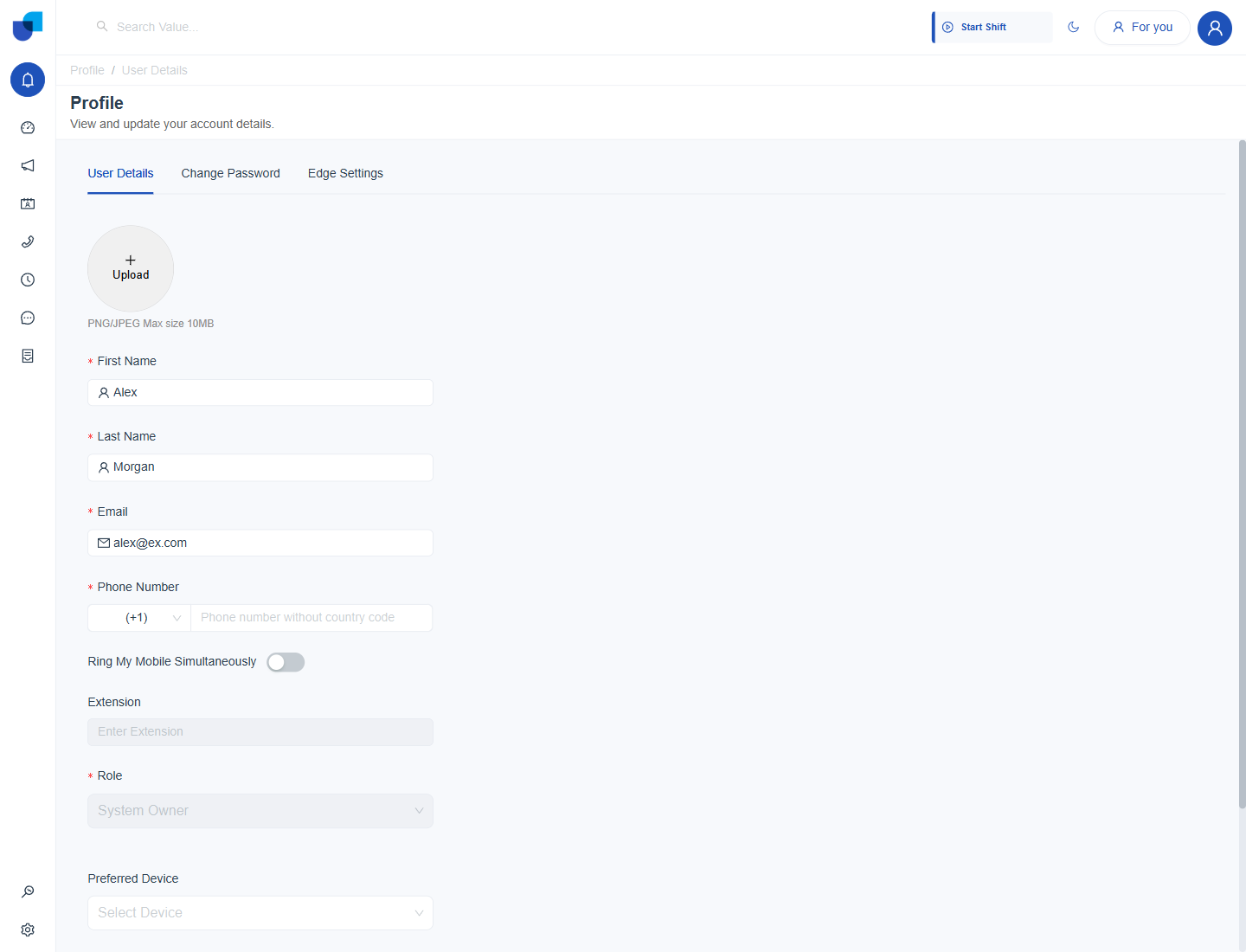
Figure 1. The User Details tab. Phone Number and Ring My Mobile Simultaneously are in the middle of the form.
- Choose the country code.
- Type your mobile number without the country code. The number is checked against the country. A wrong number shows an error message.
- Switch Ring My Mobile Simultaneously on or off. When it is on, incoming calls also ring your mobile phone, together with your usual device.
- Click Save.
Info: Your phone number is also where a one time password is sent when Two Factor Authentication is on. See Two Factor Authentication for Users.
Preferred Device
Preferred Device chooses which of your registered devices should be used first. The list offers the devices connected to your account.
- Open the Preferred Device drop down. It shows Select Device until you choose one.
- Choose a device.
- Click Save.
If the list is empty, no device is registered yet. The page then shows Failed to load user devices when the list cannot be read. Ask an administrator to check your device setup.
Security Options
- Enable 2FA. A tick box under Two Factor Authentication. It appears when your role has the Enable personal 2FA permission.
- Change Password. A separate tab. See User Profile.
Tip: Use the moon icon at the top right of any page to switch between the light and the dark look. Your choice stays on this browser.
Fields You Cannot Change
| Field | Why it is locked | Who changes it |
|---|---|---|
| Extension | It belongs to the telephone system. | An administrator or the sync. |
| Role | It decides your permissions. | An administrator on the Users page. |