Groups
User Management
Organize users into teams. The examples follow one group named Billing Support.
Creating a Group
Open Configuration, User Management, Groups. The list shows each group with its type. Items marked Group are made here. Items marked Queue come from the telephone system and show a queue number. The switch above the list shows All or only active groups.
- Click Create at the top right. The Create Group form opens.
- Check the Group Type. Groups created here have the type Group.
- Enter the Group Name. For example Billing Support.
- Choose the Status. Active makes the group usable. Inactive keeps it saved but not in use. A new group starts as inactive.
- Add the users. The next section explains the steps.
- Click Save.
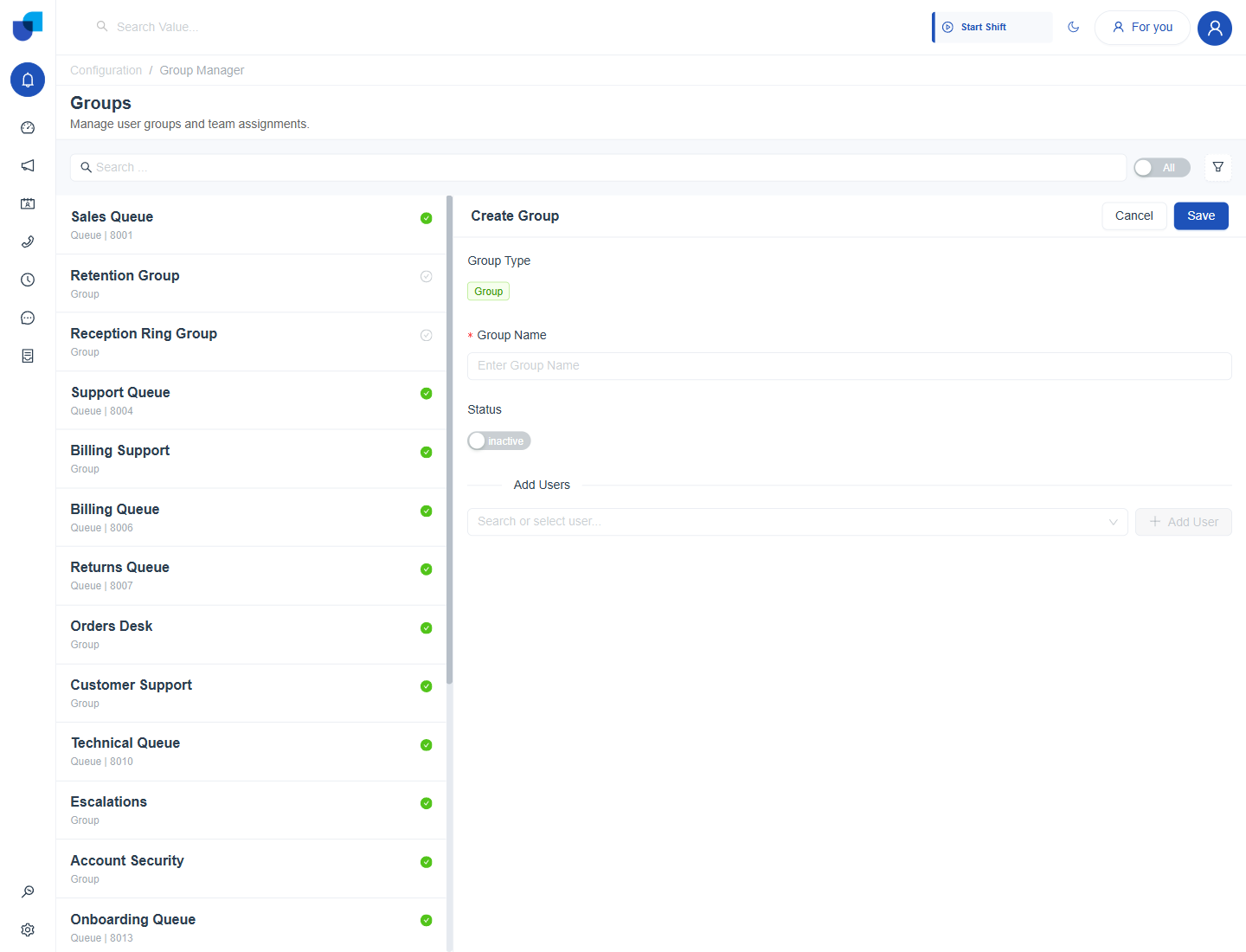
Figure 1. The Create Group form. The Group Name is empty and the Status starts as inactive.
Tip: Name groups after the work the team does, such as Billing Support, not after a manager. The name appears in filters and reports.
Adding and Removing Users
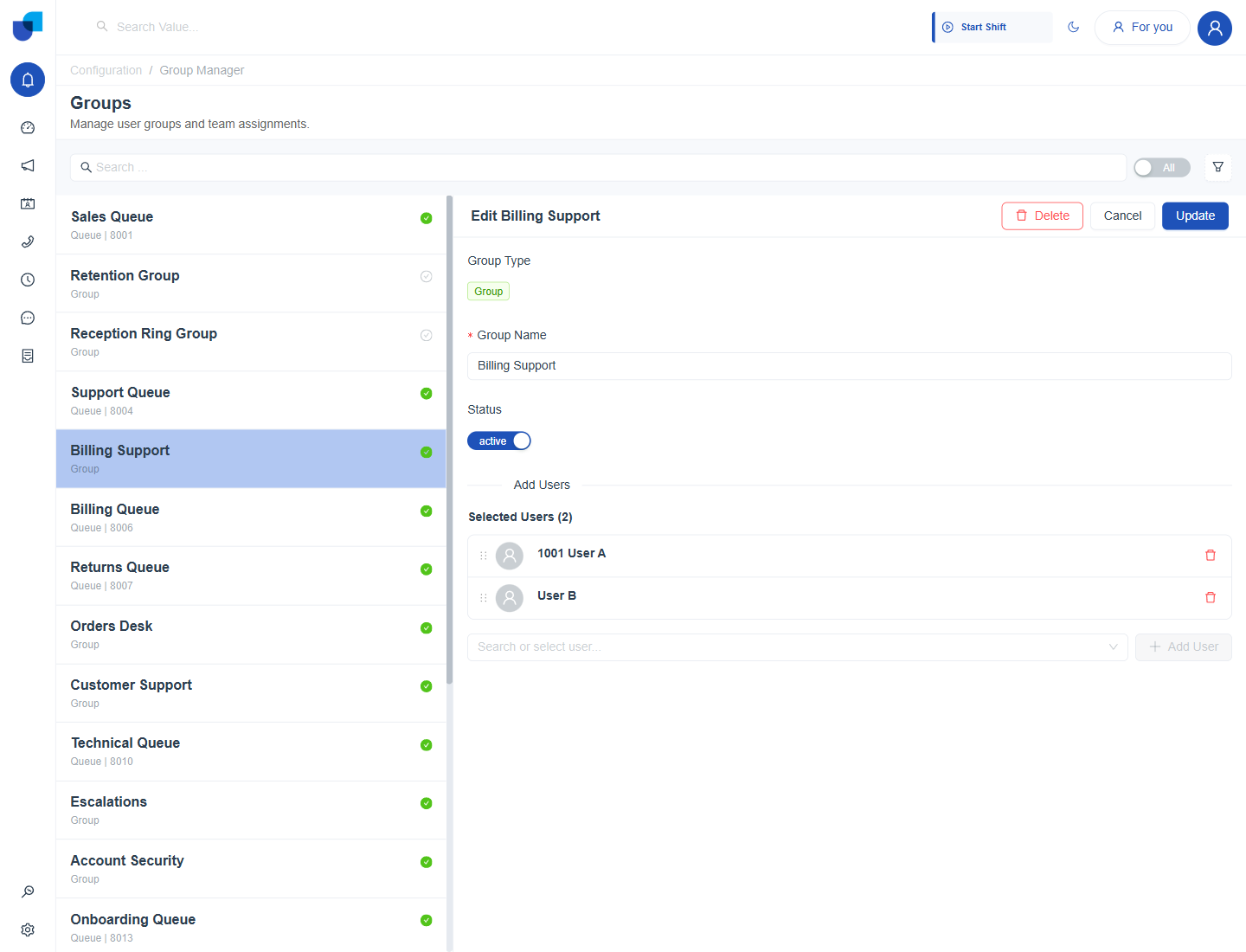
Figure 2. The Edit form of the Billing Support group, with two selected users and the Add User control below them.
Add a user
- Open the group and look under Add Users. Selected Users shows how many members the group has.
- Click the box Search or select user.
- Type part of the name or scroll the list. The list loads more names as you scroll.
- Choose the person and click Add User.
- Click Update to save the group.
Remove a user
- Find the person in the Selected Users list.
- Click the red bin icon at the right of the row.
- Click Update.
- Order. The dotted handle at the left of a row lets you drag a member to a new place in the list.
- Duplicates. A person can appear once. If the list contains a repeat, the page asks you to remove the repeated user.
- Queues. Queue items come from the telephone system and are listed here for reference.
Deleting a Group
- Select the group and click Delete.
- Read the question. It says Are you sure you want to delete this group? This action cannot be undone.
- Click Yes, Delete.
Important: Deleting a group removes the team structure used by Group scope in roles and by group based reports. If you only want to pause a group, set its Status to inactive instead.
To see how groups drive monitoring, read Group Management in the Workforce guides.