User Activity Logs
User Management
See what a person did during each shift. The example shows User B.
Open a User's Activity Logs
- Open the Workforce Monitor.
- Find the person in the list.
- Click the clock button in the Actions column. A panel opens on the right with the title Activity Logs and the person's name.
- Click the cross at the top left of the panel to close it.
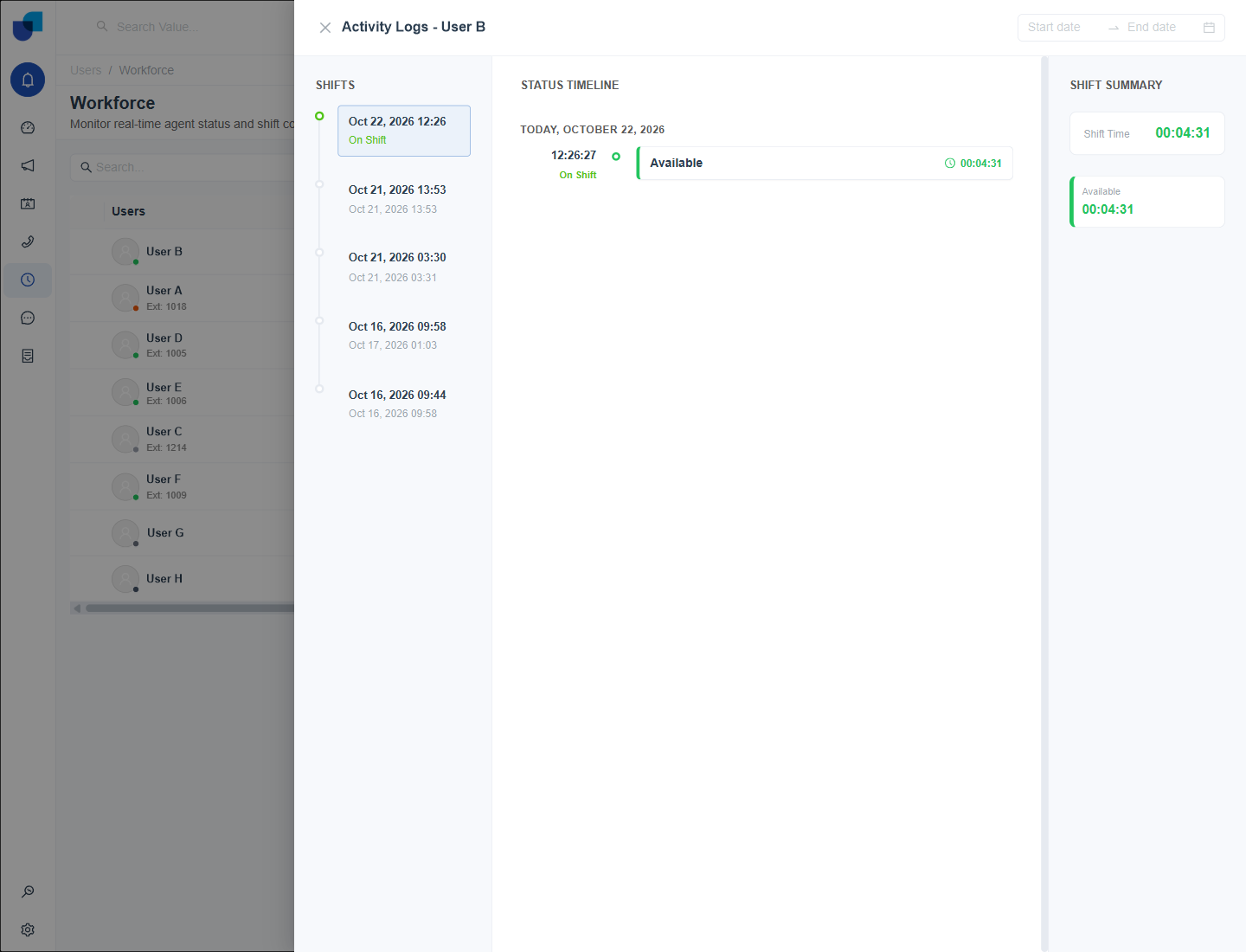
Figure 1. The Activity Logs panel for User B, with the shifts, a status timeline and a shift summary.
Reading the Panels
| Panel | What it shows |
|---|---|
| Shifts | Each shift with its start and end time. The current shift is marked On Shift in green. |
| Status Timeline | The statuses of the selected shift in order, with the time each began and how long it lasted. |
| Shift Summary | The total Shift Time and the time spent in each status. |
- Choose a shift on the left.
- Read the timeline in the middle. Each row has a time, a status name and a duration.
- Check the summary on the right.
When a person has no shifts in the chosen range, the panel says No shifts found. When a shift has no recorded statuses, it says No shift status data is available.
Filtering
- Start date and End date. At the top right of the panel. They limit the shifts listed. Clear them to see every shift.
Info: This panel is described in more detail, with examples for supervisors, in Activity Logs of the Workforce guides.
Other Records of Activity
- Audit Logs. Under Monitoring, Audit Logs, a trail of changes made in the platform, limited by the scope of your role.
- Active Sessions. Under Monitoring, Active Sessions. See Managing Sessions.