Customer Verification
Let the agent know whose data it is handling.
What Verification Does
Verification identifies the person interacting with the agent, so the agent knows whose data it is handling. It is available for Chat and Voice agents only. The Verification tab appears after the first save.
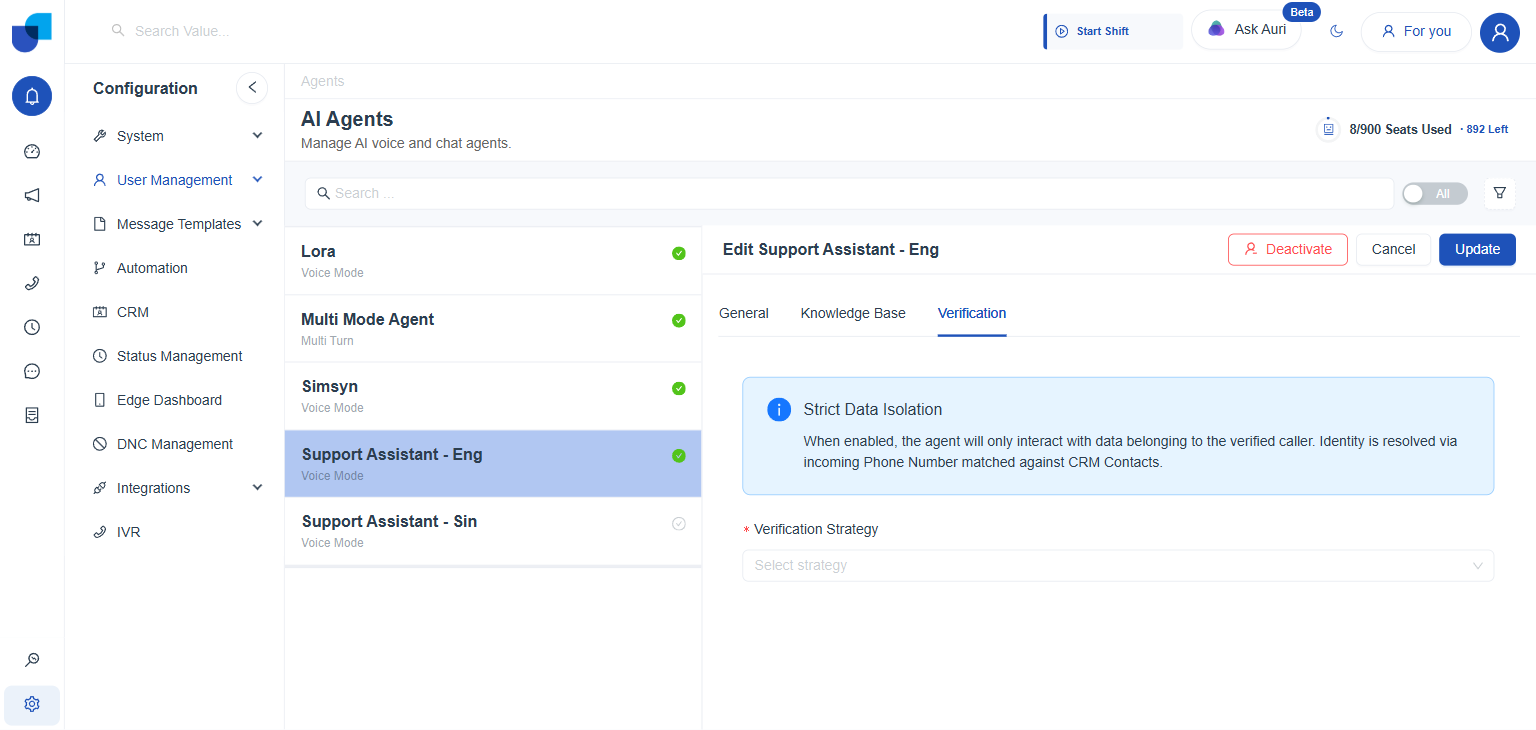
Figure 1. The Verification tab of Support Assistant, showing the Strict Data Isolation notice and the Verification Strategy field.
Verification Strategies
| Strategy | What it does |
|---|---|
| None (Public Access) | No identity check. The agent has no automatic link to a CRM record. |
| Phone Number Verification (CRM Lookup) | Matches the incoming phone number against the selected Customer Identification Modules, so the agent knows which Contact it is talking to without asking. |
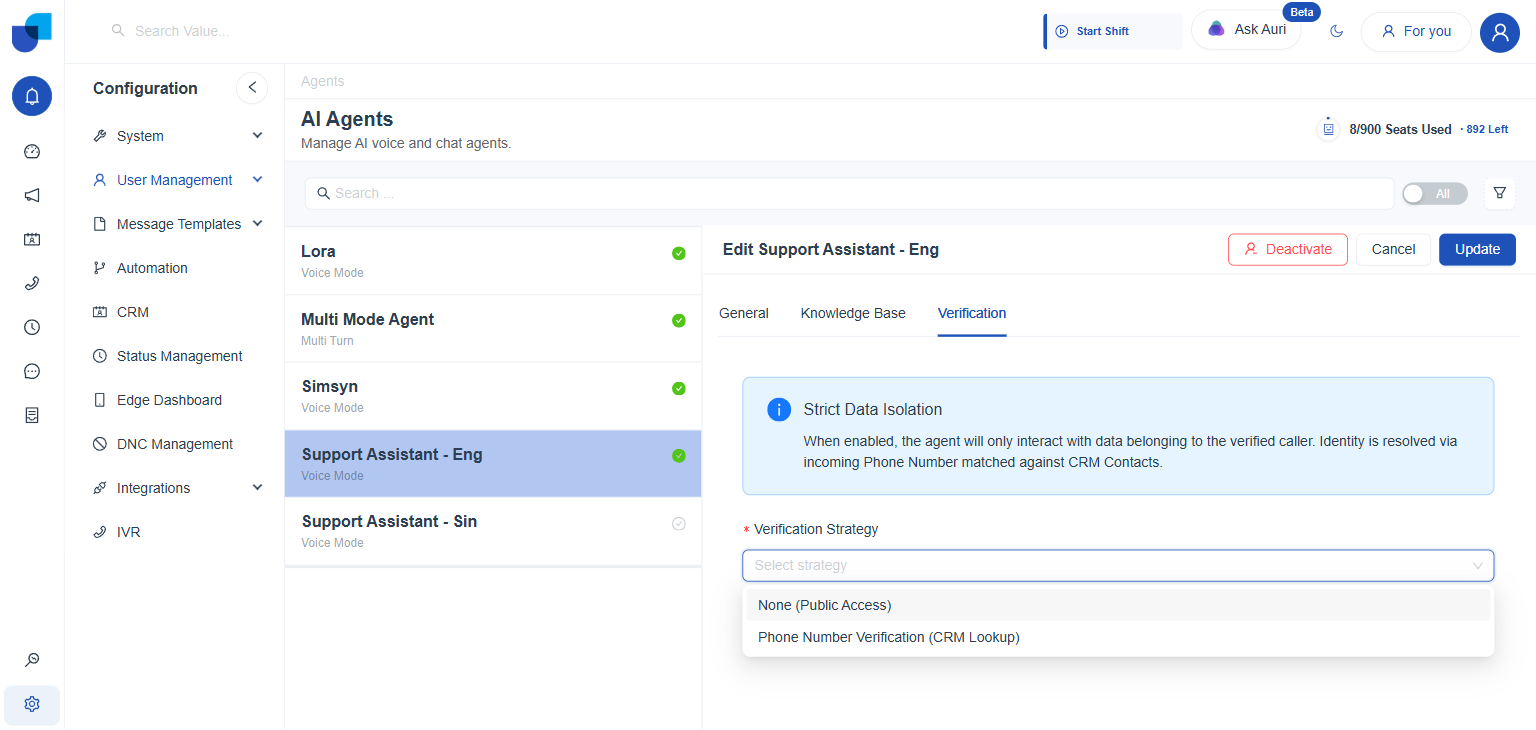
Figure 2. The Verification Strategy list, open to show both options.
Verification Settings
| Setting | What it does |
|---|---|
| Verification Strategy | Sets how the agent identifies the customer. With Phone Number Verification, select the Customer Identification Modules used to find the customer. |
| Strict Data Isolation | When enabled, the agent only interacts with data belonging to the identified caller. Identity is resolved by matching the incoming phone number against the selected module. |
| Verification Fallback | Sets what happens when no matching customer is found. The agent either transfers the caller to a person or creates a new record in the selected module. |
| Human Transfer Number | The number or extension the caller is sent to when the fallback is a transfer. |
| Use the most recent record | When duplicate records match the number, the agent uses the most recent one. |
Strict Data Isolation is only as reliable as the match behind it. It depends on the incoming phone number matching a record in the selected module, so each customer's number needs to be stored on that record.
Configure It for Support Assistant
- Open the Verification tab and choose Phone Number Verification (CRM Lookup).
- Select the Customer Identification Modules. Choose the module that holds customer phone numbers, such as Contacts.
- Choose a Verification Fallback. Either transfer to a person or create a new record in the selected module.
- Enter a Human Transfer Number if the fallback is a transfer.
- Tick the most recent record option if duplicates are possible, then click Update.
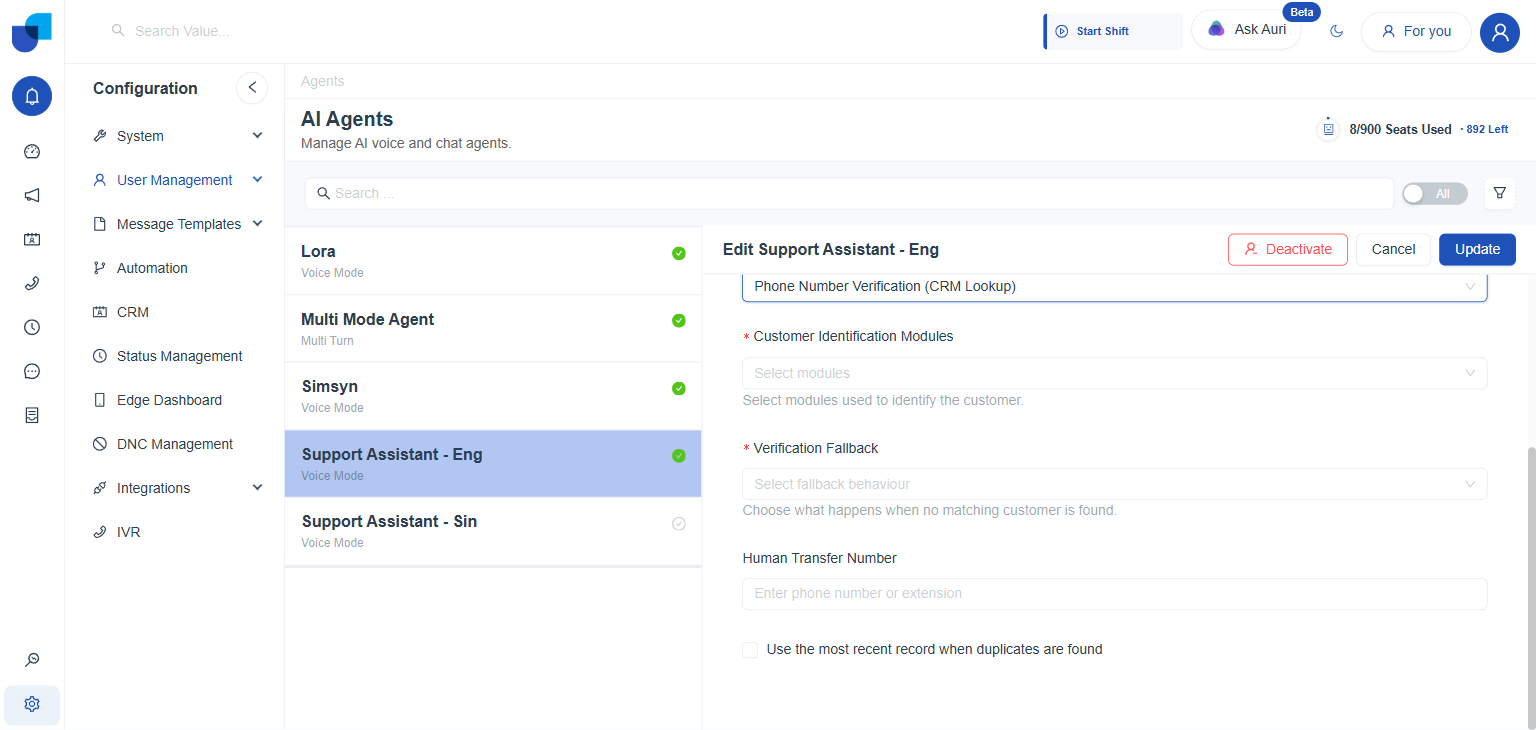
Figure 3. The settings that appear once Phone Number Verification is selected.
Customer Identification Modules and Verification Fallback are required once Phone Number Verification is selected. The agent cannot be saved with either of them empty.