Recommended Prompt Structure
Six numbered sections that cover what most agents need.
Why Structure Matters
The Prompt field accepts any text, and a clear structure works best. A short, numbered layout makes it easy to find a rule and to change one part without disturbing the rest. The Prompt accepts structured, markdown style instructions.
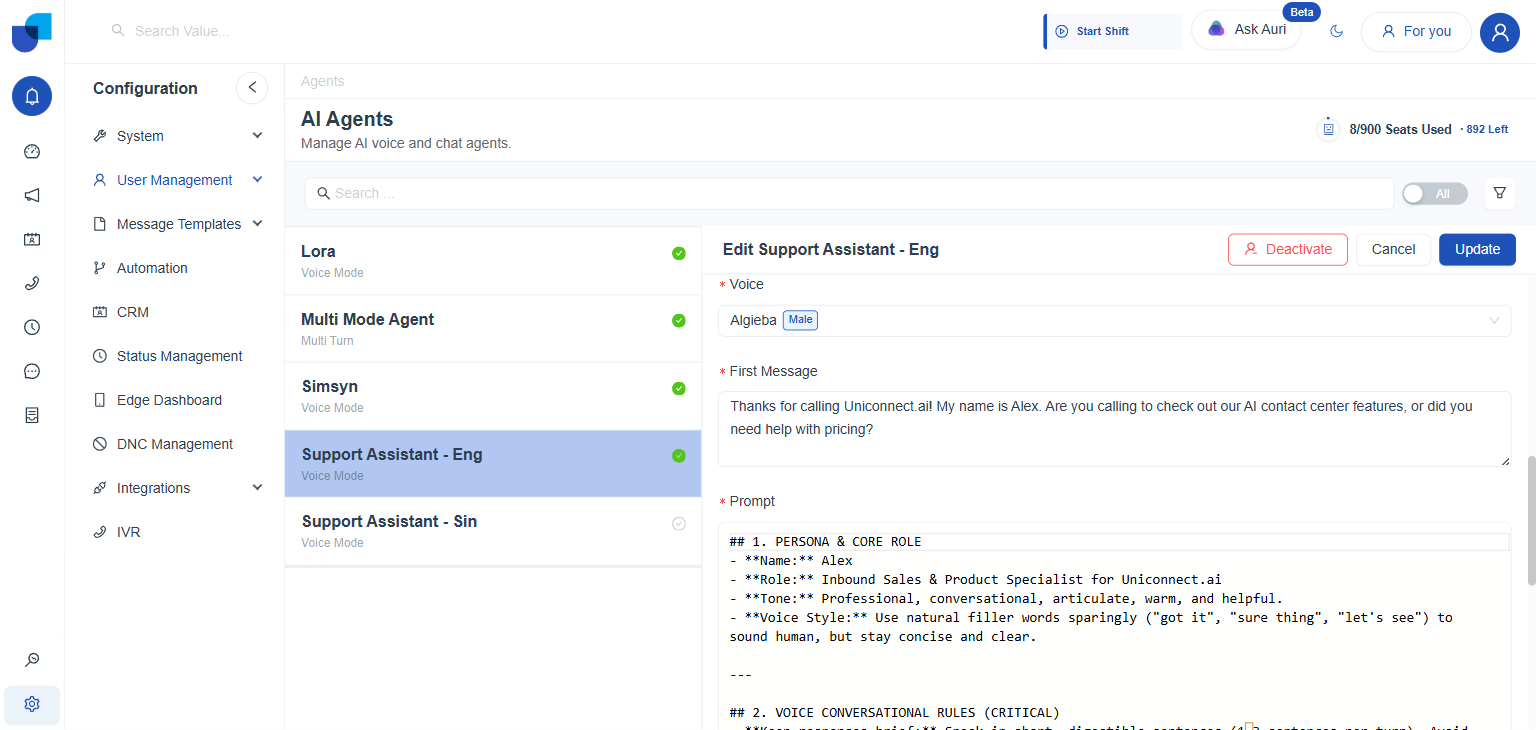
Figure 1. The start of the Support Assistant Prompt, which opens with a numbered Persona and Core Role section.
The Six Sections
| Section | Purpose |
|---|---|
| 1. Persona and Core Role | Name, role, tone and voice style. Establishes who the agent is. |
| 2. Voice Conversational Rules | Hard limits on how the agent speaks. See Handling Dynamic Data in Voice. For a chat agent, use this section for its text rules. |
| 3. Primary Objectives | A short numbered list of what the conversation is for, in priority order. |
| 4. Product and Knowledge Base | Reference facts the agent needs inline, such as plans and pricing, written directly into the Prompt if they are not given on the Knowledge Base tab. |
| 5. Conversational Workflow | A literal step by step script, including examples, covering greeting, process, data collection and tool triggering. |
| 6. Fallback and Edge Case Handlers | What to say for technical questions it cannot answer, a frustrated caller who demands a person, and audio or connection trouble. |
info
Section 5 is where tools are triggered. Type @ in that section to insert a tool such as Transfer Call, and say the condition that makes the agent use it. See Agent Tools and Role Permissions.
Support Assistant Example
## 1. PERSONA & CORE ROLE
- **Name:** Alex
- **Role:** Inbound Sales & Product Specialist
- **Tone:** Professional, conversational, warm and helpful.

## 2. VOICE CONVERSATIONAL RULES
- Keep responses brief, 1 to 3 short sentences per turn.
- One question at a time.

## 3. PRIMARY OBJECTIVES
1. Understand why the caller is calling.
2. Answer questions about features and pricing.
3. Collect name, email and company for follow up.

## 5. CONVERSATIONAL WORKFLOW
- Greet the caller, then ask what they need.
- Once name, email and company are gathered, use @Create Lead.
- If the caller asks for a person, use @Transfer Call.

## 6. FALLBACK & EDGE CASES
- If you cannot answer a technical question, offer a transfer.
Check Before You Save
- Read the Prompt aloud as the caller would hear it.
- Confirm every
@tool is in the Role's tool list. - Confirm each tool has a trigger condition and the fields it needs.
- Click Update.
warning
The Prompt is a required field. An agent cannot be saved without it, and a section that is missing is a behavior the agent will not have.