Permissions
Two independent layers. A single role level toggle gates building. Per item Share grants gate viewing any one dashboard or report.
Layer 1: the Role-Level Gate
- Go to Configuration, then User Management, then Roles.
- Select any role, for example Supervisor. Its Permissions list groups toggles by category: AI Configuration, Automations, Campaign, CRM Configuration, Groups, Messaging, Reports Configuration, System Configuration, Telephony, Users, Workforce Management, and CRM Modules.
- Expand Reports Configuration by clicking its row.
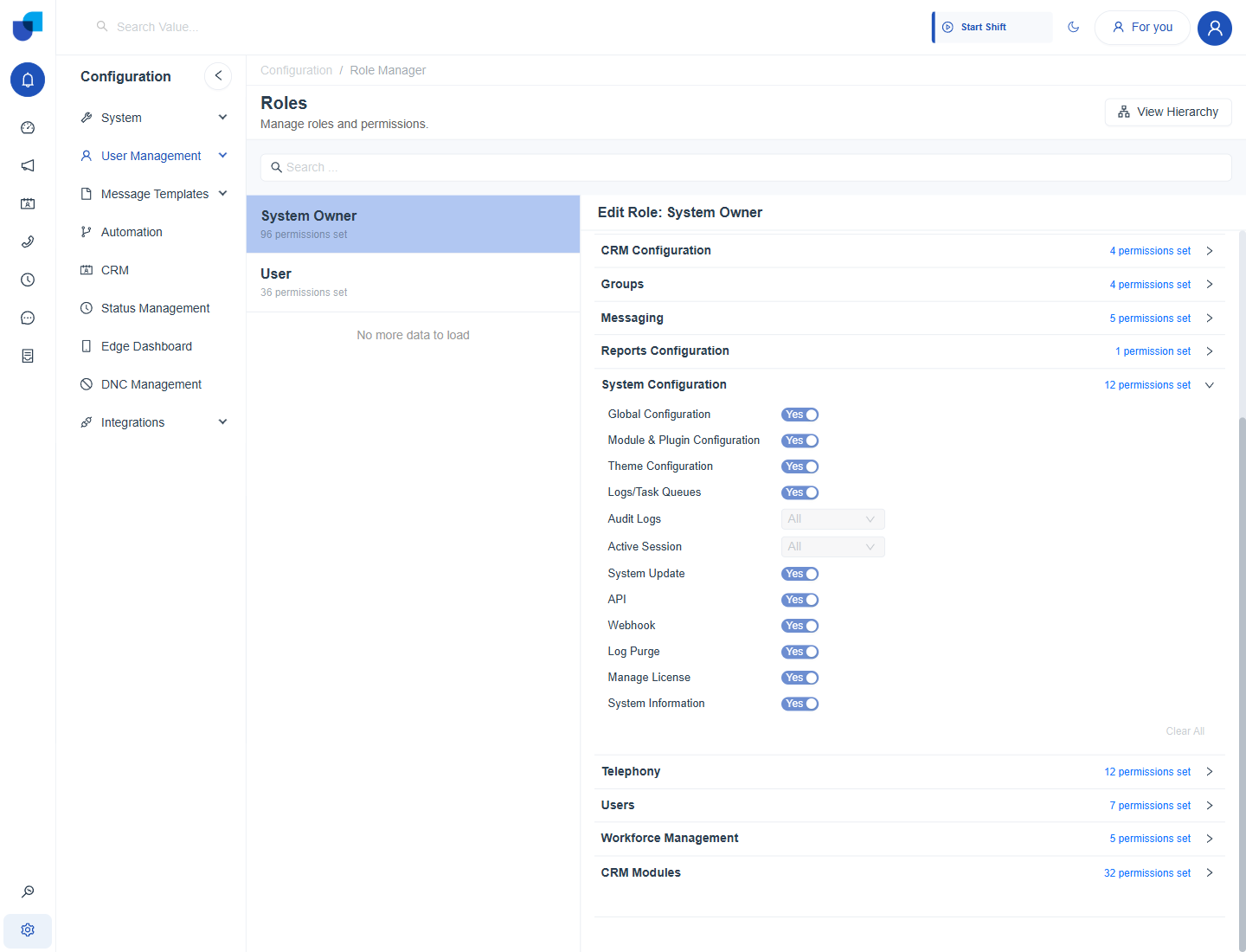
Figure 1. Role Manager: Supervisor's permission categories, including Reports Configuration with one permission set.
Reports Configuration contains exactly one toggle:
Figure 2. Reports Configuration expanded: a single Configure Reports, Yes or No toggle.
| Permission | What It Gates |
|---|---|
| Configure Reports | Whether members of this role can open the Dashboards and Reports Builder at all. This single toggle controls creating, editing, or deleting any dashboard or report, adding widgets of any of the eleven types, writing calculated fields, and configuring Blended Data Source joins. |
This is an all or nothing switch per role. It does not distinguish between building dashboards and building reports, and it does not offer any per widget type restriction. If a role has it enabled, every member of that role can do everything described across this entire Reporting & Dashboard section.
Layer 2: Per-Item Sharing
Having the Configure Reports permission lets someone build. It says nothing about who can see a specific dashboard or report once it is built. That is governed per item by the Share dialog, documented fully in Sharing, Duplicating & Publishing Dashboards.
- Grant access to a User, Group, or Role individually, through that item's own Share dialog. Team Dashboard's Share dialog offers exactly these three grantee types in its dropdown.
- Every grantee shows under People with access, with the item's creator always listed first as Owner. On Team Dashboard, that is its creator, listed alone, with one person having access.
- General access is fixed to restricted. There is no org wide or public link option. Only explicitly listed grantees can open the item, regardless of its Hidden or Published state. The General access dropdown is greyed out, and the dialog reads "Only people with access can open with the link."
| Layer | Scope | Where to Set It |
|---|---|---|
| Configure Reports, a role toggle | Can this role use the Builder at all, for every dashboard and report in the system | Configuration, User Management, Roles |
| Share, per item | Who specifically can open this one dashboard or report | The Share button on the item itself |
| Visibility, Hidden or Published, per item | Is this item visible to end users at all, independent of who has been individually shared on it | The Edit Details tab on the item itself |
All three layers are additive, not redundant. A dashboard can be Published and shared with a user, but if that user's role lacks Configure Reports, they can still only view it, not edit it. Conversely, a role with Configure Reports enabled can still be locked out of one specific item simply by not being added to that item's Share list.