Filters
Filtering exists at two levels: inside one widget's own Configure panel, and as a global filter group that applies across every widget on the page at once.
Per-Widget Filters
- Select a widget, then drag a field onto its own Filters drop zone. The zone's placeholder text reads, verbatim, "Drag a field or cube here to add a filter. (Calculated fields not supported.)"
- Once a field lands there, it becomes a row with an operator dropdown, defaulting to Equals, and a Select value picker. For example, dragging Case Status onto Team Dashboard's Table widget produced exactly this row.
This scopes just that one widget. It is the right level to use when one dashboard shows several widgets, each looking at a different slice of the same data, for example one widget scoped to Fraud Alert cases and another scoped to Card Dispute cases on the same page.
Promoting a Filter to Global
Every filter row in a widget's Filters list carries its own Show in Global Filter checkbox, directly beneath the value picker, alongside Multi-select and an Edit in Widget link. Ticking it is what actually promotes that filter: Team Dashboard's Case Status filter appeared in the global Filter Group the moment the checkbox was ticked, with no drag step involved.
Global Filters, the FILTERS Tab
- In the right hand panel, next to WIDGETS, click the FILTERS tab.
- Before anything is promoted, it opens on an empty New Filter Group panel with guidance reading "First add filters in the widget filter panel, then drag them here to make them global."
- Once a filter is promoted, its row appears here too, with its own Equals operator, Select value picker, and two checkboxes: Mandatory and Set Default.
- A Clear Applied button resets every global filter in one action, without touching any widget level filter underneath it.
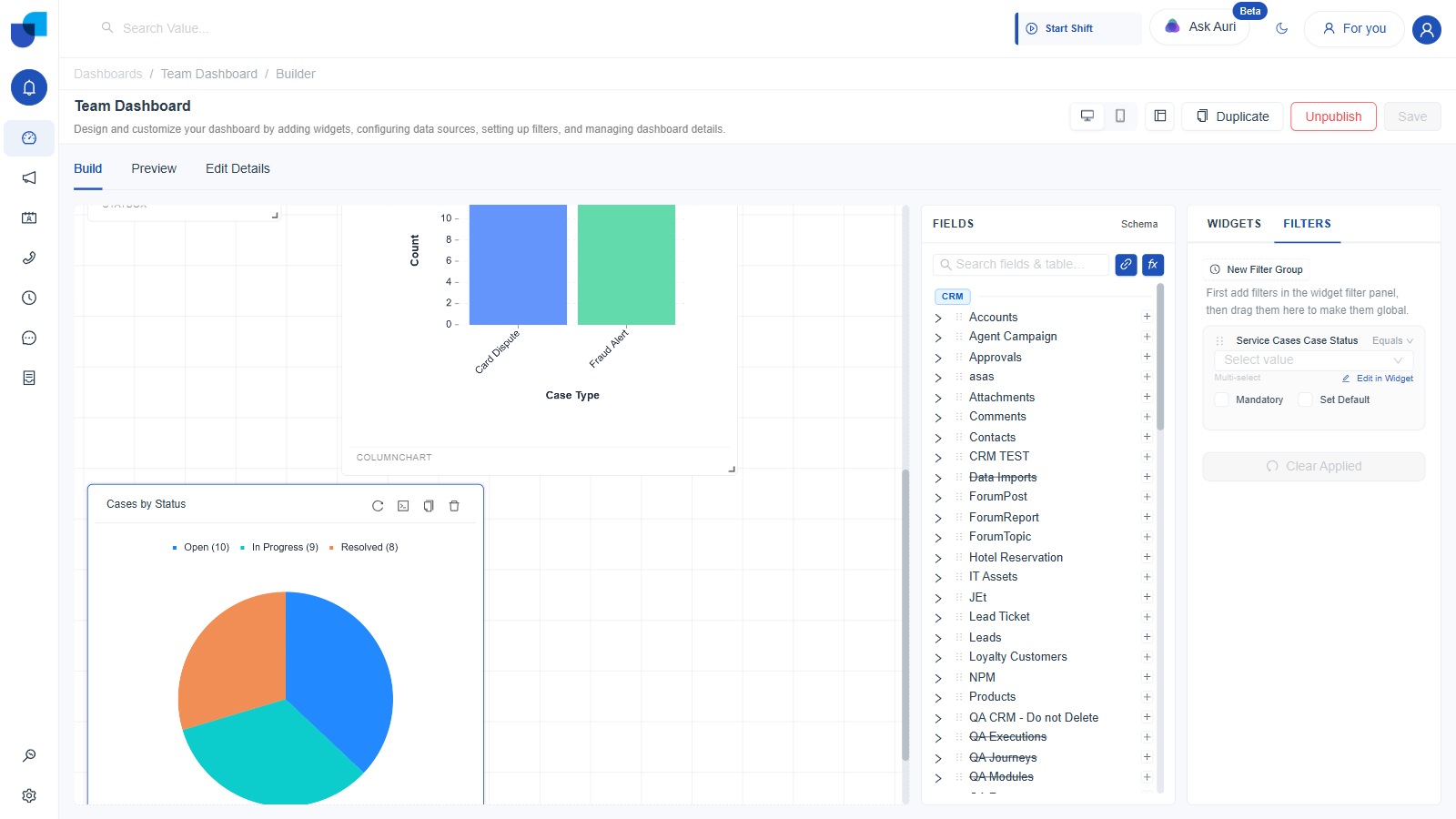
Figure 1. The FILTERS tab on Team Dashboard, after promoting Case Status: the same field, now with Mandatory and Set Default checkboxes alongside it.
The FILTERS tab's own placeholder text still describes dragging a filter in to make it global. That text does not match what actually promotes a filter: it is the widget-side Show in Global Filter checkbox. The FILTERS tab is where a promoted filter is reviewed and given its Mandatory or Set Default behavior, not where the promotion itself happens.
What the Viewer Actually Sees
A filter added directly in a widget's Configure panel affects only that widget and never reaches the consumer view as a control. The same filter, promoted to global, shows up as a real Filters button on the consumer view, not just something baked in by the builder. Team Dashboard's consumer view then carries a Filters button of its own. Clicking it opens a flyout showing exactly the promoted field, Service Cases Case Status, with its Equals operator and a Select value dropdown a viewer can actually use.
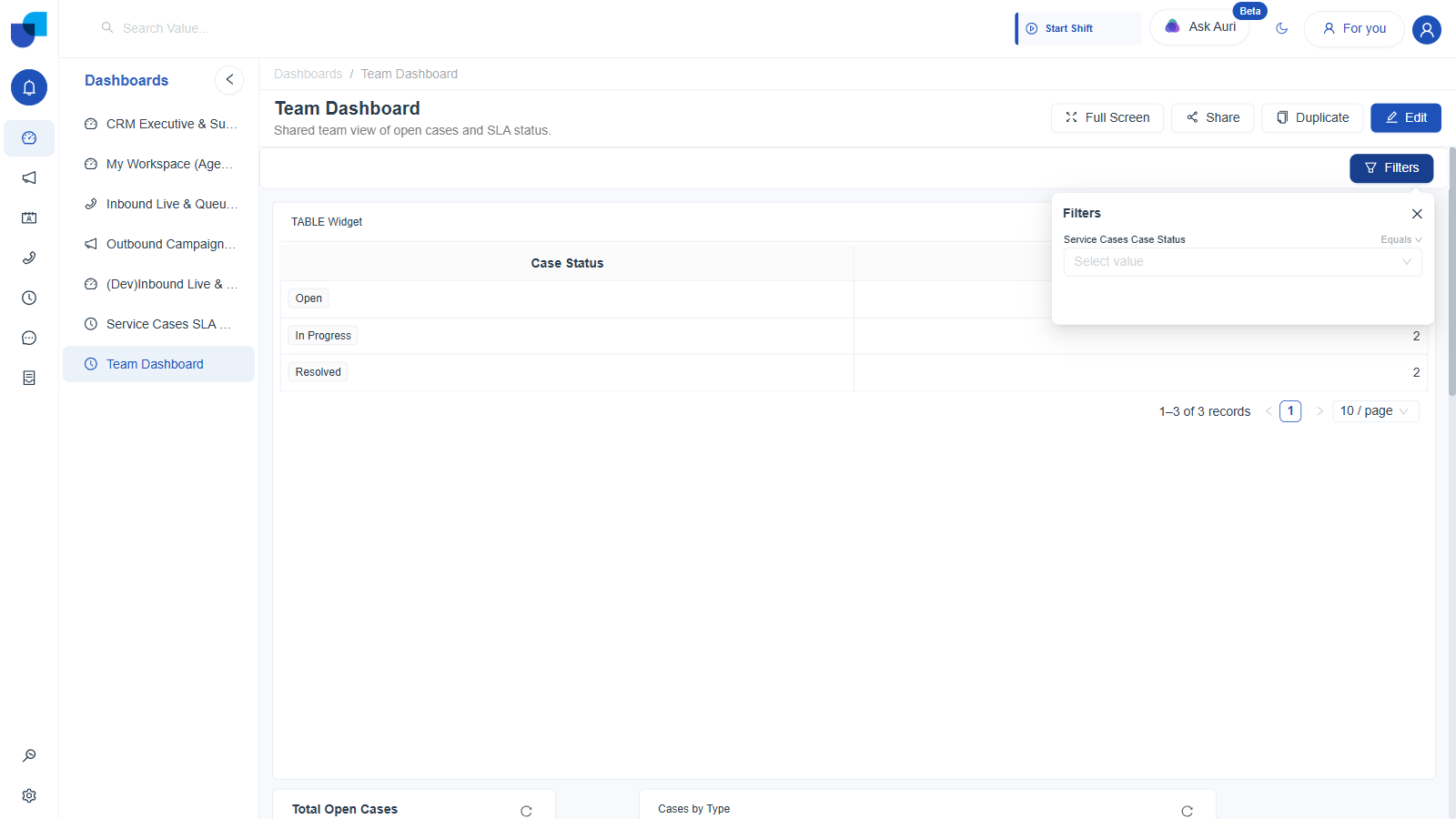
Figure 2. The global Filter Group as a viewer actually sees it, on Team Dashboard's own consumer view: a Filters button opening to the Case Status filter promoted above.
The Restriction That Carries Over From Columns
Both filter surfaces explicitly exclude calculated fields. The Filters drop zone says so directly in its placeholder text, and the Sorting drop zone carries the same restriction as part of its own label, reading "Sorting (calculated fields not supported)." If you need to filter by a derived value, build the underlying logic as a plain dimension on the source field instead, or apply the filter upstream of wherever the calculation happens.
| Situation | Use |
|---|---|
| One widget needs to show a narrower slice than the rest of the page | That widget's own Filters drop zone, leaving Show in Global Filter unticked |
| The whole dashboard or report should respond to one shared control, for example a date range or a service line picker | Add the filter to a widget, then tick its Show in Global Filter checkbox |
| The global filter should always require a value, or ship with one preselected | The Mandatory or Set Default checkbox, in the FILTERS tab, once the filter is already promoted |
| Need to reset every applied filter at once, without rebuilding each one | The Clear Applied button in the FILTERS tab |
| Need to filter by a calculated field's result | Not supported directly. Filter on the underlying raw field instead |