Joins & Calculated Fields
Two separate mechanisms, both reached from the FIELDS panel toolbar. The link icon blends a second module into one widget. The fx icon adds a custom calculated field. This page covers what each one does, including what happens when something goes wrong, not just the happy path.
Blending a Second Data Source, Joins
- With a widget selected in Team Report's Builder, click the link icon above the FIELDS search box. A BLENDED DATA SOURCE panel opens between FIELDS and the widget's own configuration panel.
- Give it a Blended Source Name, for example "Agent Activity & Calls."
- Source 1 and Source 2 each get their own Fields drop zone and their own Filters drop zone. Drag dimensions or measures from the FIELDS panel into either source independently of the other.
- Click Add Source in the panel header to add a third, or further, sub query.
- Set the Join Relationships control at the bottom of the panel. Left Join is one of the available options, and the default when the panel first opens.
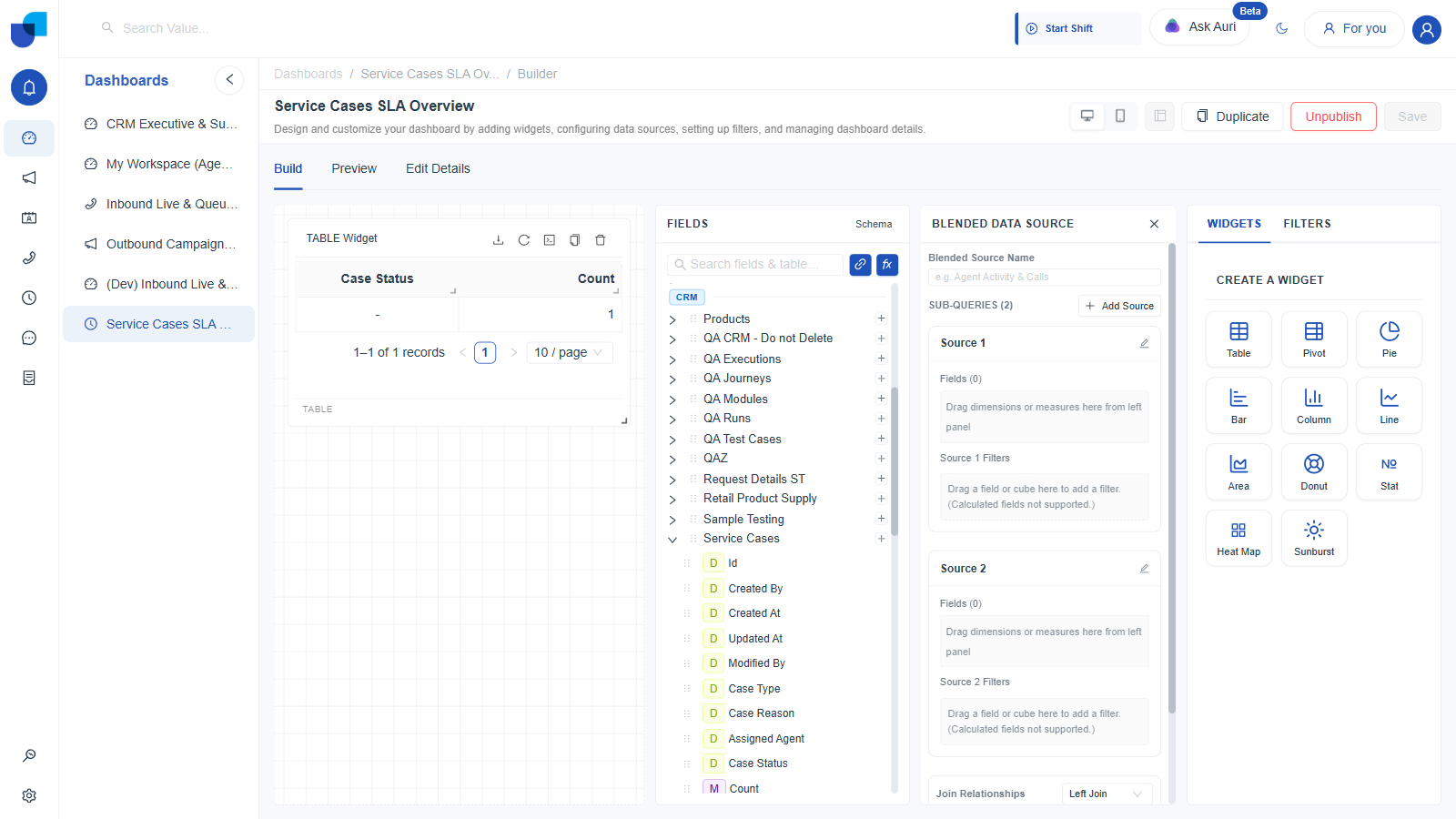
Figure 1. Blended Data Source panel, opened from Team Report's Builder: two sub queries, Source 1 and Source 2, each with its own Fields and Filters, joined through a configurable Join Relationship defaulting to Left Join.
This is the mechanism behind the single module restriction described in Data Fields & Schema. A plain widget is single source by design, so that dragging a second module's field in normally greys everything else out. Blending is the explicit, opt in way to combine two modules in one widget.
Calculated Fields, the fx Icon
- Click the fx icon next to the link icon, from Team Report's Builder. A New Calculated Measure dialog opens, retitled to New Calculated Dimension the moment you switch the type card below.
- Pick a type card: Dimension, described as "Row-level attribute, text combination, category, or date," or Measure, described as "Aggregated numeric metric, KPI, sum, count, or ratio."
- Set a required Field Name and Display Format, for example Number for a Measure or String for a Dimension, plus an optional Description.
- Build the logic in one of two or three tabs, depending on the type card: Formula, a visual builder of nested functions, Code, a raw formula editor, and, Measure only, Filter, a filtered count builder.
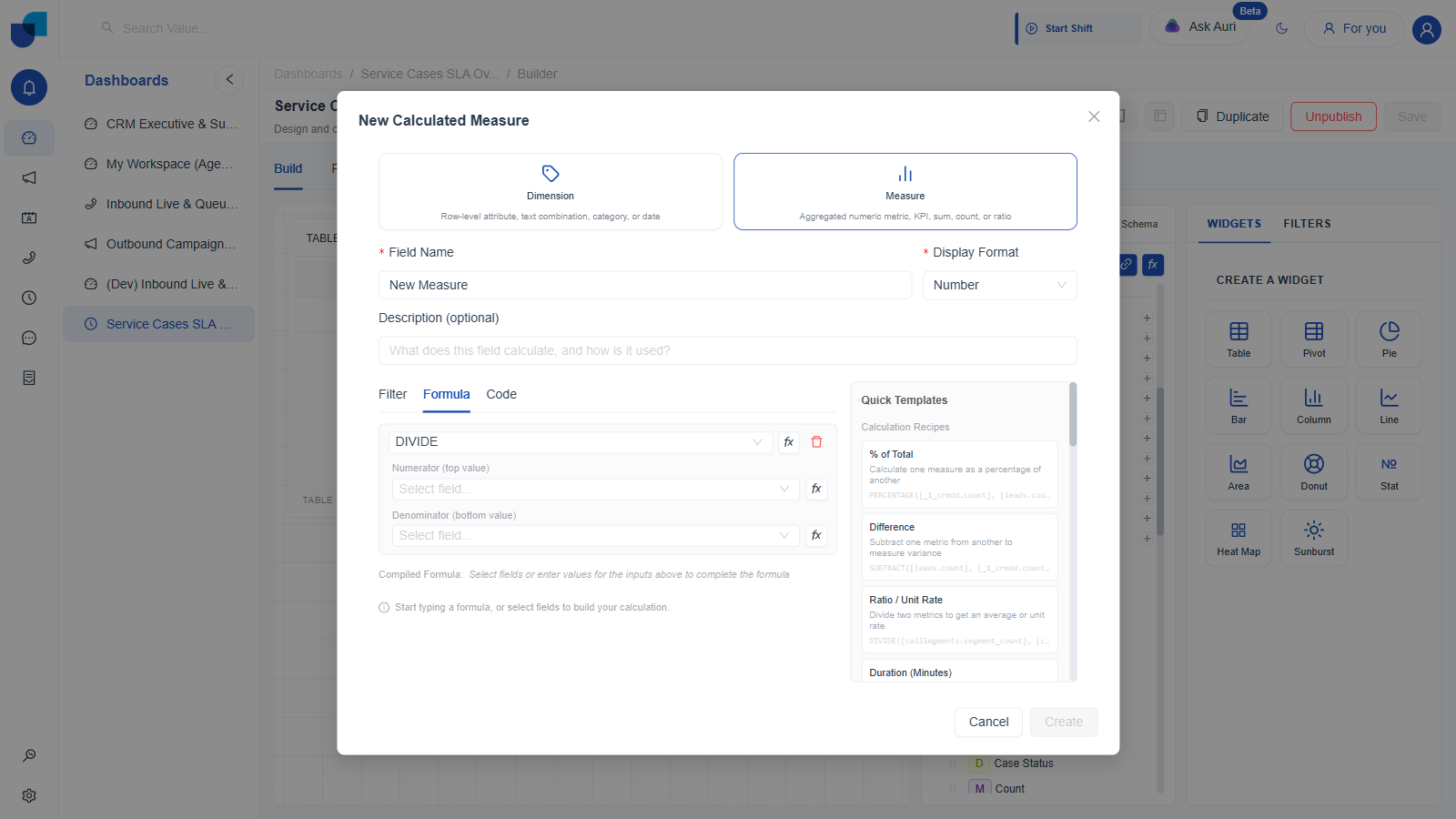
Figure 2. New Calculated Measure, opened from Team Report: type cards, Field Name and Display Format, and the Formula tab's visual DIVIDE builder with a Quick Templates sidebar of Calculation Recipes.
This dialog has been redesigned since this page was first written. The older "Add Custom Field" dialog, with a single Monaco Expression editor and no autocomplete, no longer appears anywhere in the Widget Builder. Everything below reflects the current version of the dialog.
Formula Tab: Building Without Writing Syntax
The Formula tab opens on a function picker, DIVIDE by default, with one input row per argument, each a Select field dropdown plus its own small fx button for nesting another function inside that argument. A Compiled Formula line underneath shows the real expression as you build it. The Quick Templates sidebar on the right offers ready made Calculation Recipes, such as % of Total, Difference, and Ratio / Unit Rate for a Measure, or Combine Text, Conditional Category, and Fallback Default for a Dimension, each with a one line description and a preview of the formula it inserts.
Code Tab: Formula Code With Real Autocomplete
- Click the Code tab. A Formula Code box opens, still a Monaco based editor, with its own tip reading "Type
[to trigger field suggestions, or start typing function names (e.g. SUM, CONCAT)." - Type a literal
[, then keep typing a module name. Typing[servicecasestriggers a real, working suggestion dropdown includingcrmServiceCases.caseStatus,crmServiceCases.caseType,crmServiceCases.caseReason,crmServiceCases.count, and every other field on the module, each labeled with its plain English name and source module. - Selecting a suggestion, or finishing a valid reference, closes the bracket automatically and a green Formula is valid and ready banner appears beneath the editor, enabling the Create button.
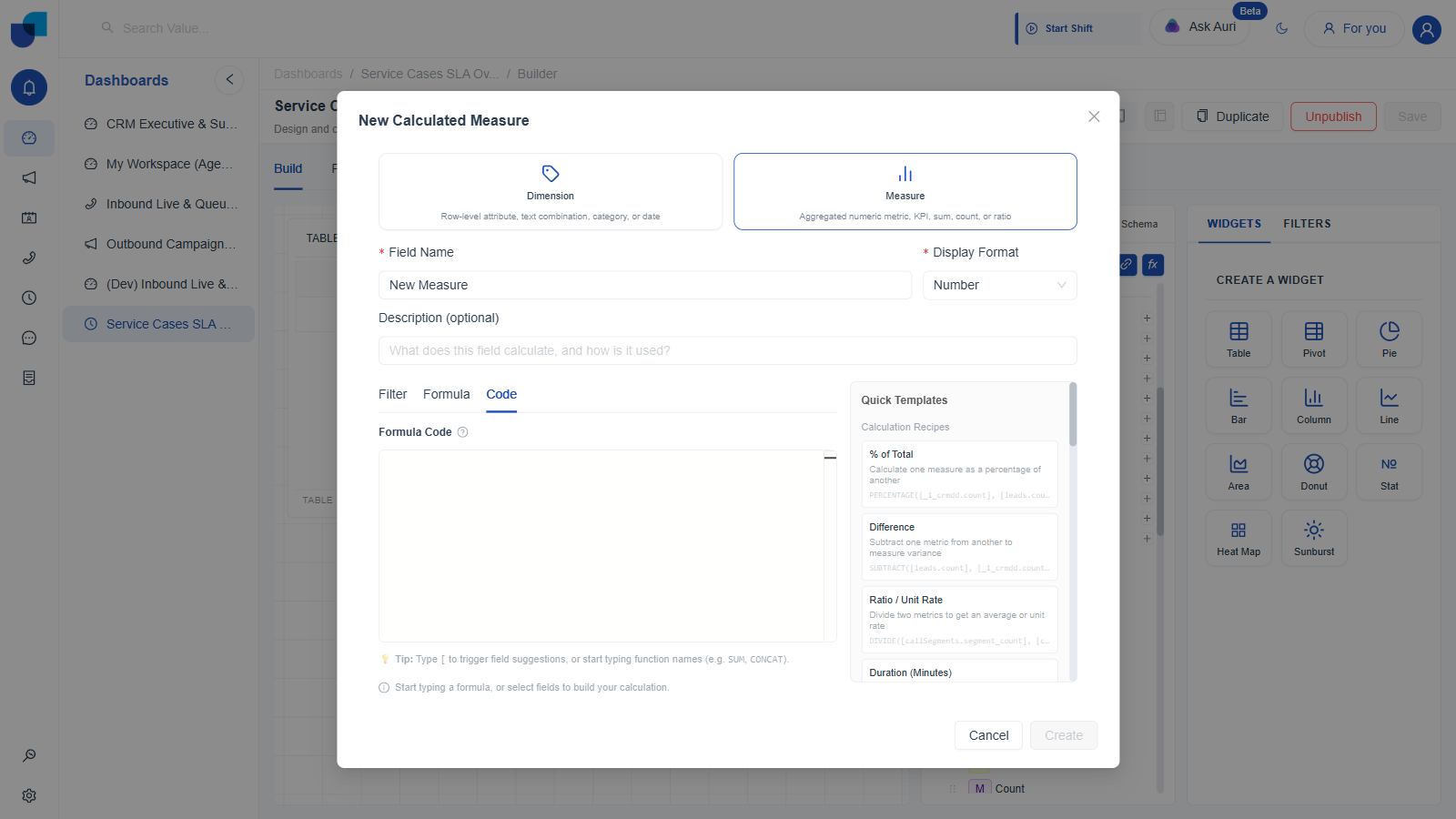
Figure 3. The Code tab before typing, on Team Report's Builder: the Formula Code box's own tip documents the bracket trigger directly in the UI.
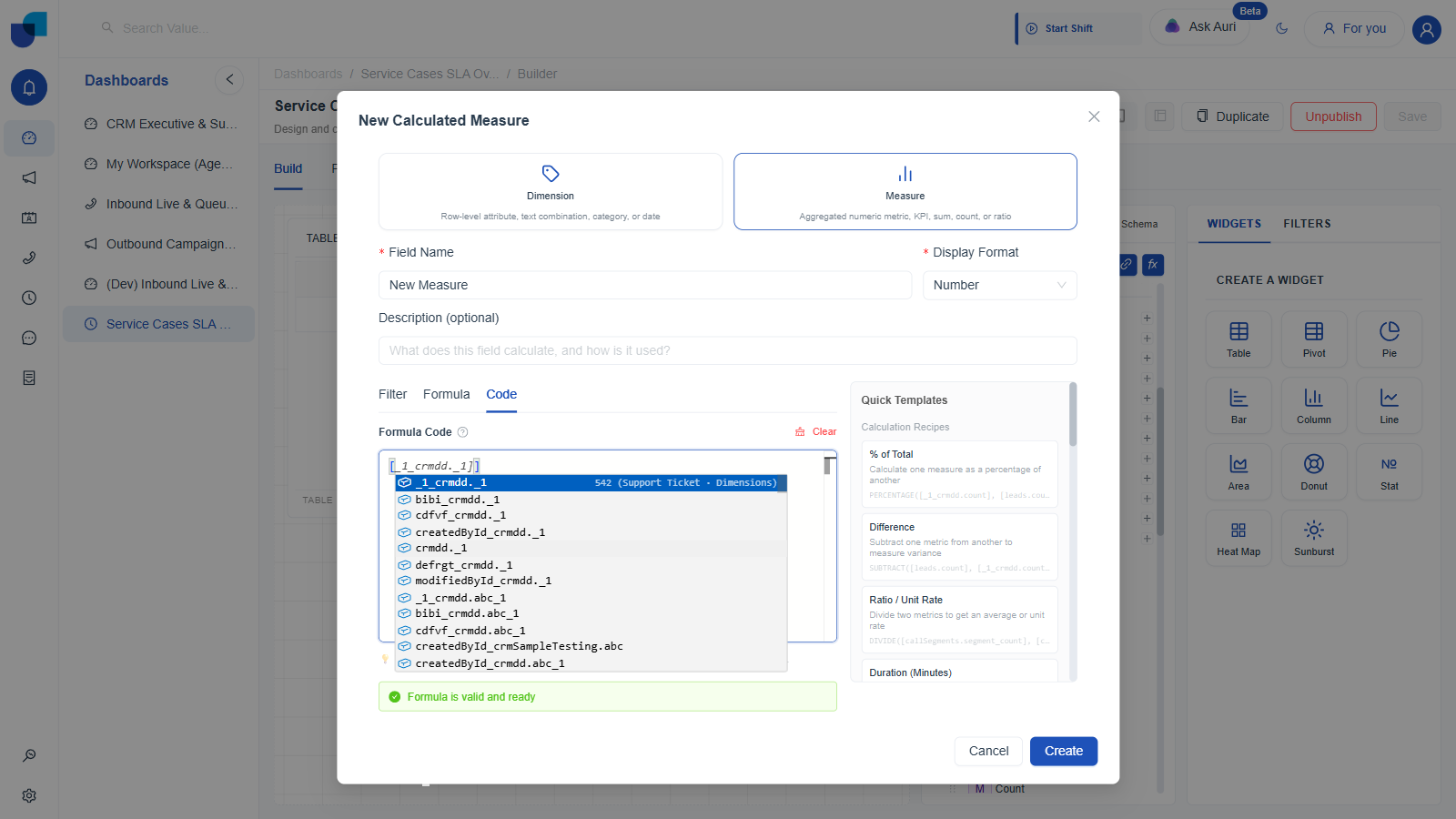
Figure 4. Typing [servicecases lists every field on the module, crmServiceCases.caseStatus included.
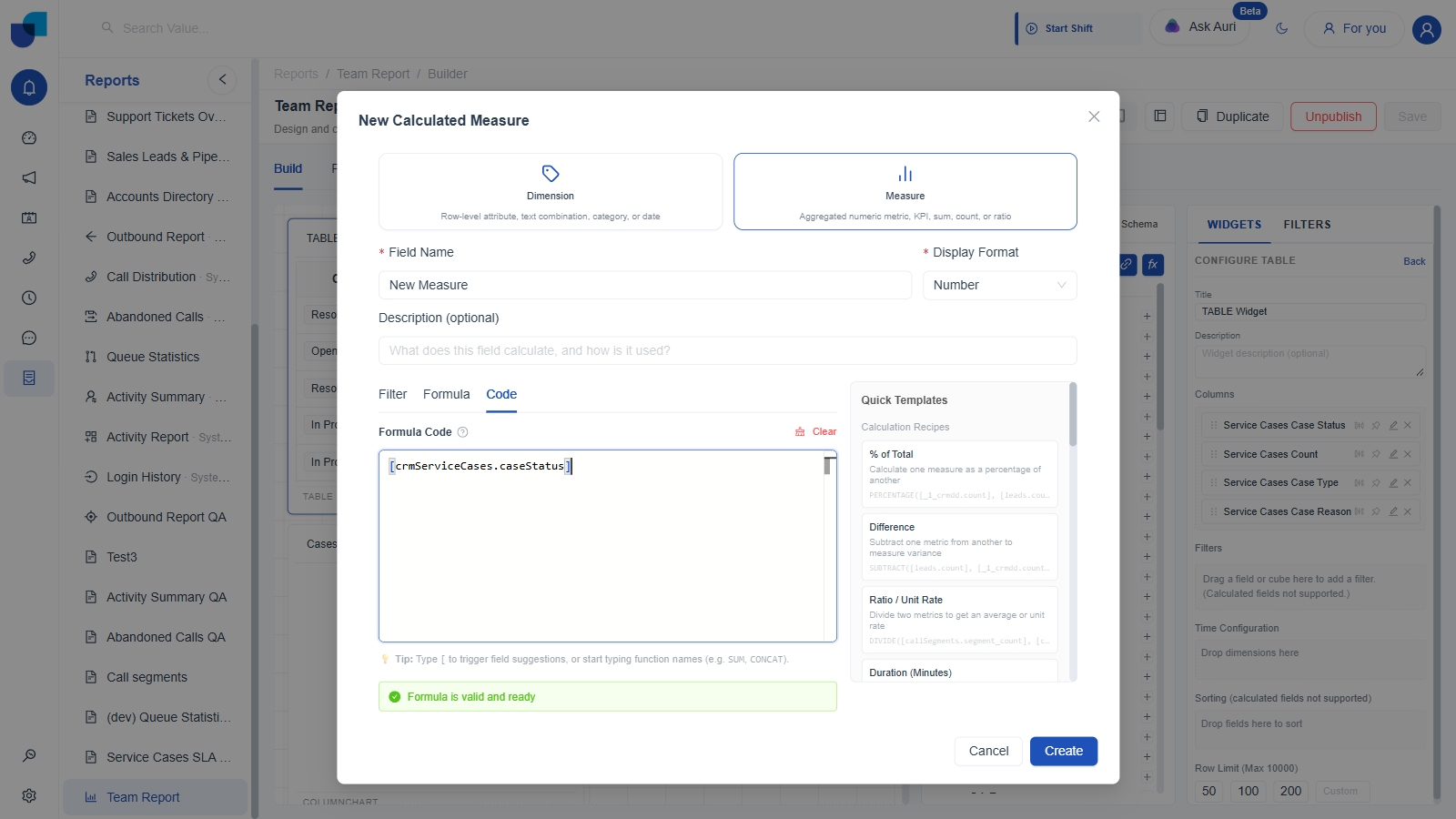
Figure 5. A complete reference, [crmServiceCases.caseStatus], shows a green "Formula is valid and ready" banner and enables Create.
An unfinished or malformed reference, for example an extra trailing bracket left over from accepting a suggestion and then typing another [, surfaces a real time red error banner directly under the editor, naming the exact character position, for example "Unexpected ']' at character 11." The Create button stays disabled until that error clears.
Every reference the Code tab's autocomplete offers, for Service Cases or any other module, is a moduleName.fieldName pair in camelCase, the same cube layer naming already described in the field reference table below. Typing a module name far enough to isolate one field, as with [servicecases.casestatus, surfaces exactly the reference you would expect, crmServiceCases.caseStatus, and nothing further underneath it. Whatever raw SQL column a field is ultimately stored under is not something the Code tab, or any other part of the Widget Builder, ever exposes.
Filter Tab: a Filtered Count, Measure Only
Switching to a Measure shows a third tab, Filter, not available on a Dimension. It offers a Base Measure picker, placeholder text "Pick the measure to count, e.g. Total Call Count," followed by a Conditions section that stays empty until a base measure is chosen: "Pick a base measure first, the conditions available depend on it." This is the dialog's path for building something like "count of cases where Case Status equals Escalated" without touching the Formula or Code tabs at all.
Create, Then Save
Clicking Create does not call the server by itself. It closes the dialog immediately and adds the new field to a CALCULATED FIELDS group at the top of the FIELDS panel, with its own edit and delete icons, while the Builder's header switches to an Unsaved state and lights up the Save button. Clicking the Builder's own Save at that point is what actually persists the field, and a simple field reference with no comparison value saved cleanly with no error.
| Layer | Field Reference Syntax | Where You Would Use It |
|---|---|---|
| Widget Columns and Filters, drag and drop | crmServiceCases.caseStatus, a cube dot dimension reference in camelCase | Normal widget building. Visible through a widget's View Query action. |
| Calculated Field Code tab | The identical moduleName.fieldName reference, for example crmServiceCases.caseStatus, inserted by accepting a real autocomplete suggestion rather than typed from memory | Writing a custom Dimension or Measure on the Code tab, when the Formula tab's visual builder and Quick Templates do not cover the logic you need. |
Reliable text entry into the Formula Code box still benefits from pasting or single action insertion rather than fast simulated keystrokes, the same Monaco based failure mode seen in the Automations Script node. Letting the autocomplete dropdown insert the reference, rather than typing the whole thing by hand, sidesteps this entirely and is the reliable path regardless.
When to Use Which
| Need | Use |
|---|---|
| Combine fields from two different modules in one widget | Blended Data Source, the link icon |
| Derive a new value from one module's existing fields using common patterns like percentages, differences, or ratios | Calculated field, the fx icon, Formula tab, starting from a Quick Template |
| Count records matching a condition, for example cases where Case Status equals Escalated | Calculated field, Measure type, Filter tab |
| Need a reference or function the Formula tab and Quick Templates do not cover | Code tab, typing [ to find the exact field through autocomplete rather than guessing its name |