Exporting & Sharing Reports
Once a report exists, four actions govern what happens to it and who can see it. Download PDF exports a snapshot, Publish controls visibility, Share controls specific access, and Duplicate produces an independent working copy.
The Consumer View
Leaving the Builder, either by clicking the report's own breadcrumb or by navigating directly to /reports/{id}, opens the read only consumer view. Widgets render full width with no edit chrome, and up to four actions sit in the top right corner.
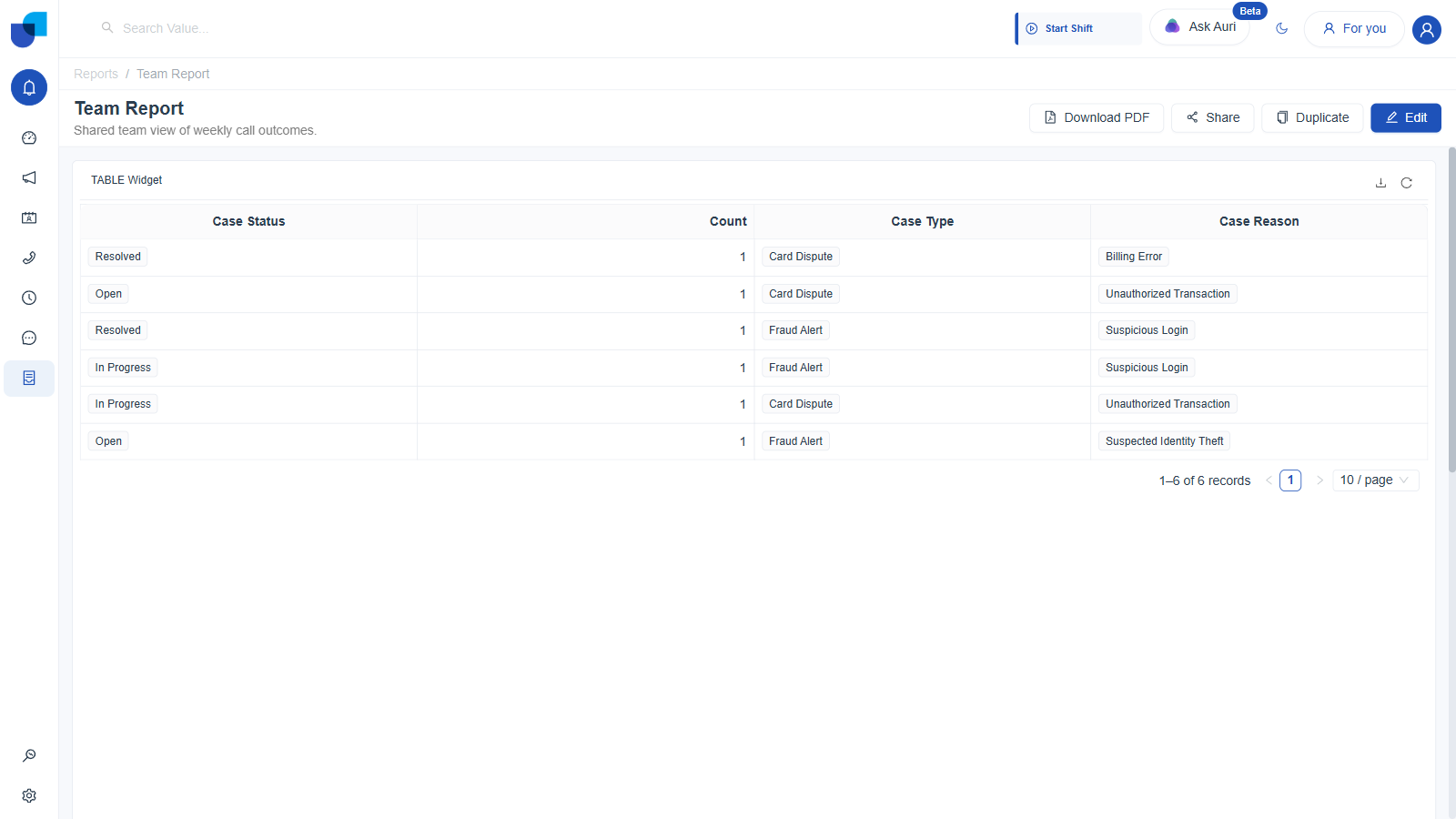
Figure 1. Consumer view of a report: Download PDF, Share, Duplicate, and Edit, with the Table widget carrying real Service Cases data.
| Action | What It Does |
|---|---|
| Download PDF | Opens the Download PDF Report dialog, described below. A dashboard has no equivalent to this action. |
| Share | Opens the Share Report dialog, the same shape as a dashboard's Share dialog. |
| Duplicate | Creates an independent copy with its own id, its own builder state, and its own sharing list. Edits made to the copy do not propagate back to the original. |
| Edit | Returns to the Builder. |
Unlike the four built-in dashboards, the twelve built-in reports do not all expose the same action set. The seven System User-owned call center reports show only Download PDF and Duplicate. Support Tickets Overview & SLA Intelligence, Sales Leads & Pipeline Conversion Report, and Accounts Directory & Portfolio Intelligence add Share, as does Campaign Summary. None of the twelve shows Edit. See Built-in Reports for the full breakdown of each report.
Exporting to PDF
- Click Download PDF from the consumer view, or from the Builder header. The Download PDF Report dialog opens.
- Under Page Layout, choose a Page Size (A4 Standard, US Letter, A3 Ledger), an Orientation (Portrait or Landscape), and a Scale Layout percentage (50%, 75%, 100%, 150%, or Custom).
- Under Table Row Count, choose how many rows each table widget exports: Current (whatever is loaded on screen), 100, 500, 1,000, or Custom.
- The Preview pane on the right renders the actual PDF layout live as these options change: a branded header, a report level metadata block (Report Name, Exported By, Export Date & Time, Filters Applied), then a separate metadata block and data table or chart for every widget in the report, one after another down the page.
- Click Download to save the file, or Cancel to close without exporting.
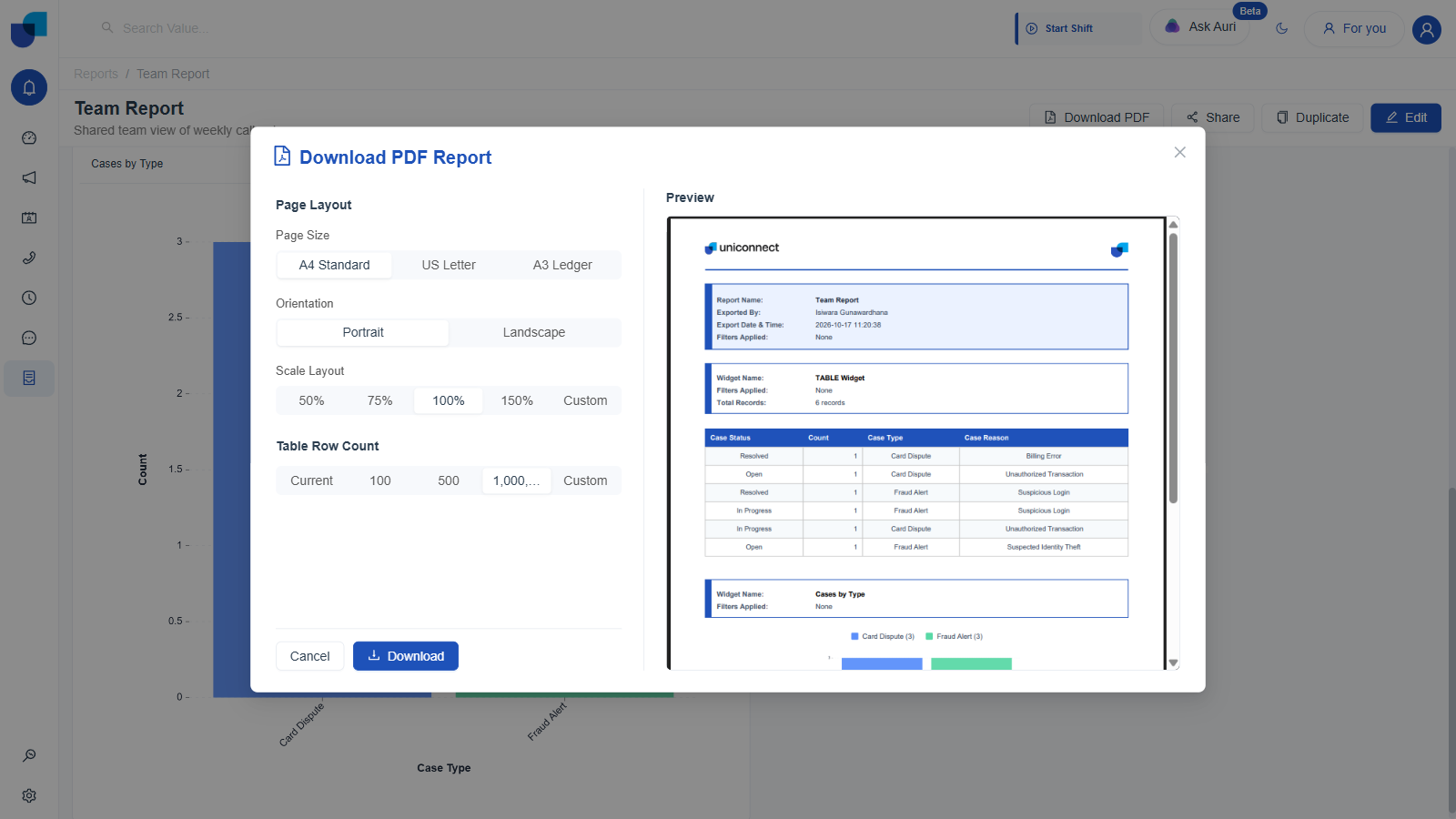
Figure 2. Download PDF Report: Page Layout, Table Row Count, and a live preview listing each widget, table and chart alike, in turn.
The exported PDF records who exported it and when, Exported By and Export Date & Time in the header block, plus a Filters Applied line for both the report as a whole and each individual widget. A report with no filters applied still shows that line, reading None rather than being omitted.
Publishing
- In the Builder, click Publish in the header. It immediately flips to read Unpublish, and on the Edit Details tab, the Visibility Controls toggle switches from Hidden to Published.
- Click Save to persist the change. Publish and Save are separate actions, exactly as they are for a dashboard. Clicking Publish alone changes the in memory state only.
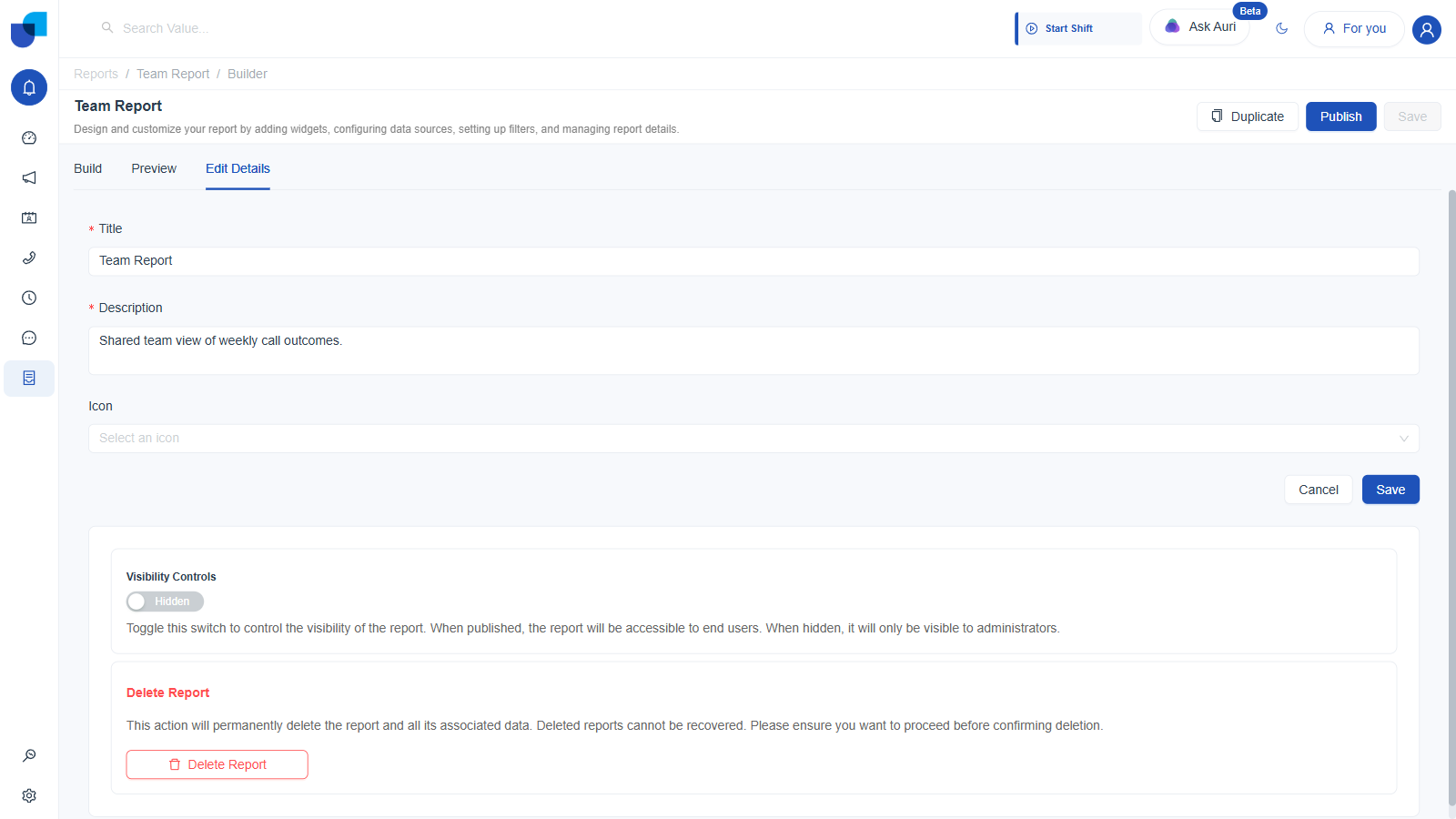
Figure 3. Edit Details tab: Title, Description, Icon, the Visibility Controls toggle, and Delete Report.
Hidden means only administrators can see the report at all. Published means it becomes accessible to end users, but accessible is still gated by the Share list described next. Publishing alone does not make a report visible to everyone in the organization.
Sharing With Specific People
- Click Share from the consumer view, or from the Builder header. The Share Report dialog opens.
- Choose a grantee type from the dropdown on the left: User, Group, or Role.
- Search for and select the person, group, or role in the adjacent field, then click the + button to add them to People with access.
- The report's creator is always listed first, tagged Owner, and cannot be removed from that list.
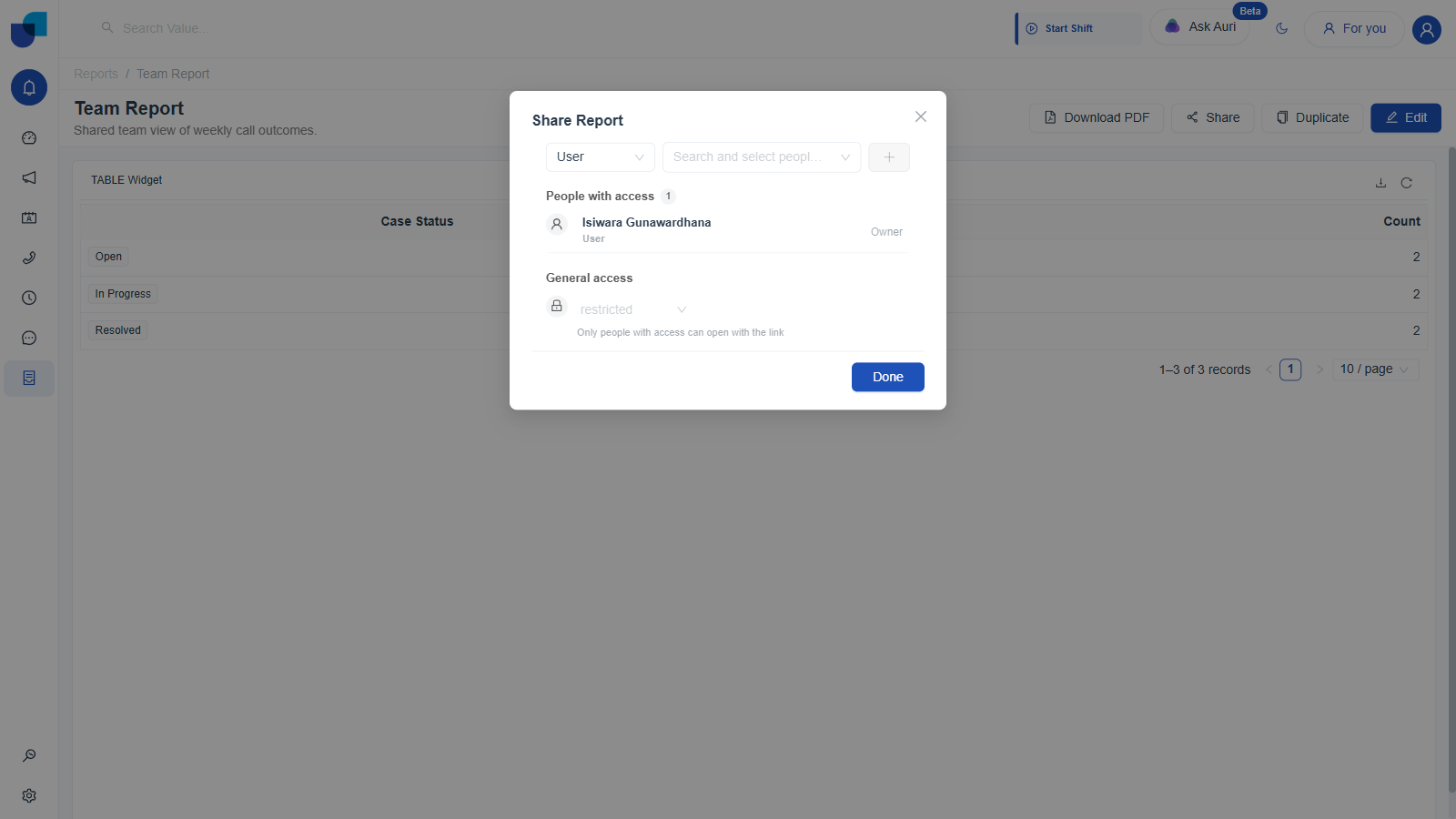
Figure 4. Share Report dialog: grantee type selector, User, Group, Role, the people with access list, and General access.
As with dashboards, the General access control at the bottom of this dialog is fixed to restricted, and its dropdown is greyed out. There is no org wide or public link option. Only people explicitly added to the People with access list can open the report, no matter how its Hidden or Published toggle is set, and Download PDF only exports what the person downloading can already see.
Duplicating
Click Duplicate from either the consumer view or the Builder. It creates a new report with full independence from the original: a new id, its own Edit Details, its own Share list that is not inherited from the source, and its own Publish state, which starts Hidden regardless of what the source report's state was at the time of duplication.
| Scenario | Use |
|---|---|
| Same widgets, different filter scope, for example a per campaign copy | Duplicate, then adjust filters in the copy |
| Starting a related but new report from a good base layout | Duplicate, then swap out individual widgets in the new copy |
| Letting one specific person view without editing | Share as a User with a view only role, rather than Duplicate |
Because a duplicate starts Hidden no matter what, duplicating a published report is a safe way to experiment, and duplicating a seeded report is the only sanctioned way to change one. Nothing you change in the copy is visible to anyone, and nothing you export from it carries the original's name, until you explicitly publish or export the copy yourself.