Channel Configuration
Messaging, Channel Configuration
Turn on the modules and connect the providers that deliver your messages.
Modules (Email and Messaging)
Two modules control the channels. The Email module manages email providers. The Messaging module manages SMS providers. Open Configuration, System, Modules and select the module.
- Select Email or Messaging in the module list.
- Check that the module switch is on.
- Choose the provider under Email Configurations or Messaging Configurations. The list offers the providers that are installed, for example Mailgun Email or Dialog E–SMS.
- Click Save Configuration.
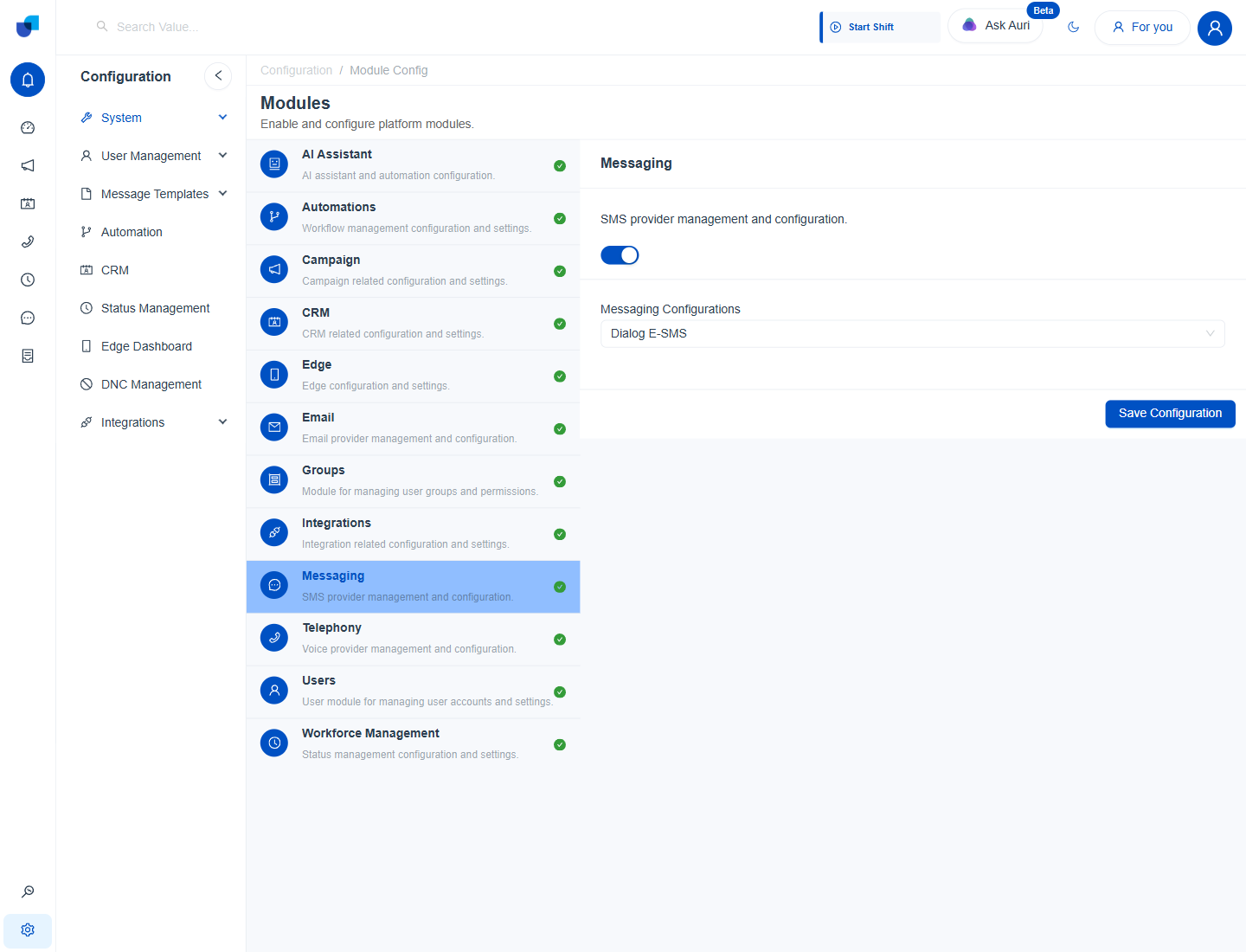
Figure 1. The Messaging module switched on, with Dialog E–SMS chosen under Messaging Configurations.
Info: Each module uses one active provider at a time. Switching the provider changes where every new message of that channel is sent. The module settings are also covered in Messaging and Email Settings.
Email Providers (Mailgun, AWS SES, SMTP)
Open Configuration, System, Plugins and select the provider. Switch the plugin on, fill in its settings and click Save Configuration.
Mailgun
- Select Mailgun Email.
- Under From Emails, enter each sender Email Address and Display Name. Use the add button for more senders, and the arrows to change their order.
- Enter the Mailgun API Key. It is your Mailgun private key and is hidden after entry.
- Enter a Reply To Address if replies should go to a different mailbox.
- Copy the Webhook URL into your Mailgun account. Mailgun uses it to report delivery status back to the platform.
- Click Save Configuration.
AWS SES and SMTP
| Provider | Settings | Full guide |
|---|---|---|
| AWS SES Email | Aws SES Region, SES Access Key, SES Secret Key and From Emails. | AWS SES Email |
| SMTP Email | SMTP Host, SMTP Port, Use Secure Connection, Use Authentication, From Emails, Reply to Email and From Display Name. | SMTP Email |
| Mailgun Email | From Emails, Mailgun API Key and Reply To Address. | Mailgun Email |
Important: Treat API keys, secret keys and passwords like passwords. Anyone who has them can send mail as your company.
SMS Providers (Generic SMS, Twilio SMS, Dialog E–SMS)
Dialog E–SMS
- Select Dialog E–SMS.
- Under Sender Masks, enter the sender IDs recipients will see. Use the add button for more than one.
- Enter the Username and the Password of your Dialog account.
- Click Save Configuration.
Generic SMS and Twilio SMS
| Provider | Use it when | Key settings | Full guide |
|---|---|---|---|
| Generic SMS | Your gateway has a web address that accepts a send request. | API URL, HTTP Method, Auth Type and the message, sender and recipient mappings. | Generic SMS |
| Twilio SMS | You send through a Twilio account. | API URL, Account SID, Auth Token, Call Back URL and From Phone Numbers. | Twilio SMS |
| Dialog E–SMS | You send through Dialog. | Sender Masks, Username and Password. | Dialog E–SMS |
WhatsApp Plugin (WhatsApp Meta API)
The WhatsApp plugin connects to the Meta WhatsApp Business platform. Create the app in your Meta account first, then copy its values here.
- Select WhatsApp and switch the plugin on.
- Enter the App ID and the App Secret from the Meta App Dashboard.
- Enter the Business ID from Meta Business Manager.
- Enter the Access Token. Prefer a permanent token. A temporary token expires and messages then stop.
- Enter the Verify Token. It must match the token you gave Meta.
- Copy the Webhook URL into the Meta App Dashboard. Meta sends incoming messages and delivery updates to this address.
- Click Save Configuration.
Info: The full reference is in WhatsApp.