Getting Started
Messaging
The shortest path from no channels to a first message in Conversations.
Before You Begin
- A provider account for each channel. For example Mailgun for email, Dialog for SMS and a WhatsApp business account for WhatsApp.
- The provider credentials. API keys, tokens, user names or passwords, and the sender addresses or numbers you are allowed to use.
- A role that can configure the system. System Owner has every permission.
Set Up Messaging
- Turn on the modules. Open Configuration, System, Modules. Turn on Email for email providers and Messaging for SMS providers.
- Choose the active provider of each module. For example Mailgun Email under Email Configurations.
- Connect each provider. Open Configuration, System, Plugins, select the provider and fill in its settings. See Channel Configuration.
- Create a template for each channel. Open Configuration, Message Templates. See Message Templates.
- Give people permission to send. See Permissions.
- Send a first message from a record. See Sending Messages.
- Open Conversations to see it.
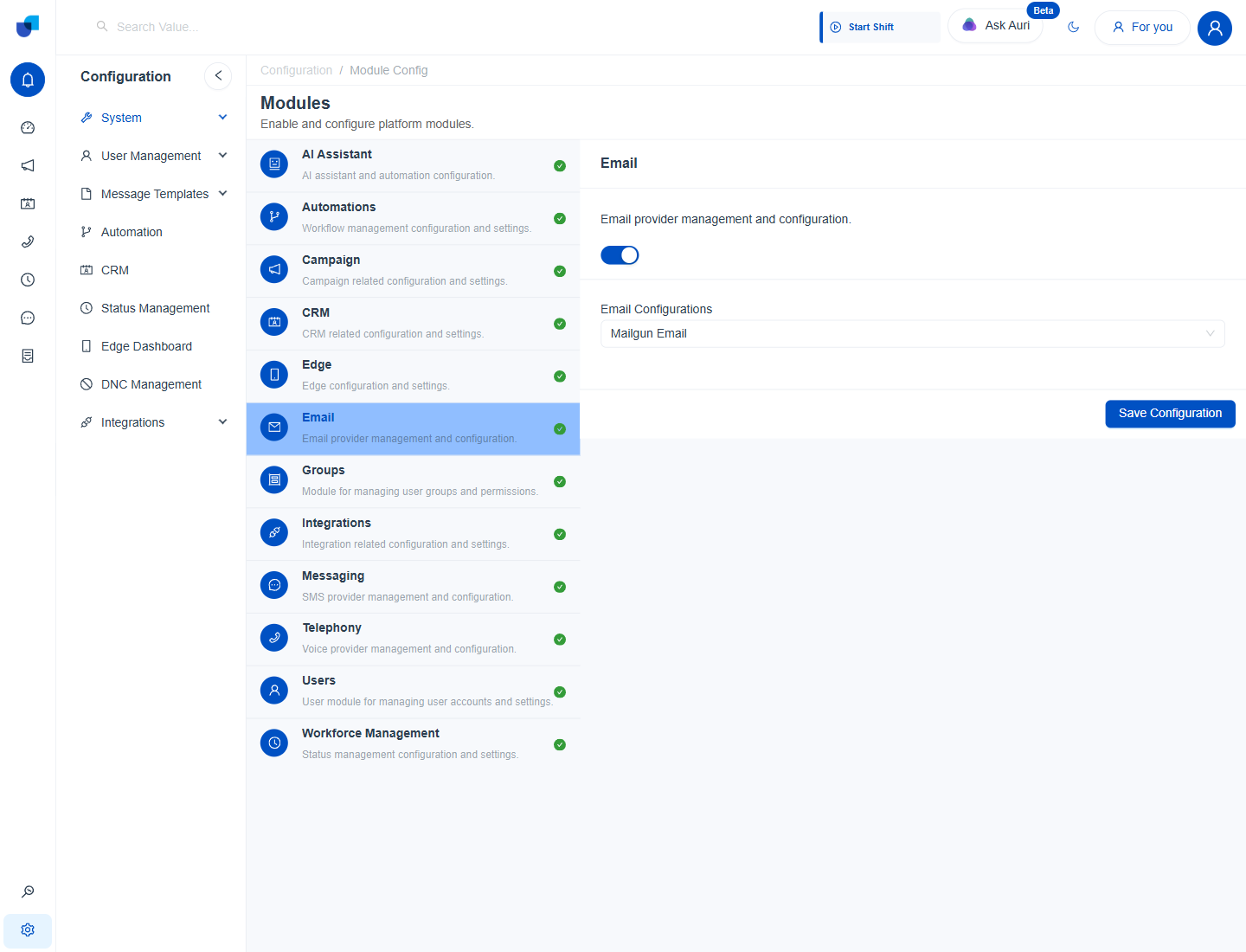
Figure 1. The Email module switched on, with Mailgun Email chosen under Email Configurations.
Check Your Work
- Modules. The green tick beside Email and Messaging means the module is on.
- Plugins. A green tick beside a provider means it is on and configured.
- Templates. Each template appears in its list and shows the sender you chose.
Tip: Send your first messages to your own address and phone number. That proves the provider works before any customer is involved.