Messaging Permissions
Messaging
Five permissions decide who can send messages, who can manage templates and who can see what was sent.
The Messaging Group
Open Configuration, User Management, Roles, select a role and open the Messaging group. The count beside it shows how many permissions are set.
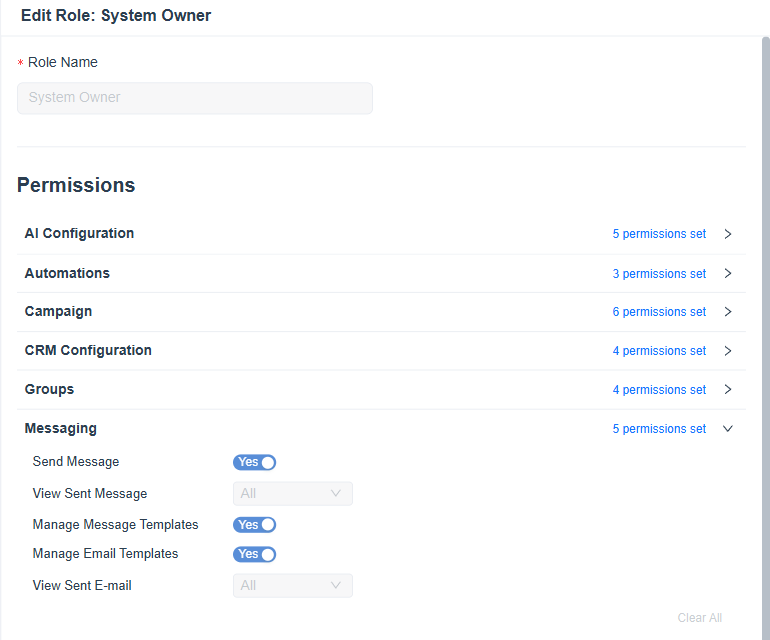
Figure 1. The Messaging group of the System Owner role, with its five permissions.
| Permission | Type | What it allows |
|---|---|---|
| Send Message | Yes or No | Send messages from records. |
| View Sent Message | Scope | See sent messages in scope. |
| Manage Message Templates | Yes or No | Create, edit and delete SMS and WhatsApp templates. |
| Manage Email Templates | Yes or No | Create, edit and delete email templates. |
| View Sent E–mail | Scope | See sent emails in scope. |
Info: Setting up the providers needs the System Configuration permissions, described in System Configuration Permissions.
Scope
- Own. Messages the person sent.
- Group. Messages sent by the person's groups.
- All. Every message. A larger scope includes the smaller ones.
Grant or Remove Access
- Open Configuration, User Management, Roles.
- Select the role and open the Messaging group.
- Switch each permission to Yes or No, and choose a scope for the two view permissions. Clear All switches every permission of the group off.
- Click Save.
Important: Give Manage Message Templates and Manage Email Templates to a few people only. A changed template affects every message that uses it.
Roles are explained in Roles in the User Management guides.
Typical Role Setups
| Role | Send Message | View Sent Message and E–mail | Manage templates |
|---|---|---|---|
| Administrator | Yes | All | Yes |
| Supervisor | Yes | Group | No |
| Agent | Yes | Own | No |