Sending Messages
Messaging, Sending Messages
Send a template to a customer from a CRM record. The examples use a contact named Emily Carter in the Contacts module.
Before You Send
| Requirement | Where it is set |
|---|---|
| The channel is connected | Configuration, System, Modules and Plugins. See Channel Configuration. |
| A template exists for the module | Configuration, Message Templates. See Message Templates. |
| Your role may send | The Send Message permission. See Permissions. |
| The record holds the contact detail | An email address for email, a mobile number for SMS and WhatsApp. |
The example record is created from CRM, Contacts. Click New Contacts and fill in the form. Last Name, Email and Mobile Number are required. Choose the country code of the mobile number first, then type the number without the code.
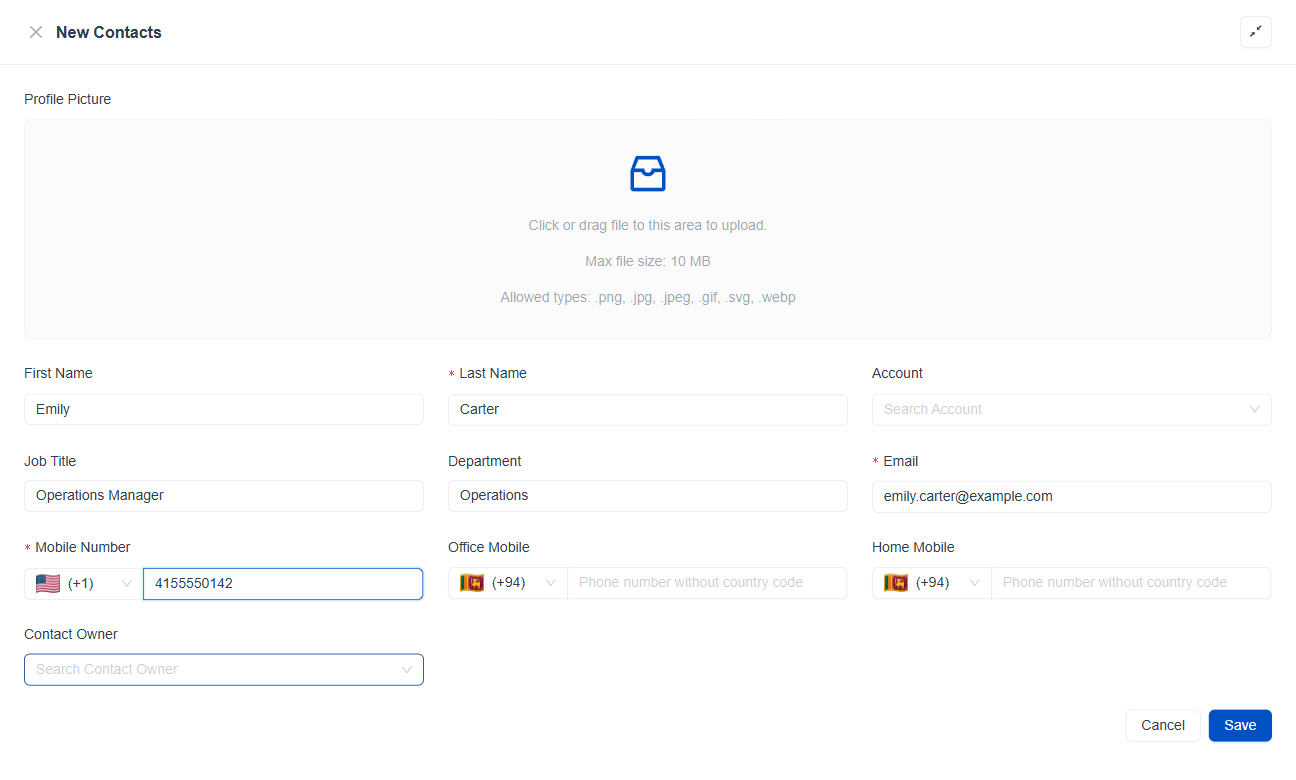
Figure 1. The New Contacts form, filled in for Emily Carter with her email address and a mobile number with the country code +1.
Important: Send messages only to customers who have agreed to hear from you on that channel. WhatsApp in particular limits which messages may start a conversation, which is why it uses approved templates.
Message Actions on a Record
Open CRM and choose the module, for example Contacts. In the list, each row holds the message actions next to the detail they use.

Figure 2. A contact row. The envelope beside the email address starts an email. The speech bubble beside the mobile number starts an SMS or a WhatsApp message.
| Icon | Where | What it does |
|---|---|---|
| Envelope | Beside Email | Opens the Send Email window. |
| Phone | Beside Mobile Number | Starts a call. |
| Speech bubble | Beside Mobile Number | Opens a small menu with SMS and WhatsApp. |
Send Email from CRM Records
- Open the module and find the record. For example the contact Emily Carter.
- Click the envelope beside her email address. The Send Email window opens.
- Choose a template under Select a template. Only the templates of this module are offered, for example Customer Welcome. The Subject and the Message fill in at once.
- Choose the sender under Select Sender Email (From Email).
- Click Preview in the Message area. The email now shows the values of the record, such as Hi Emily Carter, and her email address and mobile number.
- Change the Subject or the message if you need to. Build and Code let you edit the design. The desktop and phone icons change the size of the preview.
- Add attachments with Add Files if needed.
- Click Send. Click Cancel to close the window without sending.
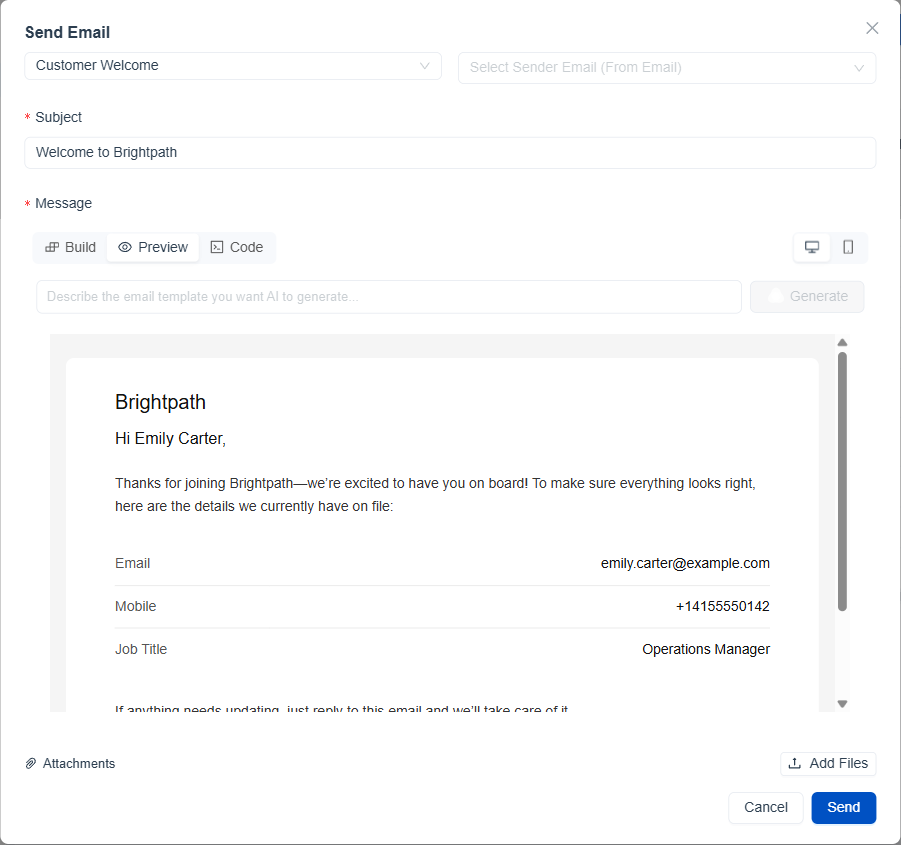
Figure 3. The Send Email window with the Customer Welcome template chosen. The Preview tab shows Emily Carter's name, email and mobile number in the message.
Info: Changes you make in the Send Email window apply to this message only and do not change the template.
Send SMS and WhatsApp from CRM Records
SMS
- Click the speech bubble beside the mobile number.
- Choose SMS. The Send Message window opens.
- Choose a template under Select Template. The text appears in Compose SMS, and the preview on the right shows the message for this contact.
- Choose the sender under Select Sender ID.
- Check the counters under the preview. They show the number of characters and the number of messages. A long message is sent as more than one.
- Edit the text if you need to, adding fields from the chips below it.
- Click Send. If Compose SMS is empty the window asks Please enter your SMS message.
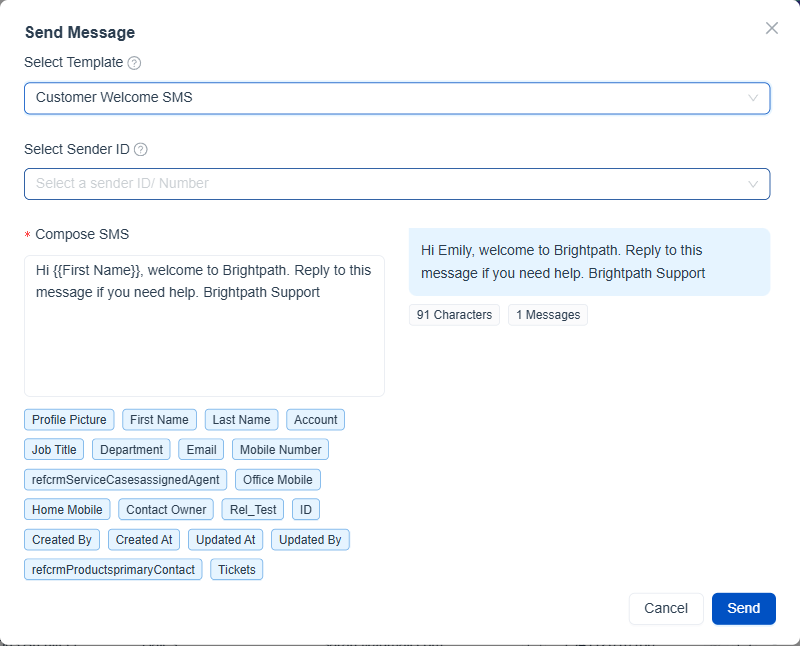
Figure 4. The Send Message window for SMS. The preview reads Hi Emily, welcome to Brightpath, and the counters show 91 characters in 1 message.
WhatsApp
- Click the speech bubble beside the mobile number.
- Choose WhatsApp. The Send WhatsApp Message window opens.
- Choose an approved template under Select Template. Send stays unavailable until a template is chosen.
- Click Send. The page confirms with WhatsApp message sent. If it fails you see Error sending WhatsApp message.
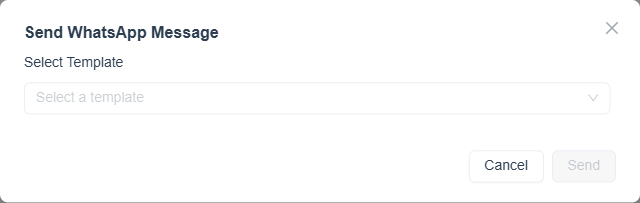
Figure 5. The Send WhatsApp Message window. Send becomes available after a template is chosen.
After You Send
- Conversations. The message appears under the customer, labeled with the module and the channel, for example Contacts and SMS. See Conversations.
- Delivery. Ticks beside the message show how far it travelled. See Message Delivery and Logs.
- Replies. A reply from the customer arrives in the same conversation.
Tip: Always read the preview. A value typed as
{{name}}in the preview means the field name does not match.