Conversations
Messaging, Conversations
One place for every email, SMS, WhatsApp and internal chat, grouped by customer.
The Conversation List
Open Conversations from the main menu. The page is called All Conversations, with the line Manage all incoming and internal conversations. Each row on the left is one conversation.
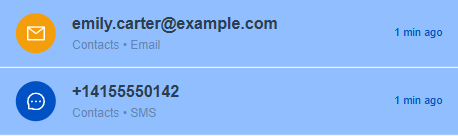
Figure 1. Two conversation rows for Emily Carter. The first is an email conversation and the second is an SMS conversation, both from the Contacts module.
| Part of a row | What it shows |
|---|---|
| Round icon | The channel: an envelope for email, a speech bubble for SMS, the WhatsApp logo for WhatsApp, or the initials of a person for an internal chat. |
| Title | The customer's email address or phone number, or the name of an internal chat. |
| Second line | The CRM module the message was sent from, then the channel, for example Contacts and SMS. |
| Time | When the latest message arrived, such as Yesterday or 2 days ago. |
| Blue number | How many messages you have not read. |
Reading a Conversation
- Click a row. The messages open on the right, with the customer's address or number and the channel at the top.
- Read from top to bottom. Newer messages are lower. Each message shows the sender, the time and ticks.
- Check the sender name above each message. A person's name means an agent sent it. System means the platform sent it, for example an automatic confirmation.
- Type a reply in the box at the bottom. The box says Type a message. Click the plus sign to add more.
Info: A message that still shows text such as
{{customerName}}was sent with a placeholder that had no value. Correct the template so it does not happen again.
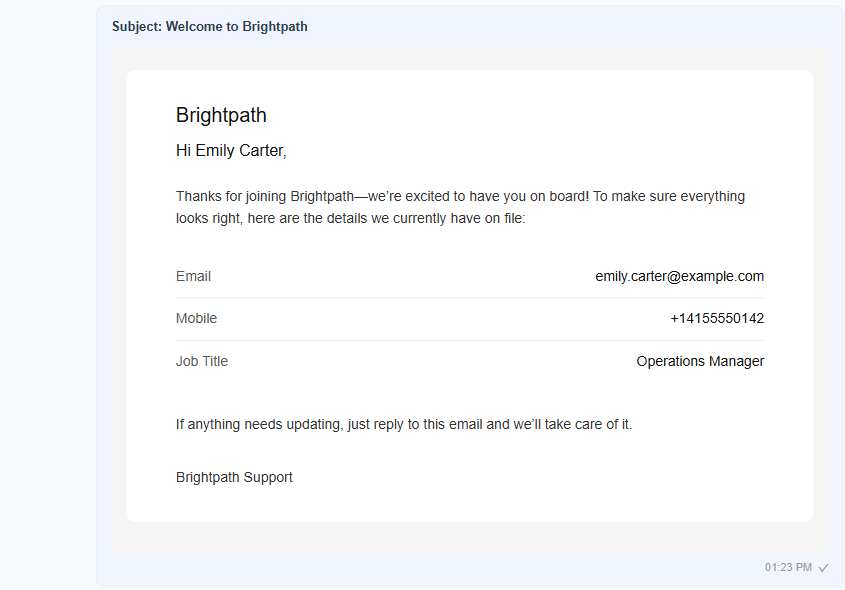
Figure 2. An email conversation. The message shows its subject and the full designed email, with the values of the record filled in, and a tick beside the time.

Figure 3. An SMS conversation. The message appears as a short bubble with the time beside it.
Searching and Unread
- Search conversations. Type an address, a number or a name in the search box above the list.
- Unread. Click Unread to list only the conversations that have messages you have not read.
Internal Chats
Conversations also holds chats between colleagues. They show a person's initials in place of a channel icon.
- Click New Conversation at the top right. The Start a Conversation window opens.
- Search for a colleague under Select User. Type a name or an email address.
- Click Start Chat.
Tip: Reply from Conversations as soon as a customer answers. A quick reply on the same channel keeps the thread in one place.