Authentication Configuration
Authentication, Configuration
Every setting that changes how people sign in.
Invitation Expiry Window
The Invitation Expiry Window decides how long the link in an invitation email stays valid. It belongs to the Users module. After the time passes, the person needs a new invitation.
- Open Configuration, System, Modules and select Users.
- Choose a value for Invitation Expiry Window. For example 24 Hours (1 Day).
- Save the module.
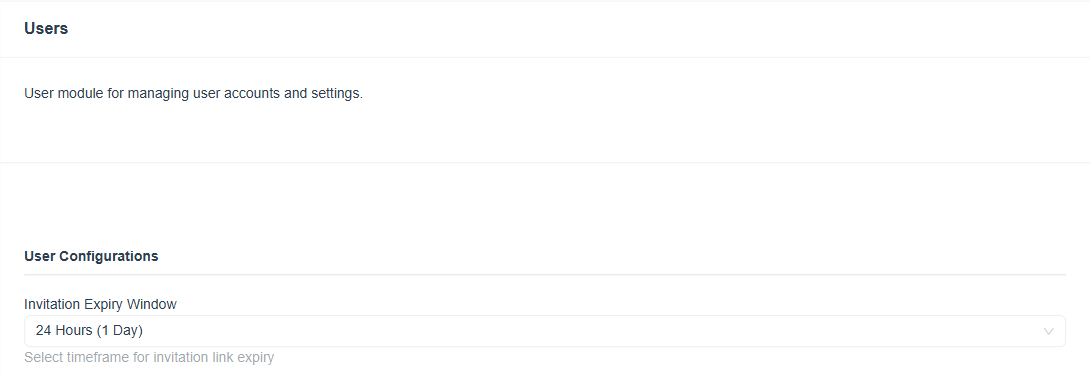
Figure 1. The Users module with the Invitation Expiry Window set to 24 Hours (1 Day).
Tip: Choose a window that covers a full working day for people who may not open the email at once.
OTP and Security Settings
Three Global Settings control the one time password. Open Configuration, System, Global Settings to change them.
| Setting | Effect | Example |
|---|---|---|
| OTP Attempt Limit | Wrong codes allowed before blocking. | 4 |
| OTP Reset Interval (seconds) | How long a code stays valid. | 180 |
| OTP Attempt Block Time (minutes) | How long a blocked person waits. | 120 |
Info: The settings are explained in Two Factor Authentication and listed with the other global settings in Security and OTP Settings.
Login Plugins (3CX and LDAP)
| Plugin | Login setting | Self registration | Guide |
|---|---|---|---|
| 3CX | Enable 3CX Login, set to Yes | Enable self registration for synced users | 3CX Login |
| LDAP Authentication | The plugin switch and the LDAP Configuration | Self Registration | LDAP Login |
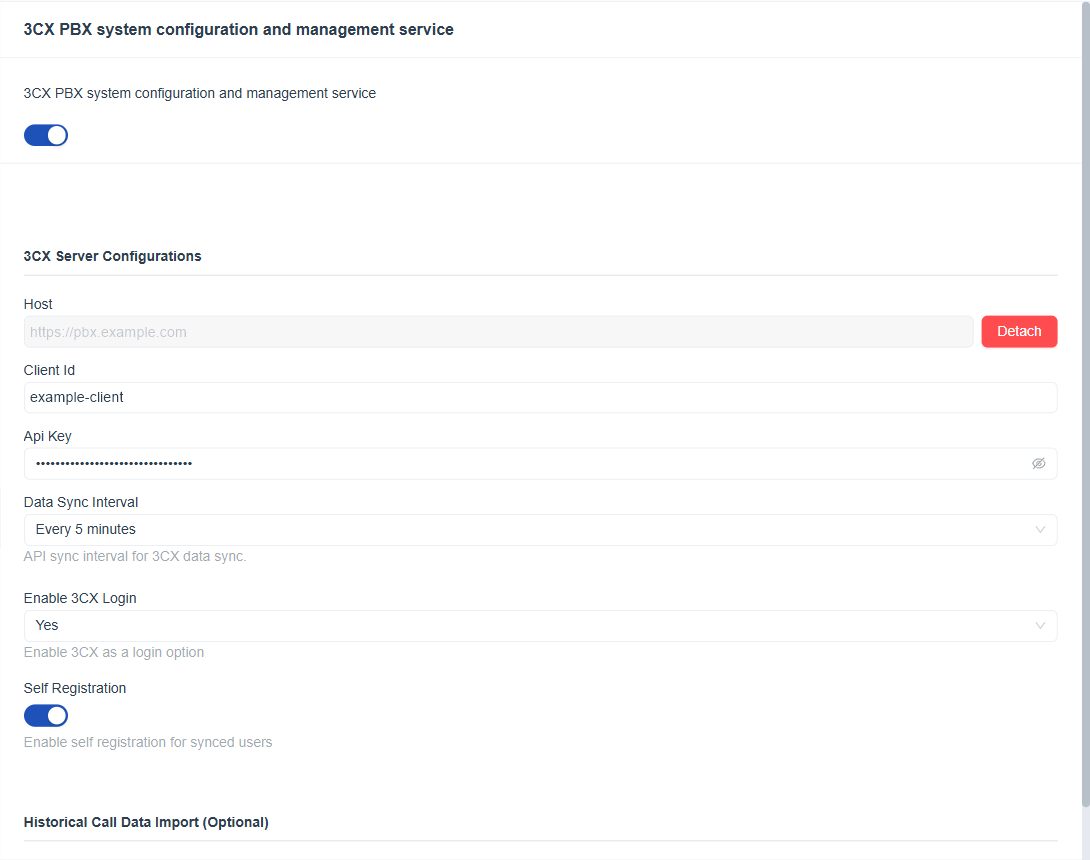
Figure 2. The login related fields of the 3CX plugin.
Important: A login plugin that is switched off removes its button from the Login page. Check that people still have at least one working method before you switch one off.