LDAP Login
Authentication, LDAP Login
Sign in with an account from Active Directory or OpenLDAP.
Connecting the Directory
The LDAP Authentication plugin lets the platform check passwords against your directory. A service account reads the directory so people do not need a separate password here. The Login with AD button appears on the Login page once a directory is configured.
- Open Configuration, System, Plugins and select LDAP Authentication.
- Switch the plugin on.
- Enter the LDAP Server URL. Use ldaps for an encrypted connection.
- Enter the AD Domain and the Base DN.
- Enter the LDAP Account and the LDAP Password. This is the service account that reads the directory.
- Add any LDAP Attributes you need. Separate them with commas.
- Decide on Self Registration.
- Click Save Configuration.
- Open the Login page to check. Login with AD now appears.
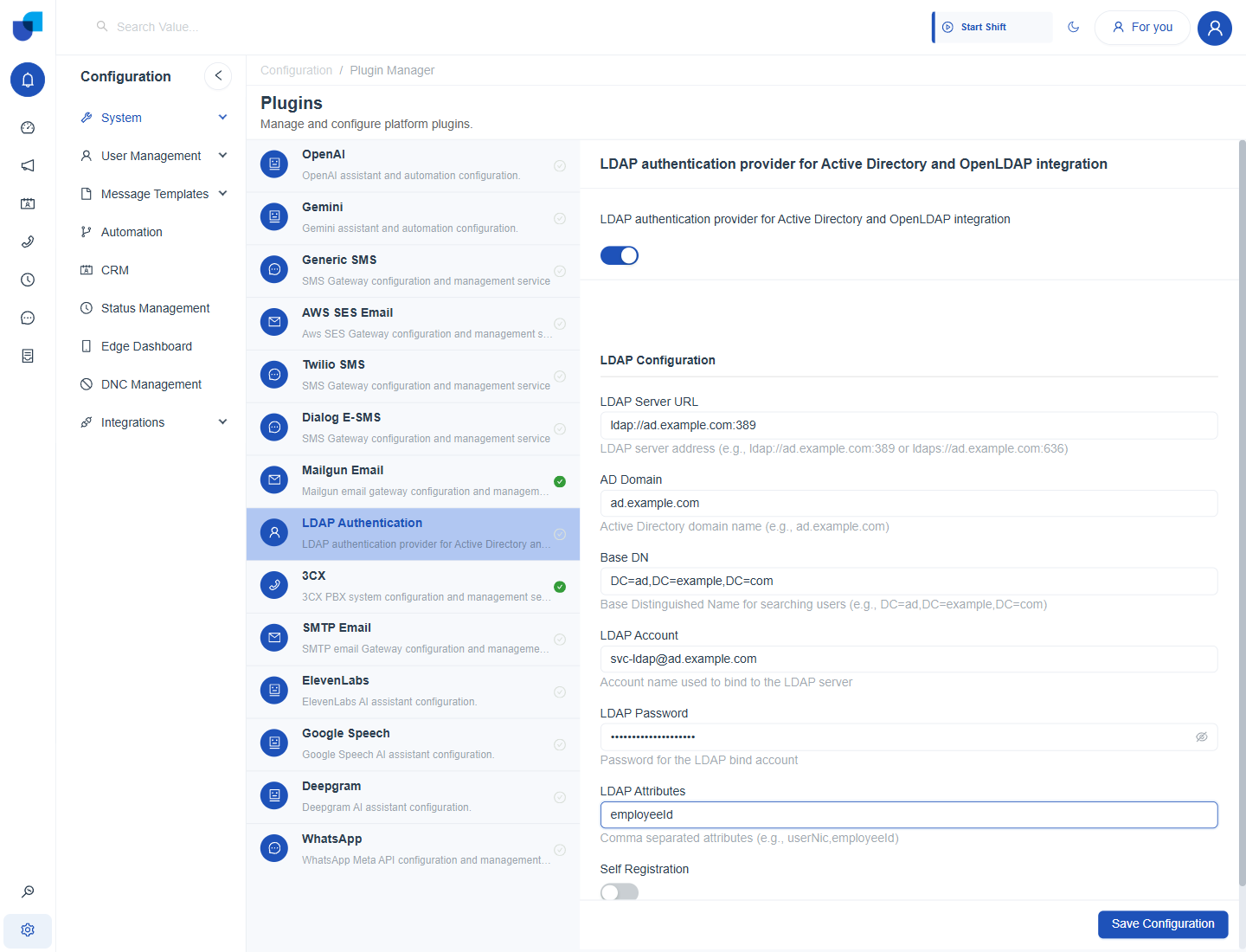
Figure 1. The LDAP Authentication plugin with the server details filled in using example values.
| Field | What to enter | Example |
|---|---|---|
| LDAP Server URL | The directory address. Use ldaps for an encrypted connection. | ldap://ad.example.com:389 |
| AD Domain | The Active Directory domain name. | ad.example.com |
| Base DN | The place in the directory where users are searched. | DC=ad,DC=example,DC=com |
| LDAP Account | The account used to read the directory. | svc-ldap@ad.example.com |
| LDAP Password | The password of that account. | Hidden |
| LDAP Attributes | Extra attributes to read, separated by commas. | employeeId |
| Self Registration | Lets synced people register themselves. | Off |
Info: The full plugin reference is in LDAP Authentication.
Signing In with Login with AD
- Open the Login page.
- Click Login with AD. The form shows LDAP Username and Password.
- Enter your directory user name. This is the same name you use for your computer or other company systems.
- Enter your directory password.
- Tick or clear Remember me.
- Click Login with AD. On success the message Login successful! appears and the home page opens.
- Enter the one time password if one is asked. The Two Factor Authentication page opens when it is on for your account.
| Message | Meaning | What to do |
|---|---|---|
| Please input your LDAP username! | The user name field is empty. | Type your directory user name. |
| Please input your LDAP password! | The password field is empty. | Type your directory password. |
| LDAP authentication failed | The directory did not accept the details, or no reason was returned. | Check the user name and password, then try again. |
Tip: A password change in the directory takes effect here immediately, because the directory checks it each time. With Remember me ticked, the next Recent Login card shows Active Directory followed by your user name.
Syncing LDAP Users
People found in the directory are brought into the platform as users, and they appear in Configuration, User Management, Users with the status Synced. Assign each one a role before the first sign in.
- Open Configuration, User Management, Users.
- Find the synced person.
- Check the role and the Active setting. An inactive user cannot sign in.
- Ask the person to use Login with AD.
- Self Registration on. A synced person can register and sign in without an invitation.
- Self Registration off. Invite each person first.
- Wrong Base DN. Fewer people appear than expected. Correct the Base DN and save again.
Important: Use a dedicated read only service account for the connection. Do not use a personal administrator account.