Managing Sessions
Authentication, Managing Sessions
See who is signed in and how, and end a session when needed.
Active Sessions
Active Sessions lists the people signed in to the platform now. Open it from Monitoring, Active Sessions. Which people appear depends on the scope of the Active Session permission on your role.
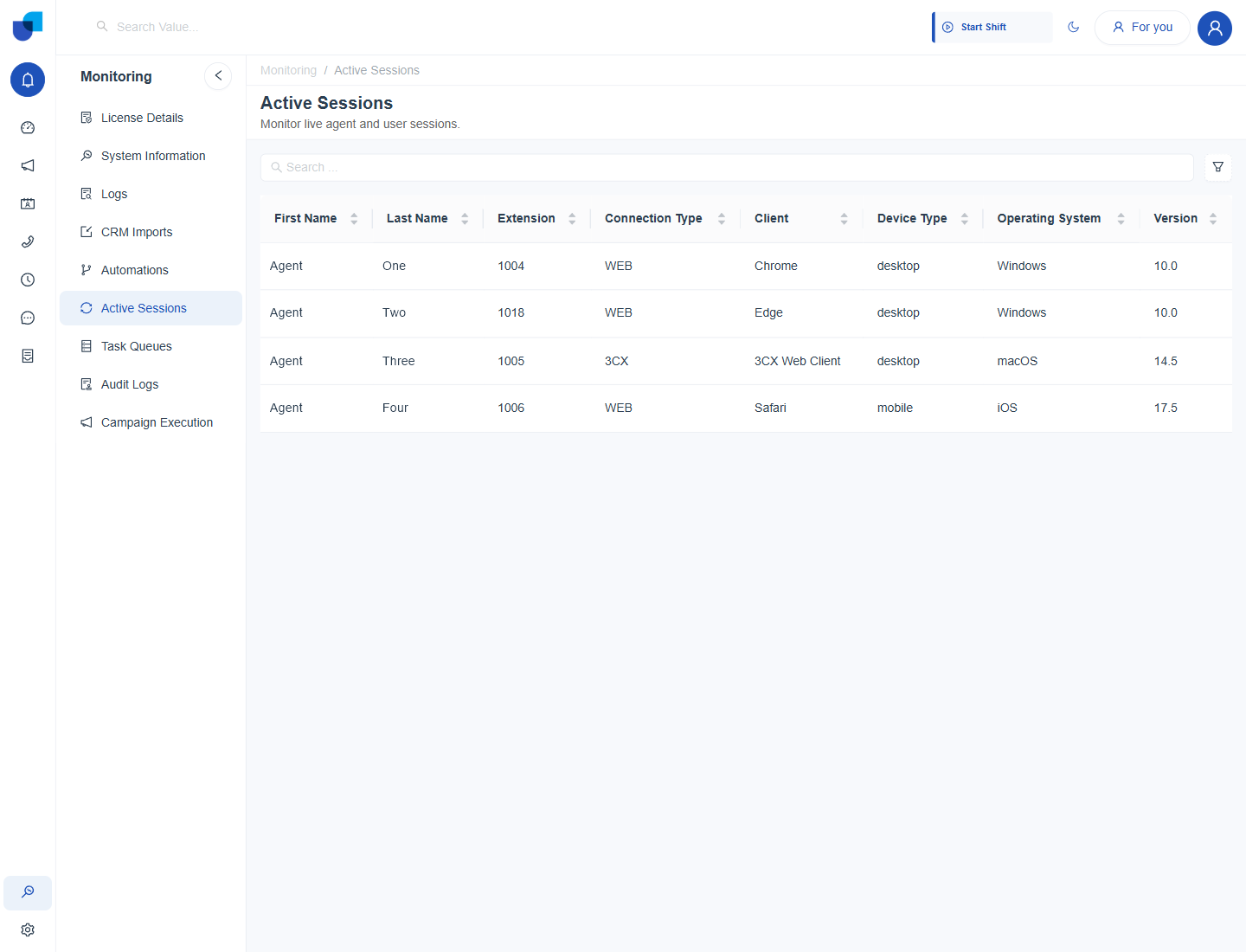
Figure 1. The Active Sessions page. Each row is one signed in person with the way they connected.
| Column | What it shows |
|---|---|
| First Name, Last Name | The person who is signed in. |
| Extension | The phone extension of that person. |
| Connection Type | How they connected, for example WEB or 3CX. |
| Client | The browser or app, for example Chrome or 3CX Web Client. |
| Device Type | Desktop or mobile. |
| Operating System, Version | The system of the device and its version. |
Info: The list is described further in Active Sessions Monitoring.
Ending a Session
The Active Sessions page is a read only list. It has no button on a row to end another person's session, so a session ends in one of three ways.
| Way | Who does it | What happens |
|---|---|---|
| Sign out | The person | The session ends and the Login page opens. The platform also sends a logout message, so the same person's other open sessions return to the Login page too. |
| Deactivate the user | An administrator | The person can no longer sign in. Use this when access should stop, for example a lost device or a leaver. |
| Session becomes invalid | Automatic | The next action sends the person back to the Login page to sign in again. |
- Find the person in Active Sessions. Use the search box or the filter at the top right. Check the client and device so you act on the right row.
- Ask the person to sign out, if they can. Signing out is the cleanest way to end every session of that person.
- If they cannot, deactivate the user in Configuration, User Management, Users. Select the person and use the Activate or Deactivate button of the User Details panel.
- Refresh Active Sessions and check the person is gone.
Important: Deactivating a user blocks the sign in until you activate the user again. Do it only when access should really stop.