Forgot Password
Authentication, Forgot Password
Reset a password you no longer remember.
Requesting a Password Reset
- Open the Login page and show the Password form. Forgot password? appears only on the Password form, next to Remember me.
- Click Forgot password? The Forgot your Password? page opens. It says No worries! Just enter your email below and we'll help you reset your password.
- Enter your email address in the Email Address field. Capital letters are turned into small letters for you.
- Click Submit. A message Password reset email sent appears, and an email with a link goes to that address.
- Click Back to login to return without sending anything. The link is at the top left of the card.
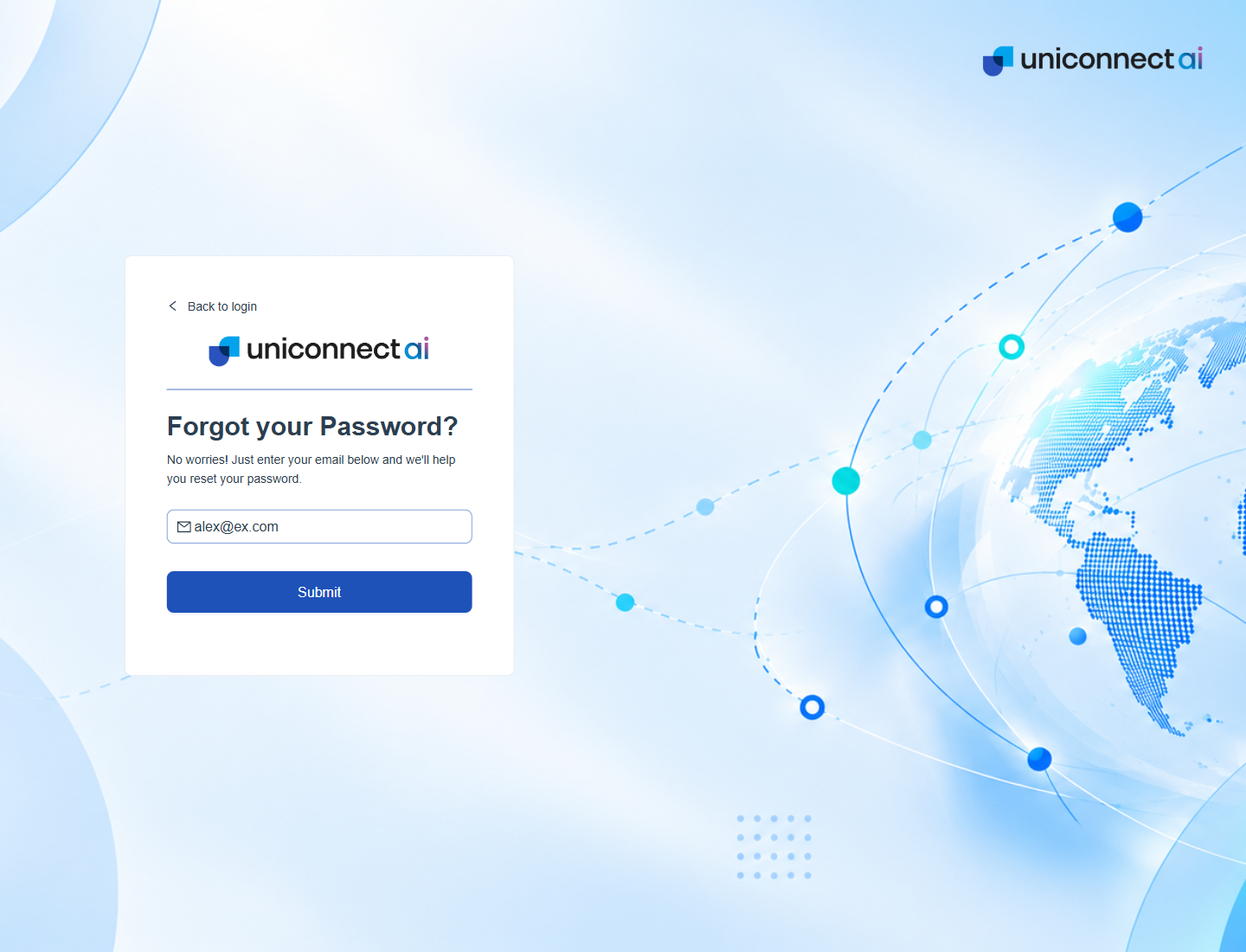
Figure 1. The Forgot your Password page. Enter the account email and click Submit. Back to login returns to the Login page.
| Message | Meaning | What to do |
|---|---|---|
| Please input your email address! | The field is empty. | Type your email address. |
| Please enter a valid email address! | The text is not shaped like an email address. | Check for a missing @ or a space. |
| Password reset email sent | The request was accepted. | Open your email and follow the link. |
Setting a New Password
- Open the email you received.
- Follow its link. The Set Password page opens for your account.
- Enter the new password in the Enter the Password field. It must meet the five rules listed on the page. They are explained in Email Login.
- Enter it again in the Re Enter the Password field.
- Click Save. A confirmation appears and the Login page opens.
- Sign in with the new password.
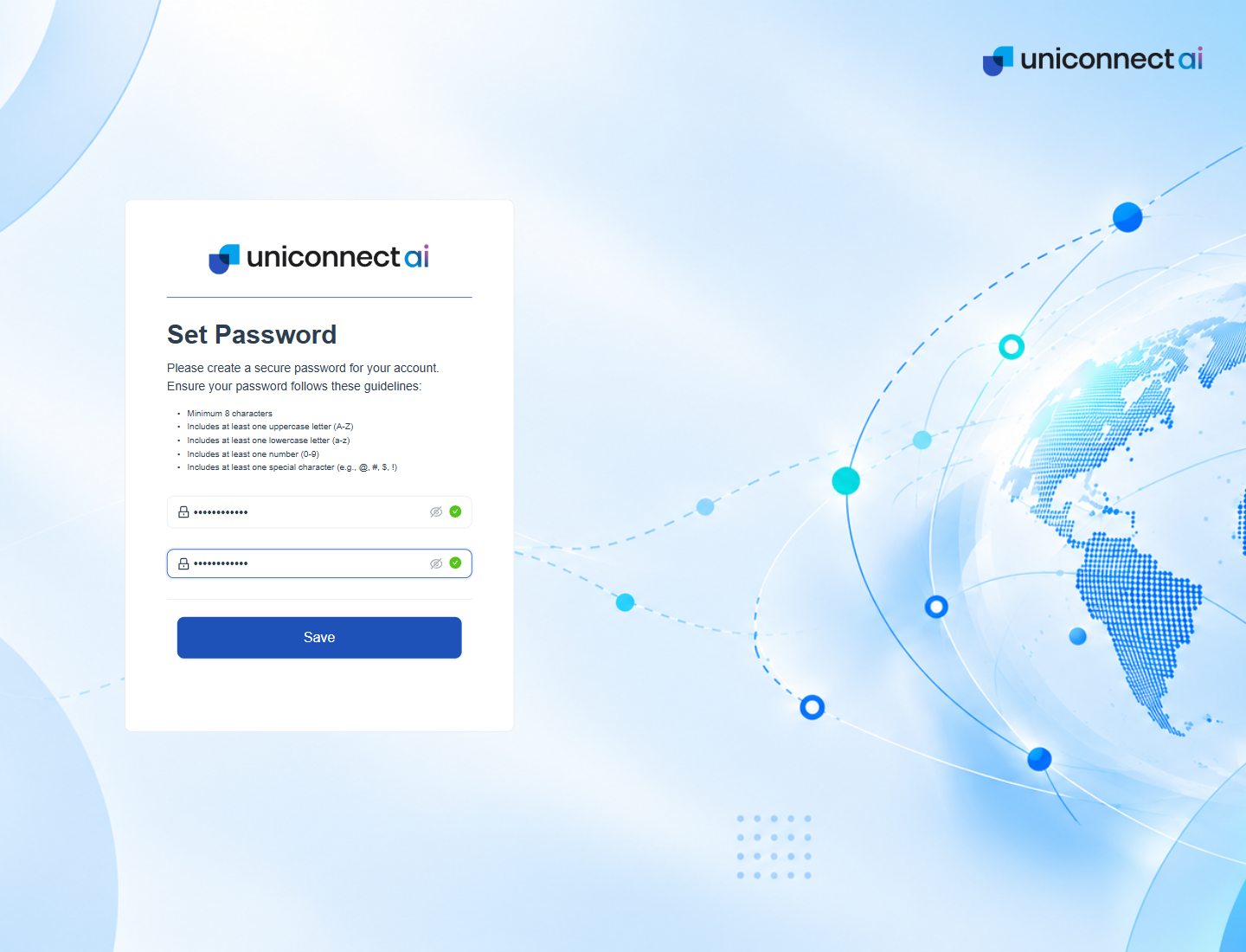
Figure 2. The Set Password page that opens from the reset email.
If the link has expired, was already used or is not valid, the Link Expired page opens. It says that the password reset link you used has expired and asks you to request a new one. Click Back to Login and start again from Forgot password?.
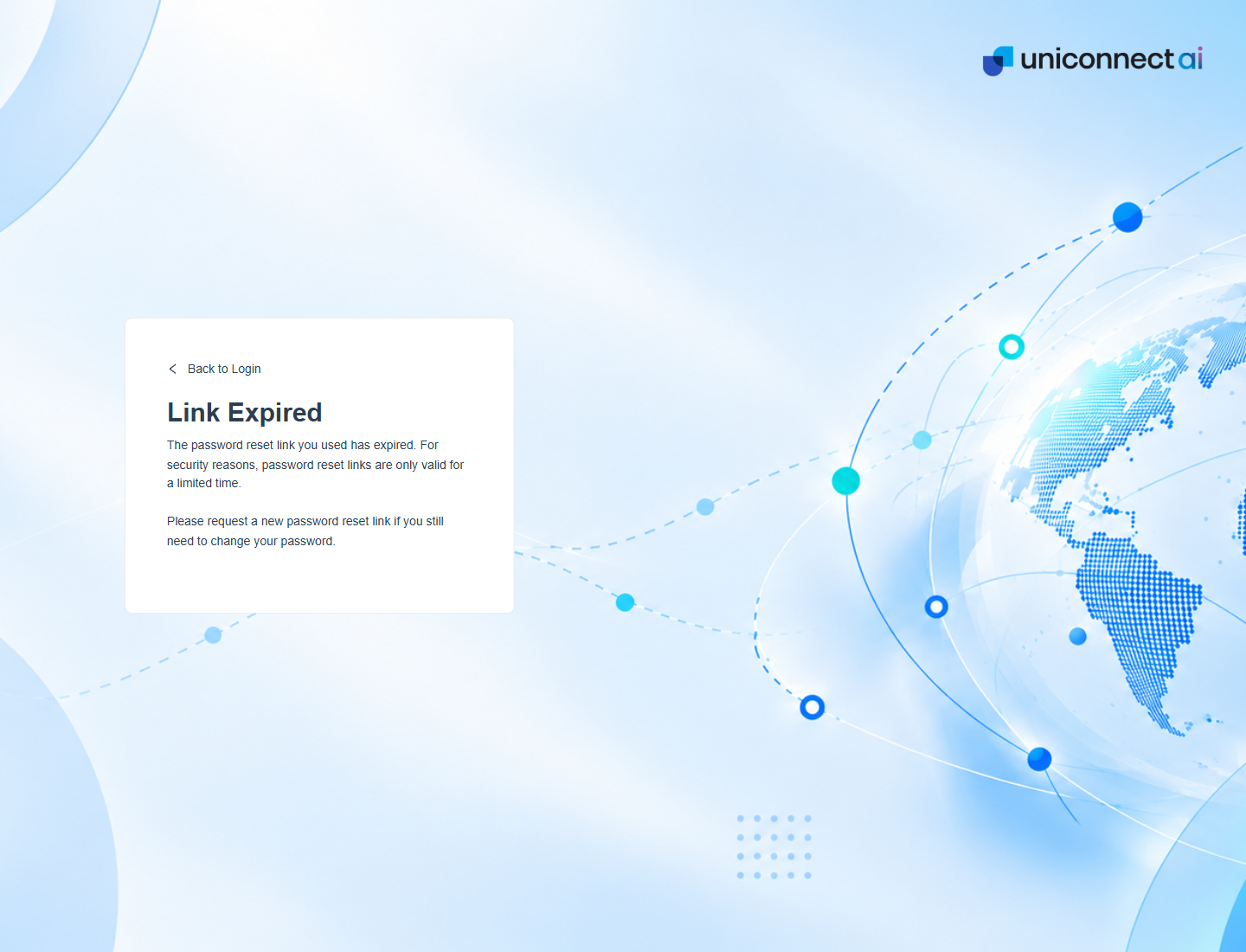
Figure 3. The Link Expired page. Request a new reset link when you see it.
Info: When a one time password is part of the sign in afterwards, the code limits in Two Factor Authentication apply.
Good to Know
- No email arrives. Check the spam folder and confirm the address matches the account. Then submit the request once more.
- Use the newest email. A new request makes the earlier link unreliable, so open the latest message.
- Directory and 3CX accounts. Passwords for Login with AD and Login with 3CX are managed in the directory or the PBX, not here.
- Still stuck. Ask an administrator. See Troubleshooting.