User Sign In
Authentication, User Sign In
Every control on the Login page and what it does, step by step.
Sign In Options on the Login Page
The Login page shows a heading, the line Login to access your uniconnect account, and one sign in form. While the platform loads its settings, the page shows Loading login options. Which methods are offered depends on the platform settings, so two companies can see different pages.
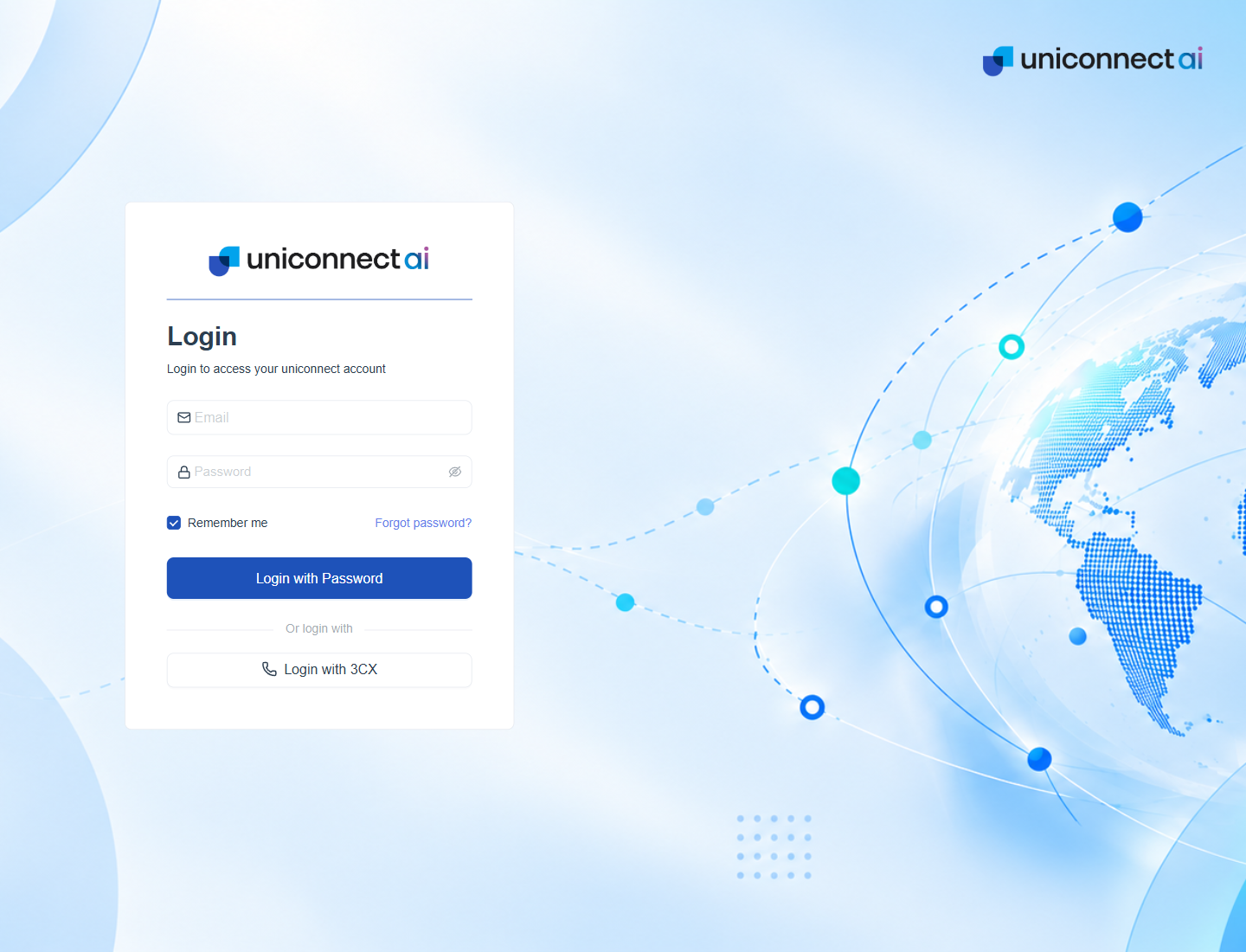
Figure 1. The Login page with Login with Password as the main method and Login with 3CX as an alternative.
The first form is Login with Password. Every other method is a button under Or login with. Choosing a button swaps the form, and the method you left moves into the button list.
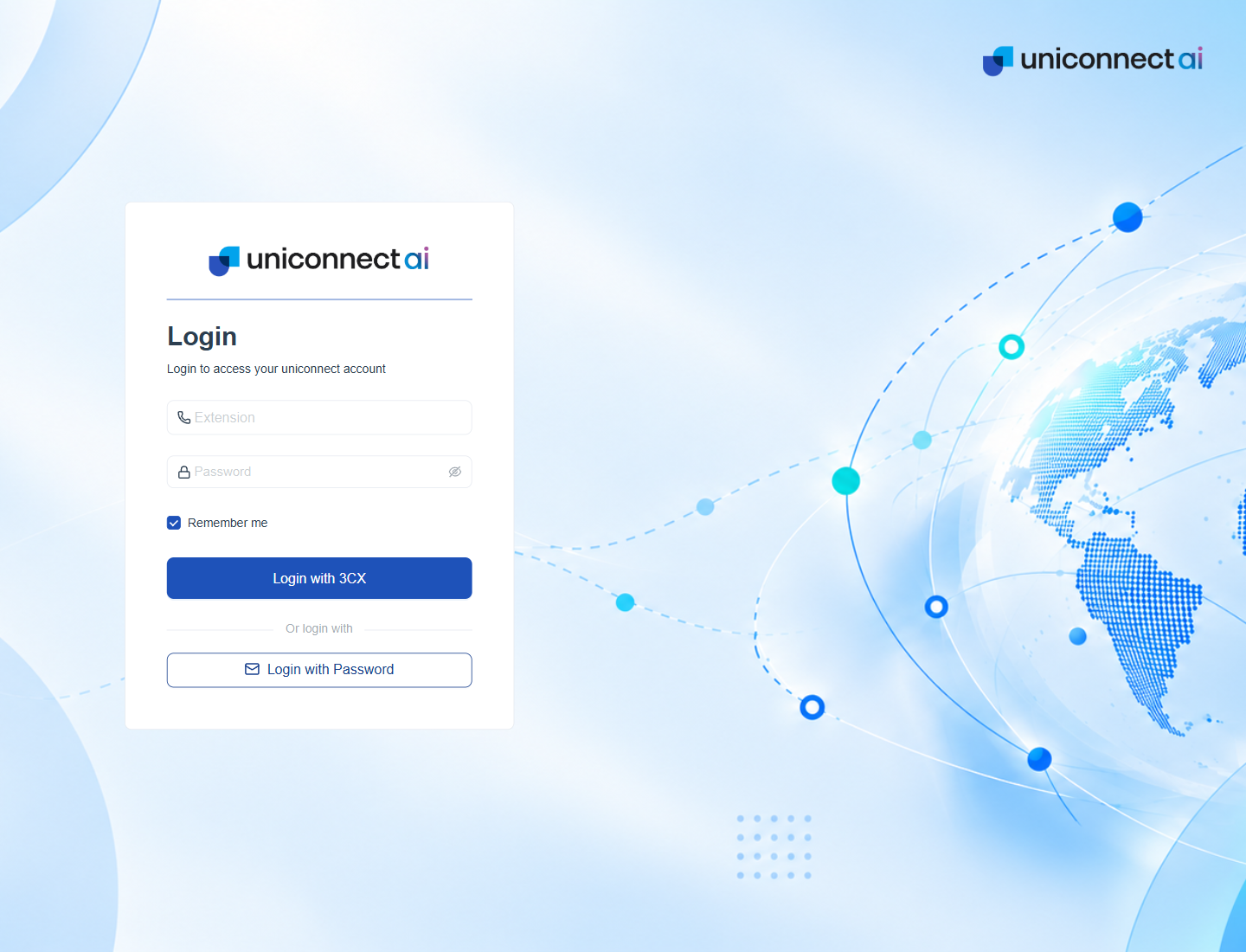
Figure 2. The same page after choosing Login with 3CX. The form now asks for an extension and a password.
| Button | When it appears | What happens |
|---|---|---|
| Login with Password | Always, unless an administrator turns it off. | Shows the Email and Password form. |
| Login with 3CX | When the 3CX login option is on. | Shows the Extension and Password form. |
| Login with AD | When an LDAP directory is configured. | Shows the LDAP Username and Password form. |
| Continue with Google, Continue with Microsoft | When that provider is on. | Leaves for the provider and returns signed in. |
| Login with SSO (SAML), Login with ADFS, Continue with Microsoft Entra ID | When that provider is on. | Leaves for the company identity provider and returns signed in. |
Info: Only the methods an administrator has enabled appear. If a button you expect is missing, ask your administrator.
Email and Password Login
- Open the platform address in your browser. The Login page opens. If you were sent a link to a particular page, the platform opens that page after you sign in.
- Enter your email address. Capital letters are turned into small letters for you.
- Enter your password. Click the eye icon to show or hide what you type.
- Tick or clear Remember me. It is ticked by default. See the next section.
- Click Login with Password.
- Enter the one time password if one is asked. If Two Factor Authentication is on for your account, the Two Factor Authentication page opens next. See Two Factor Authentication.
If you leave a field empty, the page marks it in red and does not send anything.
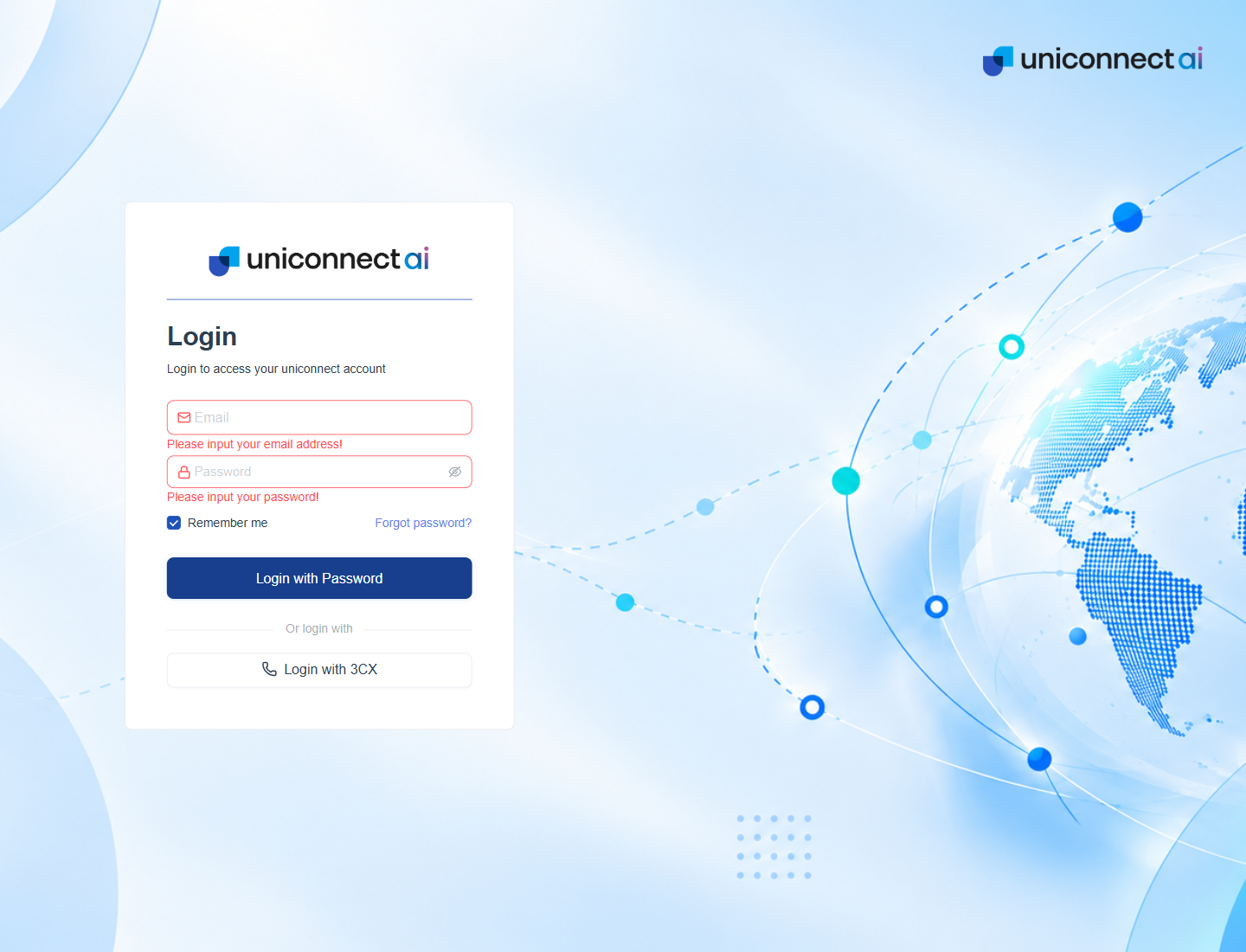
Figure 3. The Login page after clicking Login with Password with empty fields. Each field shows its own message.
| Message | Meaning | What to do |
|---|---|---|
| Please input your email address! | The email field is empty. | Type your email address. |
| Please enter a valid email address! | The text is not shaped like an email address. | Check for a missing @ or a space. |
| Please input your password! | The password field is empty. | Type your password. |
If the email or password is wrong, the platform shows an error message at the top of the page and stays on the Login page. Try again, or use Forgot password? next to Remember me. The steps are in Forgot Password.
Remember Me and Recent Login
Remember me appears on the Password, 3CX and AD forms. When it is ticked and you sign in, this browser keeps a Recent Login for you. The next time the Login page opens, it shows a Recent Login card above Or login with, so you can continue without typing anything.
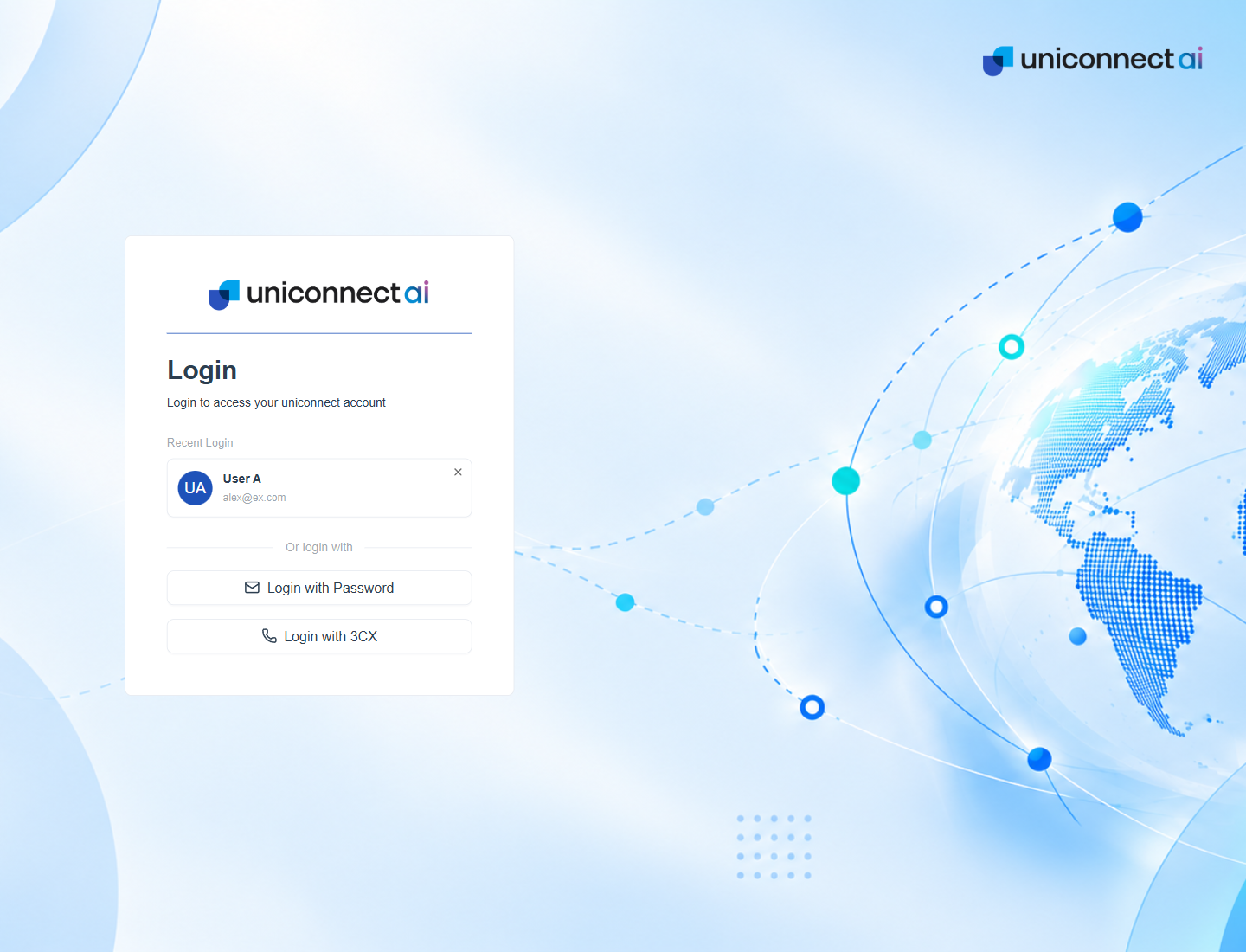
Figure 4. The Login page with a Recent Login card. The card shows initials or a picture, the name and the email address.
- Read the card. A password sign in shows the email address. A 3CX sign in shows 3CX followed by the extension. An AD sign in shows Active Directory followed by the user name.
- Click the card to continue. The platform signs you in again without asking for the password.
- Click the small cross at the top right of the card to remove it. The card is deleted and the Password form opens so you can sign in as someone else.
- Use the buttons under Or login with to pick a different method. After you open a form from there, a Back link takes you to the card again.
| Situation | Result |
|---|---|
| You sign in with Remember me ticked | A Recent Login card is saved in this browser. |
| You sign in with Remember me cleared | Any saved card is deleted. |
| The card no longer works | A message such as Session expired. Please log in again. appears, the card is deleted and you sign in with your details. |
| You use a different browser or computer | No card appears, because it is stored in the browser. |
Important: Never leave Remember me ticked on a shared or public computer. Anyone who can open the browser could click the card.
After You Sign In
- Home. You land on the home page, or on the page you asked for before the Login page opened.
- First administrator. The first administrator account is taken to the global configuration after the first sign in.
- Two Factor Authentication. A verification page opens first. Enter the code to finish.
Signing Out and Session Expiry
- Open the profile menu at the top right.
- Choose the sign out option. The session ends and the Login page opens.
A session also ends when your sign in is no longer valid. The platform then shows a message such as Session expired. Please log in again. and the Login page opens. Signing out in one place also signs you out of your other open sessions, which show User logged out from another session. Work you have not saved is not kept, so save before you step away.
Tip: Sign out at the end of a shift so the session no longer appears in the Active Sessions list.