Permissions
Integrations does not have a permission group of its own. Its permissions sit in the System Configuration group of a role, which is found under Configuration → User Management → Roles. Expanding System Configuration shows twelve Yes or No switches, and three of them decide who can work with integrations.
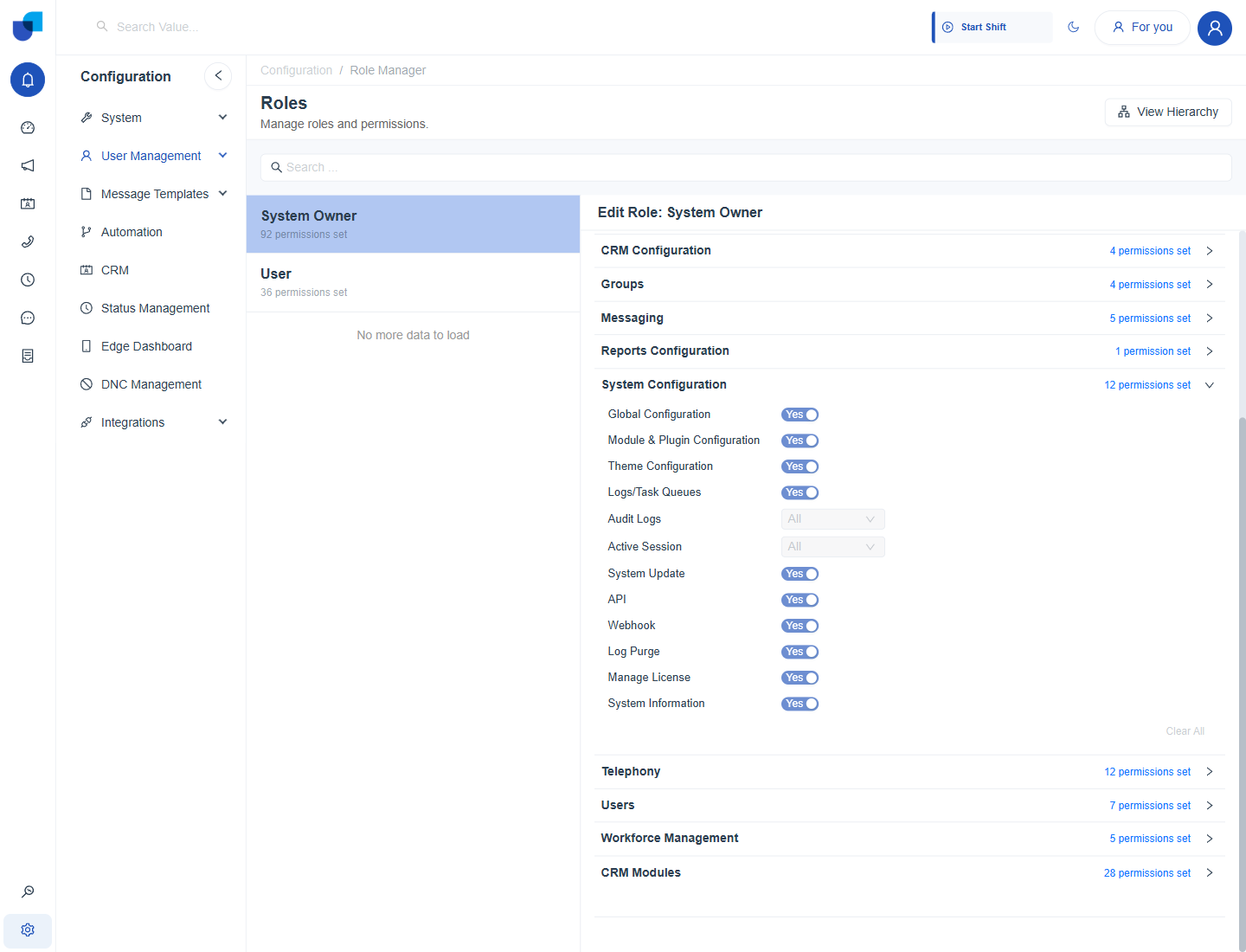
Figure 1. The System Configuration group of the System Owner role, with the API and Webhook switches among the twelve permissions.
The Permissions That Matter for Integrations
| Permission | Control | Governs |
|---|---|---|
| API | Yes or No switch | Working with the Integrations screens that handle API access, such as service accounts and API integrations. |
| Webhook | Yes or No switch | Creating and managing webhooks. See Webhooks. |
| Module & Plugin Configuration | Yes or No switch | The Modules and Plugins screens under Configuration → System. |
| Logs/Task Queues | Yes or No switch | The log files and task queues under Monitoring, which help when you check an integration. |
CRM modules have their own permissions. Who can see, create or change the records of an external module is set in the CRM Modules group of the role, as for any other module. See Configuring CRM Permissions.
Service Accounts and Roles
A service account has a role of its own, chosen when it is created. That role decides what the account can do when a REST client, an MCP tool or a BI tool uses it. Create a dedicated role for each kind of client instead of reusing an administrator role.
Collections and service accounts hold credentials. Switch API and Webhook on only for the administrators who manage connections, and leave them off in the built in User role.
Where This Fits
Roles and the Own, Group and All access model are shared platform concepts. This page covers only the permissions that matter for Integrations.