Getting Started
Before You Start
- Check that the license includes Integrations. Under Monitoring → License Details, look at Active Service Accounts and the list of enabled modules. The Integrations menu is shown in Configuration only when the feature is included.
- Use a role that can manage integrations. The System Configuration group of a role has API and Webhook permissions. See Integrations Permissions.
- Know the outside system. Have its base address, the endpoints you need and the way it authenticates ready before you start.
Bring an Outside System In
This is the most common path. The example here connects the PolicyHub KYC system so customer records appear in the CRM.
- Create a collection. Open Configuration → Integrations → API Integrations and click Create. Enter the name, base address and authentication. See Collections.
- Create an API for each endpoint. Open the collection and click Create. Choose the method, enter the path, and test it with Send. See Creating an API.
- Reshape the response if needed. The CRM expects a fixed response format, which a Post Script can produce. See Response Format the CRM Requires.
- Use the API. Assign it to an external CRM module, or call it from a workflow. See Assigning APIs to a Module and Using APIs in Workflows.
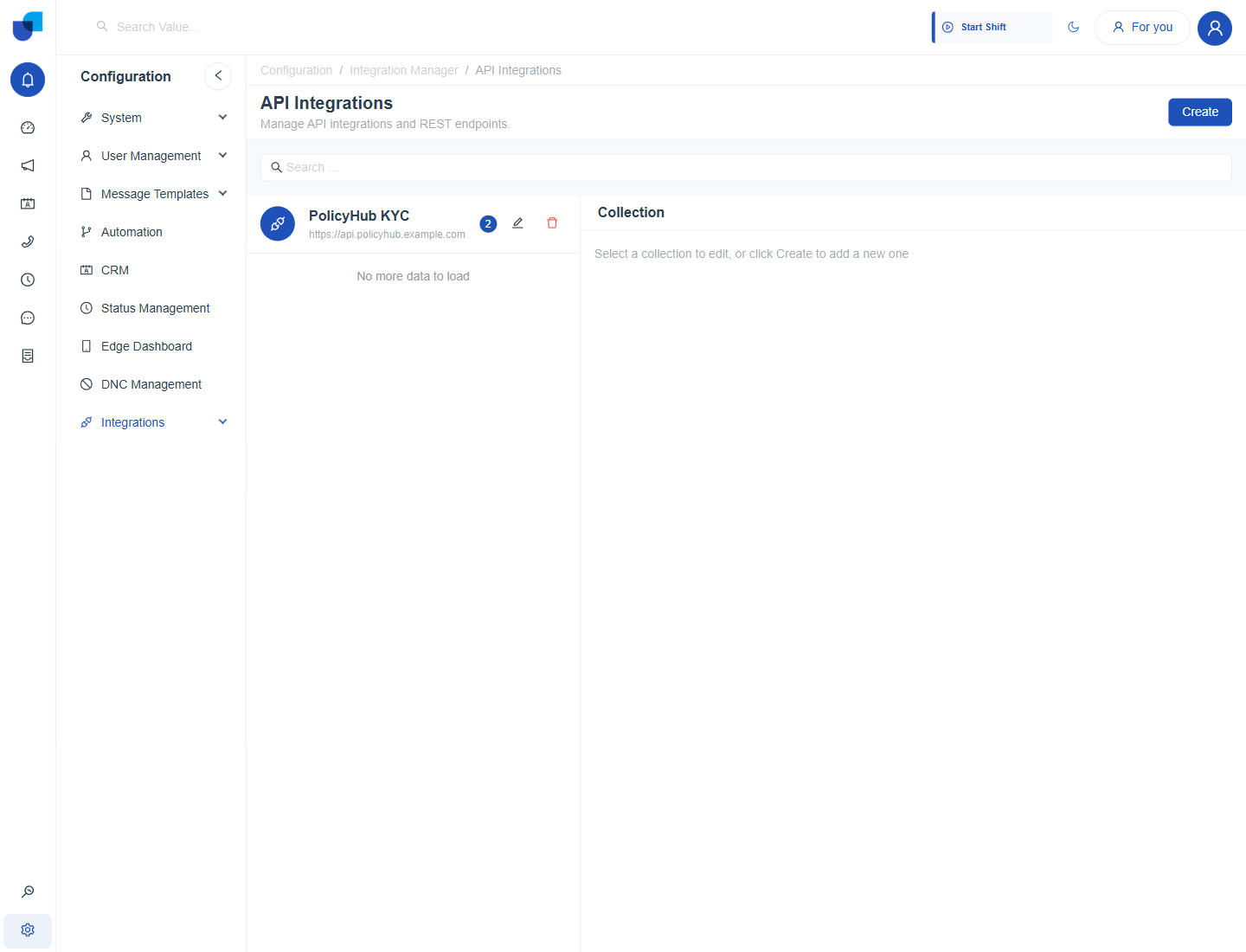
Figure 1. The API Integrations screen after the PolicyHub KYC collection has been created. The badge shows how many APIs it holds.
Let an Outside System Call In
- Create a service account. Open Configuration → Integrations → Service Accounts and click Create. See Service Account Configuration.
- Connect the client. Use the REST, MCP or database connection details that match the tool. See Connecting with REST APIs, Connecting MCP Tools and Connecting BI and Database Tools.
- Receive events if needed. Create a webhook for systems that push events. See Webhooks.
tip
Start with a single read only style endpoint, such as a customer lookup, before adding endpoints that create or change data.
Where to Go Next
The Integrations Use Case Scenario shows the whole flow on one example, and Configuring the Integrations Use Case builds it step by step.