Creating an External Module
An external CRM module shows records that are held in an outside system. Agents list, search and open them like any other module, while the data stays in the outside system. In the example, the Policy Customers module shows customers held in PolicyHub KYC. How external modules fit among the other module types is described in External Modules. This page covers only what is specific to connecting one to an API collection.
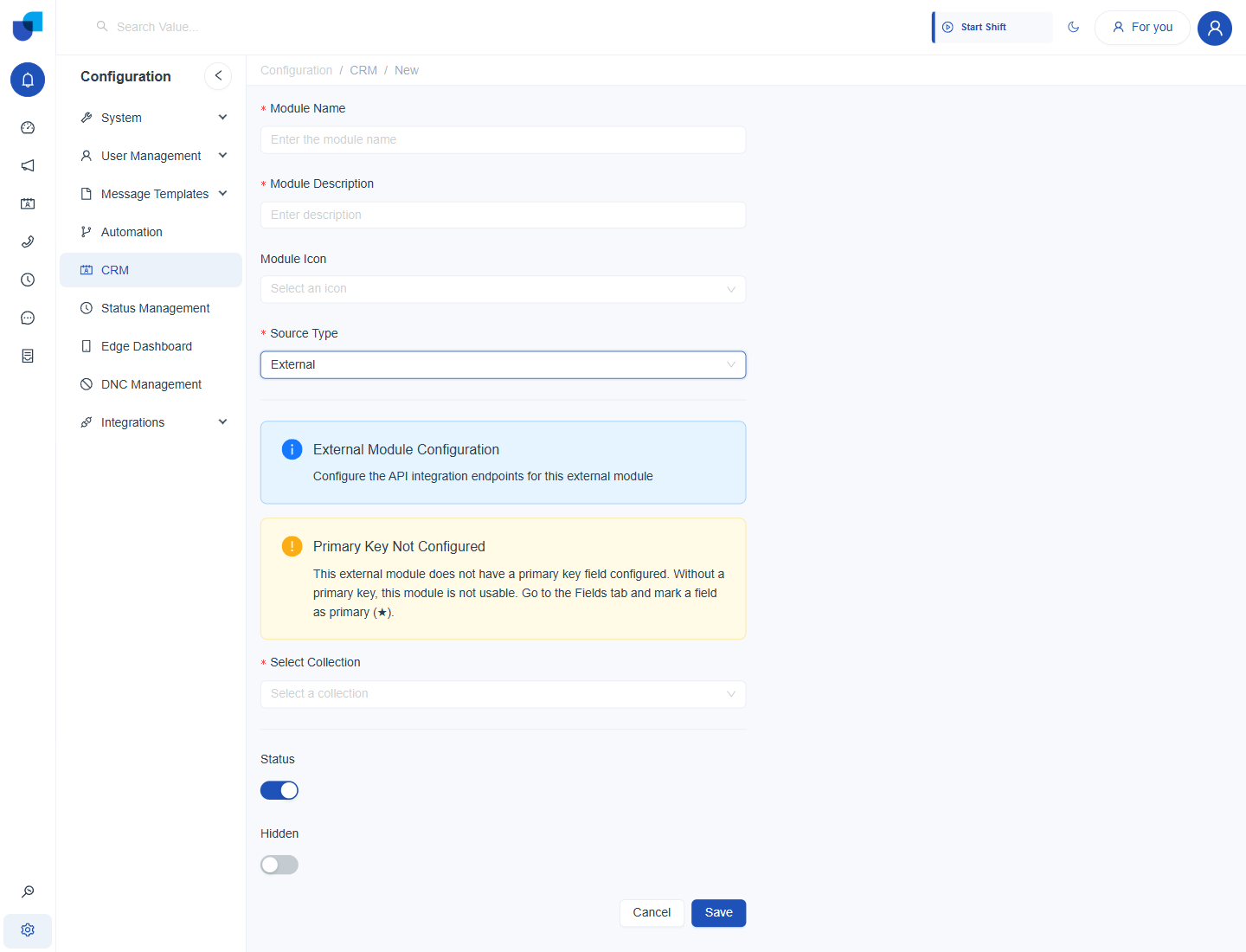
Figure 1. The new module form with Source Type set to External. The PolicyHub KYC collection is chosen under Select Collection.
Creating the Module
- Create the collection and its APIs first. See Collections and Creating an API.
- Open Configuration → CRM and click Create.
- Enter the Module Name and Module Description. Both are required. For example Policy Customers.
- Set Source Type to External. The External Module Configuration section appears.
- Choose the collection under Select Collection.
- Assign the APIs and click Save. See Assigning APIs to a Module.
- Create the fields and mark a primary key on the Fields tab. See the next sections.
After it is saved, the module appears in the CRM modules list with an External badge.
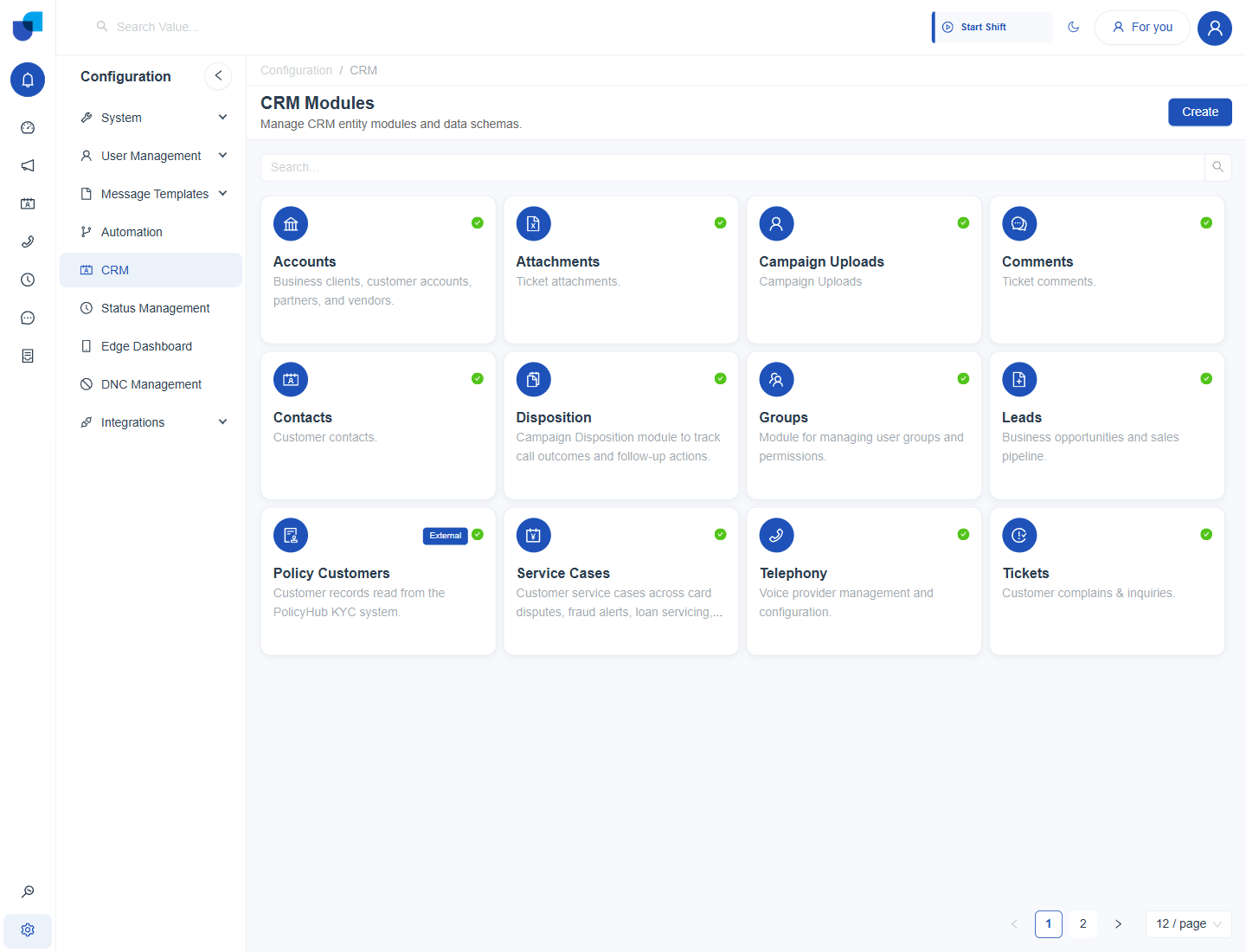
Figure 2. The CRM Modules screen. The Policy Customers card carries an External badge.
Creating the Fields Automatically
An external module starts with no fields. On its Fields tab, Automatic Schema Create fetches the response of the Get All API and creates a field for each value it finds, one by one. If the response is an array, the first item is used to detect the structure. The type of each field is detected too, so a phone number becomes a Phone Number field.
- Open the module and its Fields tab.
- Click Fetch Schema Response. The fields are created from the saved response of the Get All API.
- Check the fields. Edit a field to change its type, or use New Field to add one by hand. After a change in the outside system, Re-fetch Schema reads the response again.
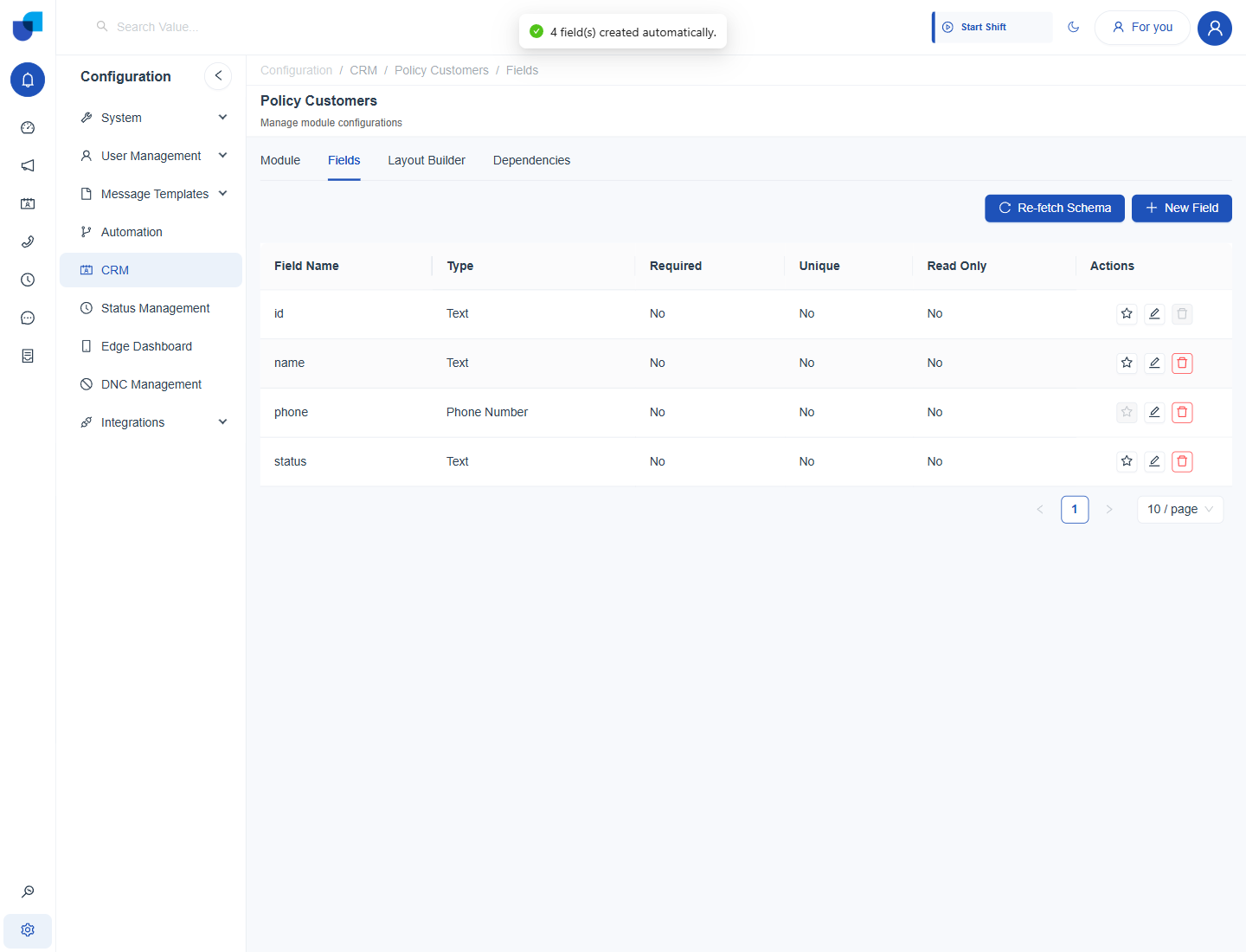
Figure 3. The Fields tab after the schema is fetched. The phone field was detected as a Phone Number.
The Primary Key
The form warns that an external module without a primary key field is not usable. Click the star on the row of the field that uniquely identifies a record in the outside system, such as the customer reference. A confirmation asks whether to change the primary field, and warns that it affects existing CRM records.
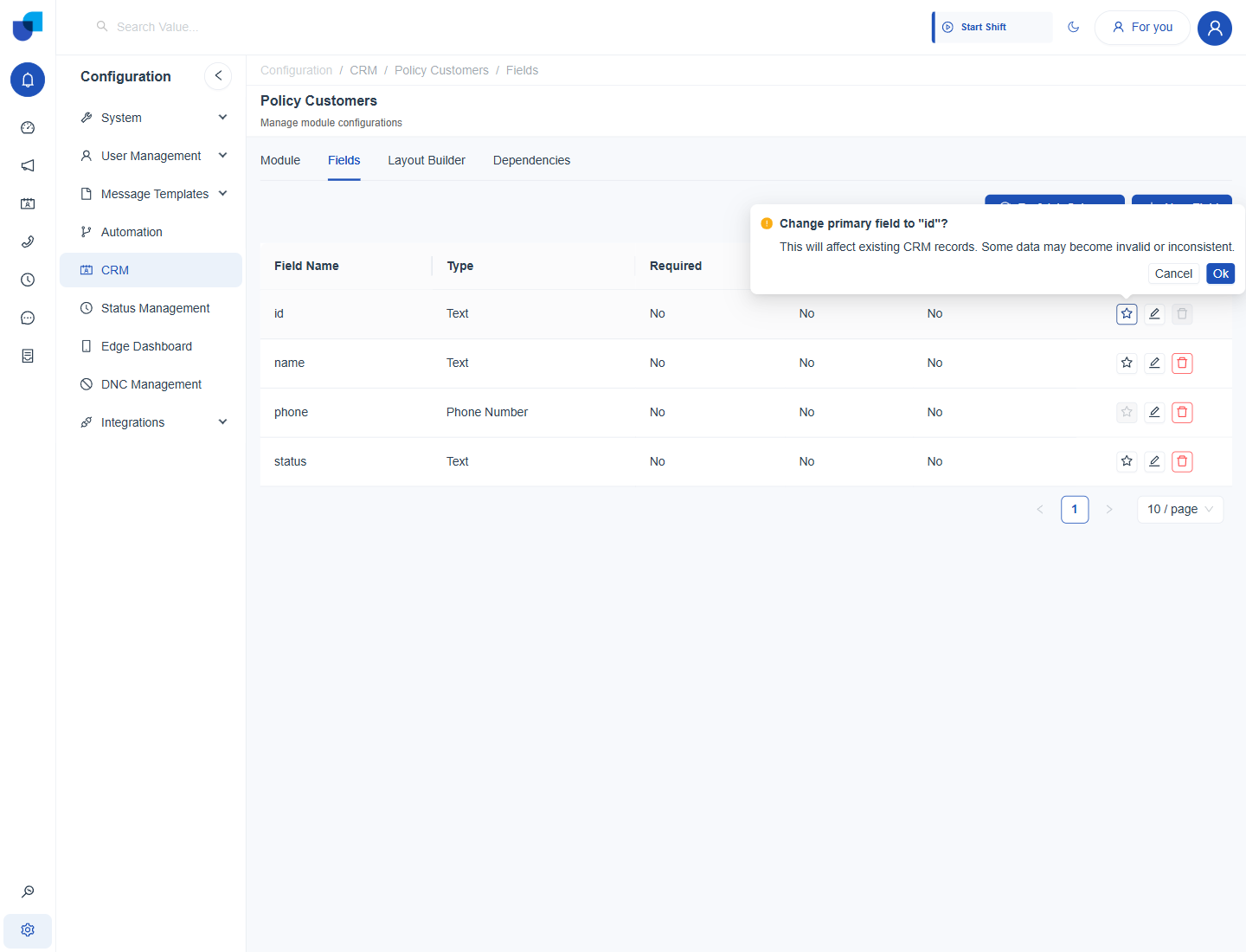
Figure 4. The confirmation shown when the star on the id field is clicked.
Until a primary key is marked, the module cannot load records. Choose the key before the module is in use, because changing it later affects existing records.
The Result
The module now lists the records read from the outside system. It has no New or Import button, because no Post API is assigned. Click the eye icon on a row to open a Summary View, which is loaded through the Get API.
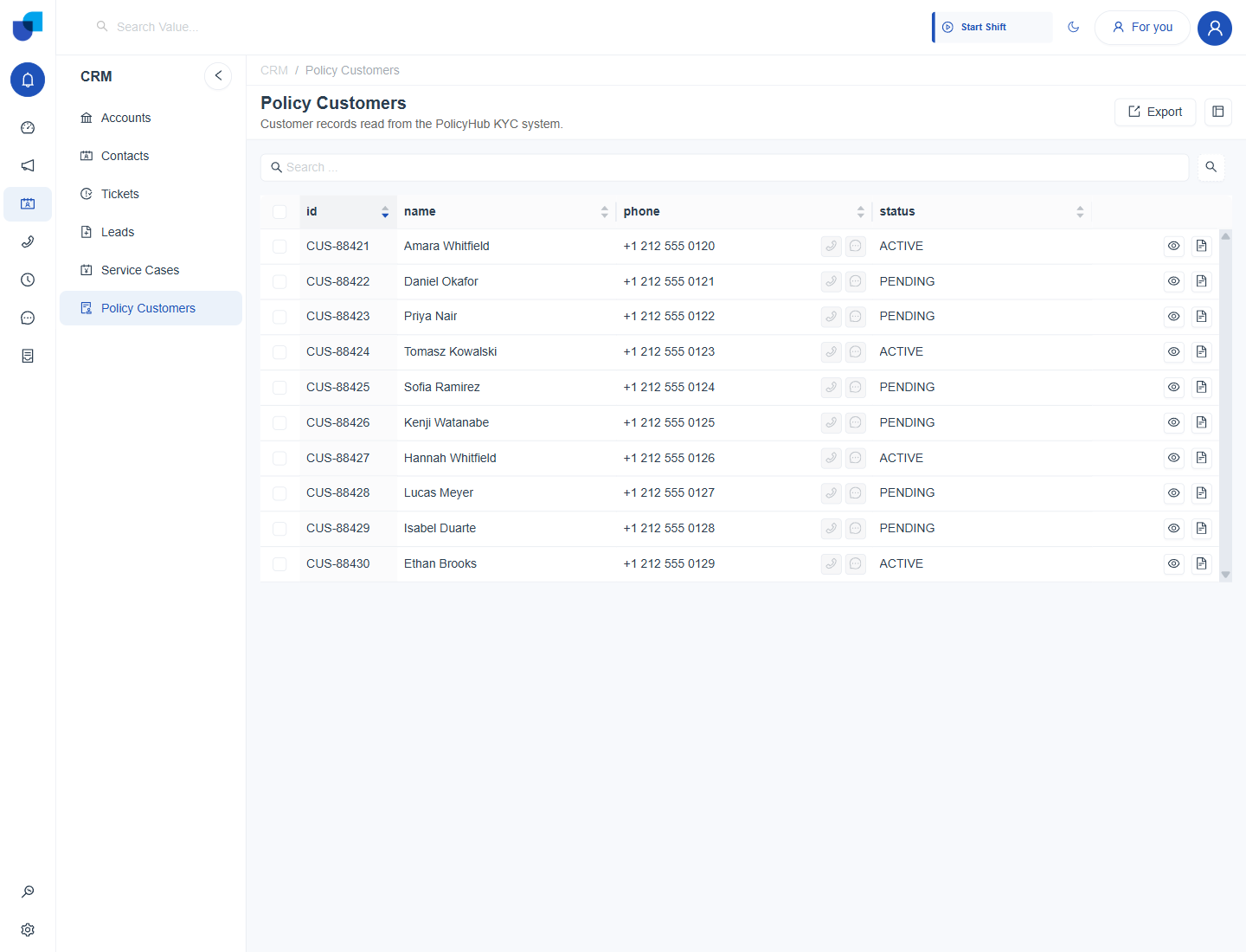
Figure 5. The Policy Customers module listing customers read from the outside system. The phone field carries the same click to call icons as any phone field.
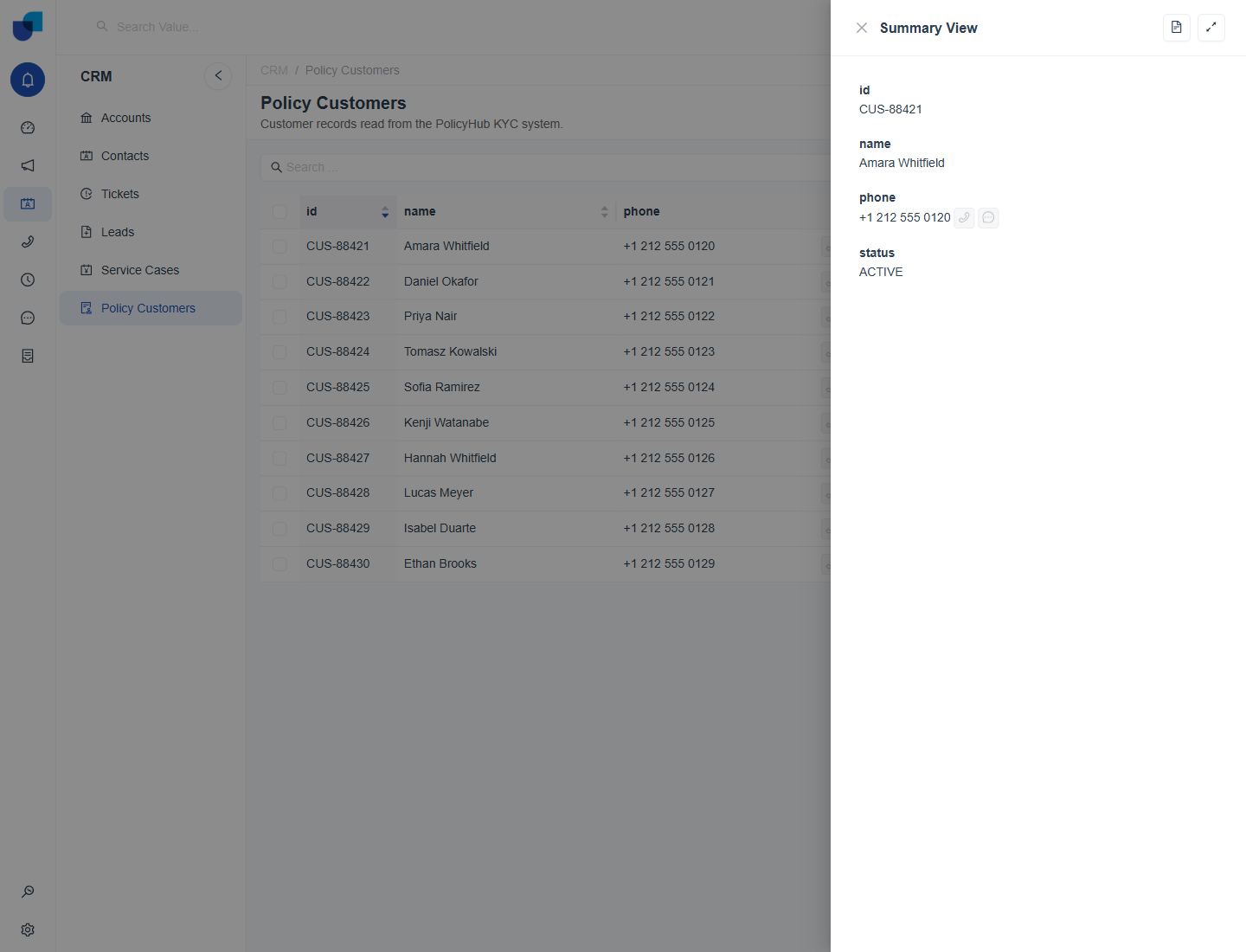
Figure 6. The Summary View of one customer, loaded through the Get API.
Where This Fits
Fields, layouts and permissions of an external module are configured the same way as for any CRM module. See How to Configure Fields. This page does not repeat that.