Break Approvals
Edge Softphone
What Needs Approval
Some statuses, typically Break and Lunch, are configured to require supervisor approval and to have a maximum allowed time. The administrator sets this per status in Uniconnect AI with requiresApproval and maxAllowedTime. Related status settings are approvalInterval, enableRingMyMobile, enableExternalCalls and enableQueueLogin, all configured in Uniconnect AI.
Requesting a Break
- Open the status menu. Approval-required statuses are listed in a separate REQUIRES APPROVAL group, each with its limit, for example Break 15m.
- Select one. A dialog says "This will be sent to your Supervisor for approval. You'll stay Available until it's approved." Choose Send Request, or Cancel.
- Wait for the supervisor. Your current status stays unchanged, and a pending pill, for example Break Pending, appears next to it.
- Withdraw if needed. Click the X on the pending pill. Edge resets you to the previous status.
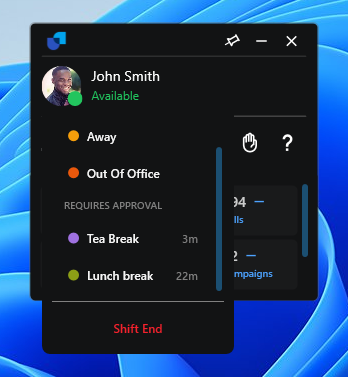
Figure 1. The REQUIRES APPROVAL group in the status menu.
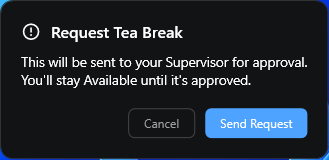
Figure 2. The break request dialog.
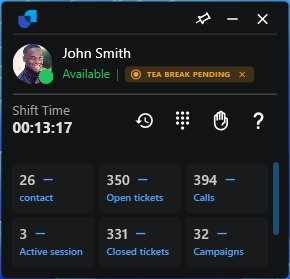
Figure 3. The pending pill next to the status.
When Approved
The new status becomes current and a break countdown appears. It shows the remaining time as mm:ss.
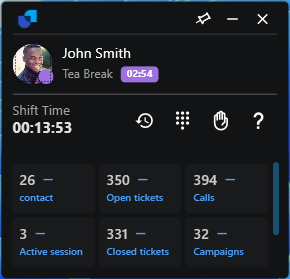
Figure 4. An approved break with its countdown.
- Running over. If you stay on break longer than the allowed time, the display switches to EXCEEDED +mm:ss in red.
- Ending the break. Changing back to Available, or to any non-break status, clears the timer.
- Server behaviour. If the status is marked
autoApproveOnExpireorchangeOnDisconnect, Uniconnect AI performs that behaviour, not Edge. - Accuracy. The countdown is computed from the server's status updated time, so it stays correct after restarting Edge or reconnecting.
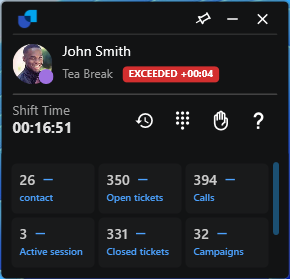
Figure 5. A break that has run over its limit.