Calling
Edge Softphone
Lines and the Dial Pad
Edge supports up to 6 simultaneous lines. Each call occupies one line, and the active (selected) call is the one with live audio. Selecting another call automatically puts the previously active call on hold. If all lines are busy, a new outbound call fails with "All Lines Are Busy".
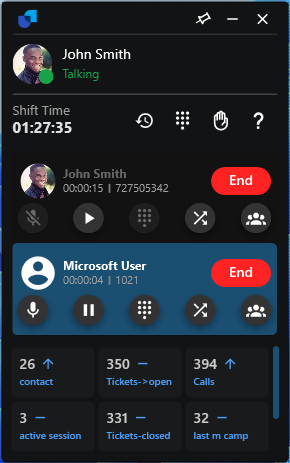
Figure 1. Two lines: one call on hold and one active.
Using the dial pad
Open the dial pad with the dial pad icon in the header (the tooltip reads Dial Pad).
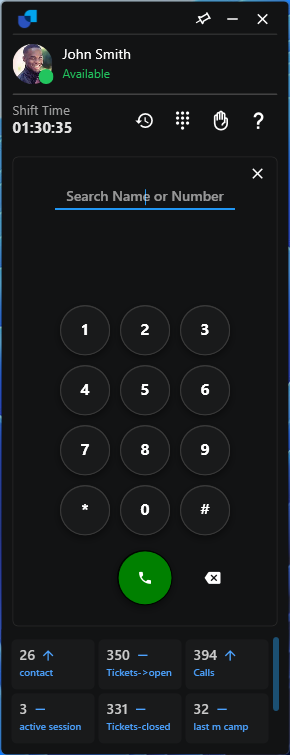
Figure 2. The dial pad in Normal mode.
- Search Name or Number. Type a number or a name. Matching contacts appear as suggestions, and clicking one fills in the number.
- Keypad. Use the on-screen keys (0 to 9, * and #) and the backspace button.
- Call. Press the green Call button to dial.
- Redial. Press Call with an empty box to fill in the last dialled number, then press it again to call.
- From Call History. Selecting a number in Call History copies it into the dialler.
Outbound Calls
When you press Call, Edge follows the same sequence every time.
- Start the SIP call. The call starts on the next free line. The status reads Dialing and the ringing view shows a hang-up button.
- Tell Uniconnect AI. Edge sends a "call started" event to
/api/calls/popup-details, so the enterprise can show the screen pop and track the call. - Hold the earlier call. If another call was already established, it is held automatically.
- Connect. When the far end answers, the line becomes a connected call.
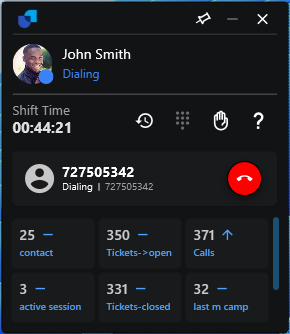
Figure 3. An outbound call in the Dialing state.
Inbound Calls
An incoming call card shows the caller's name (resolved from contacts, with a photo when available), the number and, for queue calls, the queue name.
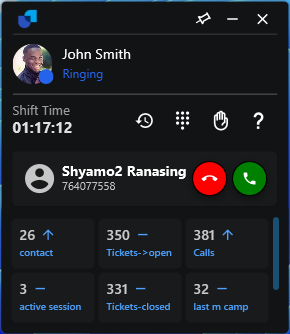
Figure 4. An incoming call card with Answer and Decline.
- Answer or Decline. Answer is green and Decline is red. The ring tone plays on the ringer or playback device set in Settings.
- Already on a call. The previously active call is put on hold when the new call becomes the active line.
- Auto-answer. If it is enabled for the agent, and there is no other active call, Edge answers after the number of seconds set in Auto Answer After (Seconds).
- Barge In label. A call whose address contains
cm_barge_inis shown as Barge In. See Call Monitoring.
During and after a call
| Control | Action |
|---|---|
| End | Hangs up the selected line. |
| Dial Pad | Opens the keypad to send DTMF digits, for example to answer IVR menus. |
| Transfer, Conference | See Call Routing and Multi-Party Conference below. |
| Mute, Hold | See In-Call Controls below. |
The call timer starts when the call is established. When a call ends, its line is cleared and the most recent remaining call becomes active.
In-Call Controls
Two toggles appear on a connected call. The Mute and Hold buttons are shown when the Uniconnect AI version supports the IN_CALL_ACTION feature.
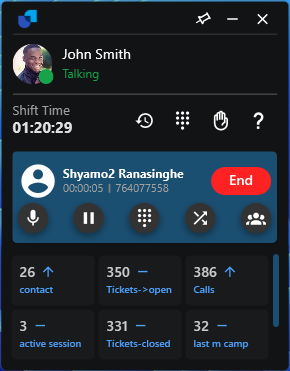
Figure 5. A connected call with Mute, Hold, Dial pad, Transfer and Conference.
| Control | What happens |
|---|---|
| Mute / Unmute | Mutes your microphone for that call. Edge also reports mute or unmute to Uniconnect AI so the call record and the 3CX state match. |
| Hold / Resume | Puts the call on hold, so the far end hears hold audio, or resumes it. Edge also reports hold or unhold to Uniconnect AI. |
Details worth knowing
- Not the active line. Clicking Mute or Hold on a call that is not the active line first makes it the active line, then applies the change.
- Speaker toggle. The speaker (sound) toggle controls local playback only.
- Failures. A failed report is logged but does not interrupt the call audio.
- Conferences. Mute and hold are applied per participant through the conference API instead.
Call Routing
The Transfer button (tooltip Transfer) appears on a connected call when the Uniconnect AI version supports TRANSFER. Uniconnect AI runs the transfer through 3CX, so the transfer survives even if Edge is closed afterwards.
Blind transfer
Also called a cold transfer. You transfer the call without speaking to the target first.
- Press Transfer. The dial pad opens in transfer mode.
- Enter the target. Type the extension or number, or pick a contact.
- Press Call. Edge asks Uniconnect AI to transfer the current call to that number. The number is handled the same way as an outbound call.
- Check the result. On success the dial pad closes and the call leaves your line. On failure you see "Blind transfer failed. Please check logs for details", and the details are in the Log Viewer.
Attended transfer
Also called a consultative transfer. You speak to the target first, then connect the two parties.
- Connect call A. This is the customer you want to transfer.
- Call the target as call B. Dial the person normally. Call A is held automatically and call B becomes the active line.
- Talk to B. Confirm they can take the call.
- Press Transfer on the held call A. Edge asks Uniconnect AI to bridge A and B. You drop out, and A and B stay connected.
If the server returns updated party addresses, they are shown on the lines while the transfer completes. Errors appear as a dialler error message.
Forwarding
Edge has no call forwarding control of its own. It neither sets nor reads forwarding rules. Routing that sends calls elsewhere is configured on the server side.
- Ring my mobile. The only routing toggle in Edge, under Settings. It updates the agent's
ringMyMobileEnabledflag in Uniconnect AI so that calls to the agent also ring their mobile. Whether the toggle can be changed depends on the agent's status configuration (enableRingMyMobile). - Everything else. Status dependent routing (for example Out of Office sending calls to voicemail or another number), queue and ring group forwarding, and 3CX forwarding rules are managed in Uniconnect AI and 3CX.
Multi-Party Conference
The Conference button (tooltip Conference) appears on a connected call when the Uniconnect AI version supports CONFERENCE. Uniconnect AI and 3CX host the conference. Edge is the moderator and controls participants through the conference API.
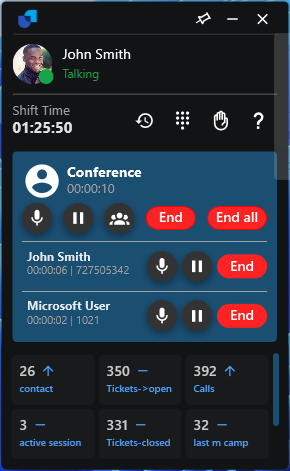
Figure 6. An active conference with its participants.
Create a conference from one call
- Press Conference. The dial pad opens in conference mode.
- Dial the third party. Enter their number and press Call.
- Let Edge build the conference. Edge asks Uniconnect AI to create a conference between your extension and the current caller (
/api/calls/number-call-conference). It waits for the original call to be replaced by the conference line, connects your phone to the conference room (a dedicated line shown as Conference), loads the participant details and adds the existing caller as the first participant. Then it dials the new party and adds them (Dialing, then active).
Each of the three waits has a 60 second timeout. On timeout you see "Time out while creating the conference", "Time out while accessing conference details" or "Time out while establishing the conference".
Merge two separate calls
If you already have two separate calls, one held and one active, press Conference on the other (held) call. Edge adds that caller to the conference, creating the conference first if none exists. The held conference line is resumed if needed.
Add more participants
While the conference is active, press Conference and dial the next number. A number already in the conference is ignored. A participant who left can be added again with the add again action in the Left participants list.
The conference screen
| Element | Description |
|---|---|
| Active participants | Everyone currently in the conference, with name or number and state (Dialing, connected). |
| Left participants | People who dropped out, with the option to add them again. |
| Mute (per participant) | Mutes or unmutes that participant (mute / unmute). |
| Hold (per participant) | Holds or resumes that participant (hold / resume). |
| Drop (per participant) | Removes that participant (drop). It also cancels a participant who is still Dialing. |
| Moderator mute | Mutes or unmutes you, the moderator, in the conference. |
| End | Ends your line, so you leave the conference. |
| End all | Deletes the conference and disconnects everyone. |
- Conference membership is re-synchronised automatically after a WebSocket reconnect.
- Queue calls inside conferences are handled, and the queue name is shown.
- Switching between a conference line and another call holds or resumes the conference participants accordingly.
- Conference lines count against the 6 line limit.