Diagnostics
Edge Softphone
What Diagnostics Offers
Settings, Diagnostics groups three troubleshooting tools, with tabs to switch between them: the Log Viewer, PBX IP Ping and Telnet.
Log Viewer
A live view of the Edge log files in %LOCALAPPDATA%\Uniconnect Edge\Logs. Log files roll at 100 MB each and the last 10 are kept. SIP SDK logs are in %LOCALAPPDATA%\Uniconnect Edge\Logs\Voip Sdk Log. Set Log Levels to Debug in Settings only while reproducing an issue, then upload the log and set it back.
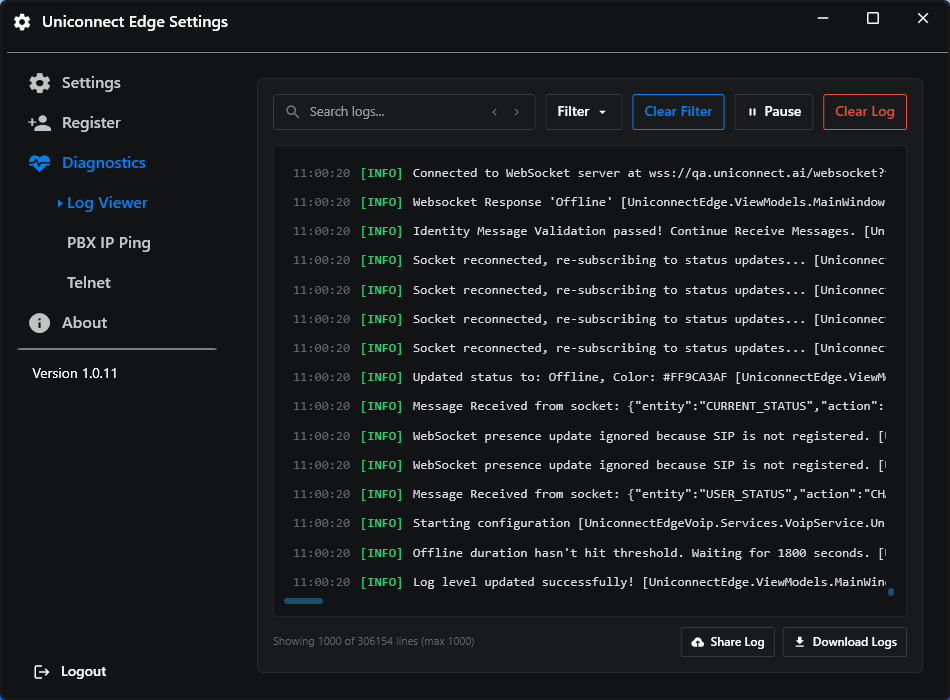
Figure 1. The Log Viewer.
| Feature | Description |
|---|---|
| Live tail | New lines appear as they are written. Up to the latest 1,000 lines are shown. |
| Pause / Resume | Freezes the display while you read. Resuming catches up. |
| Filter | Shows only Debug, Info, Warn, Error or Verbose lines, in any combination. Clear filter resets it. |
| Search | Highlights matches, with next and previous navigation. |
| Clear | Clears the on-screen list. |
| Download | Saves the shown lines to a .txt file. |
| Upload | Sends the shown lines to Uniconnect AI support storage as YYYYMMDDHHMMSS.txt, tagged with your extension. A success or failure dialog is shown. It needs Uniconnect AI 1.3.0 or later. |
PBX IP Ping
A continuous ICMP ping that checks connectivity and latency to the PBX.
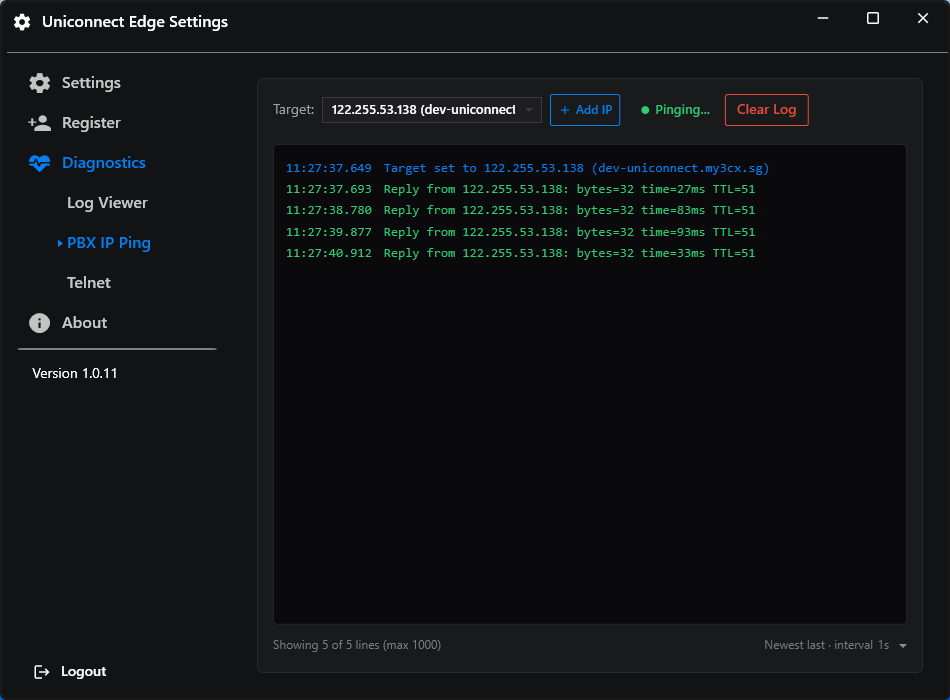
Figure 2. PBX IP Ping output.
- Default target. The 3CX registrar host from the SIP configuration, resolved to its IP.
- Add target, Remove target. Ping other hosts such as gateways, DNS or the internet.
- Interval. 1, 2, 3 or 5 seconds. The default is 1 second and can be pre-set with
PingSettings:DefaultIntervalSeconds. - Output.
Reply from <ip>: bytes=32 time=<ms>ms TTL=<n>in green. "Request timed out." and other failures in red. The list keeps a maximum of 1,000 lines, and Clear empties it. - Reading it. Steady low times are healthy. Spikes or timeouts that coincide with choppy audio point to a network problem, not to Edge.
Telnet
A TCP port test, not an interactive terminal. Use it to verify that a port is reachable, for example the SIP path on 5060 or the HTTPS path on 443.
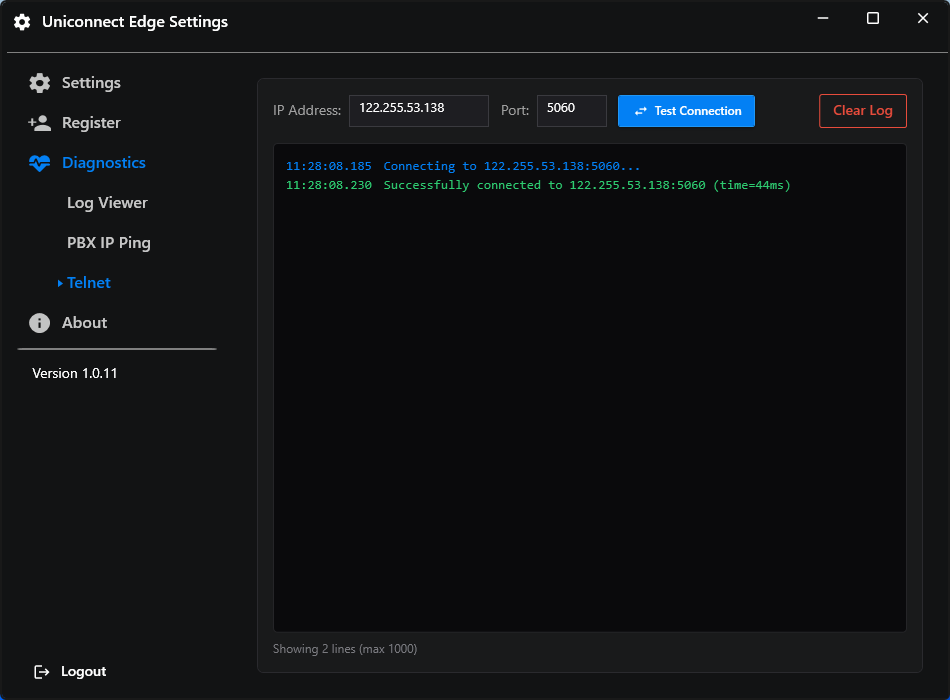
Figure 3. The Telnet port test.
- Check the target. The host defaults to the PBX registrar host or IP, and the port defaults to 5060.
- Click Test Connection. The log shows "Connecting to host:port".
- Read the result. You see "Successfully connected to host:port" with the time in milliseconds, or a timeout after 5 seconds, or a failure with the socket error.
An invalid port shows "Error: Invalid port number. Enter a value between 1 and 65535." Clear empties the log.