Configuration → Automation → a workflow → Designer → Action node
Action Categories
Overview
Every automated action in Uniconnect happens through an Action node. Adding an Action node to the canvas opens the Edit action Node configuration panel on the right, which contains a searchable, filterable catalog of every action the platform supports.
To pick an action:
- Drag an Action node onto the canvas from the Toolbox.
- Select it to open the Edit action Node panel.
- Filter by Module pills across the top (e.g.
Campaign,AI Configuration,Messaging), or type into the Search actions... box. - Click any action row to assign it to this node.
The sections below group the catalog by the module filters you will use most often when building workflows.
Campaign-Related Actions
Managing outbound and inbound campaigns from inside a workflow: adding leads, pausing or resuming a run, deleting campaigns, and controlling retry behavior.
Configuration → Automation → a workflow → Designer → Action node → filter by Campaign
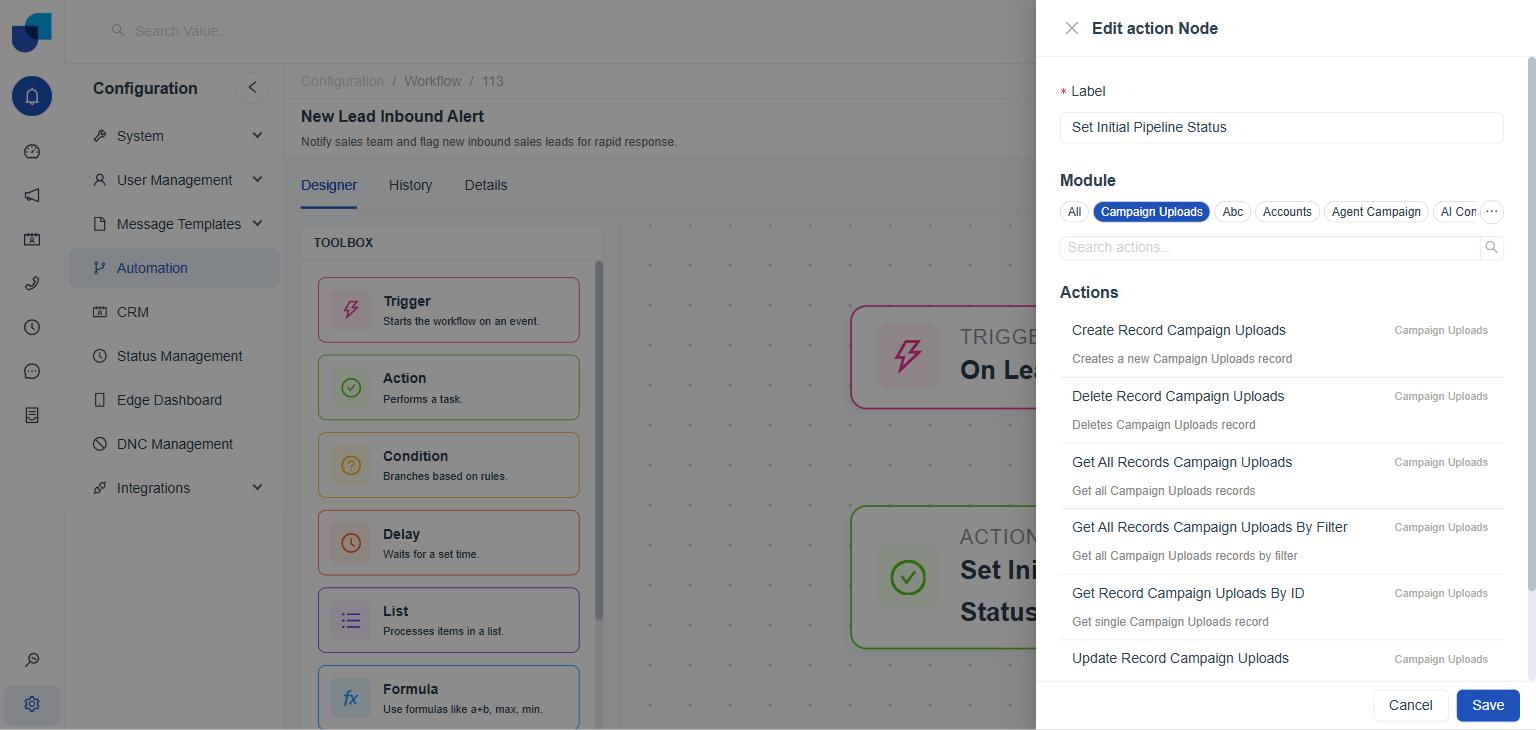 Figure 1. The Edit action Node panel, filtered to the Campaign module.
| ACTION | WHAT IT DOES |
|---|---|
Add Lead to Campaign | Adds a lead to a campaign. |
Add To DNC | Adds a number to the Do Not Call list. |
Continue Campaign Calls | Continues calling for a campaign. |
Delete Campaign | Deletes a campaign. |
Get Campaign By Id | Retrieves campaign details by campaign ID. |
Get Campaign By Lead ID | Retrieves campaign details by lead ID. |
Increment Lead Attempt | Increments the attempt count for a lead. |
Pause Campaign | Pauses an active campaign. |
Resume Campaign | Resumes a paused campaign. |
Retry for Voice Campaigns by Lead ID | Triggers a retry for a voice campaign using the lead ID. |
Update Lead | Updates lead details within a campaign. |
Add Lead to Campaign pairs naturally with the Lead Created trigger, allowing newly ingested CRM records to be pushed straight into an active dialer campaign without manual intervention.
CRM Module-Related Actions
Every custom or standard module defined under your CRM (Leads, Contacts, Accounts, Cases, Opportunities, and any custom entities your team created) exposes the exact same six CRUD and search actions. When filtering the Action catalog, choose the pill named after the target module (for example, Leads).
Configuration → Automation → a workflow → Designer → Action node → filter by any CRM module pill (e.g. Leads, Accounts)
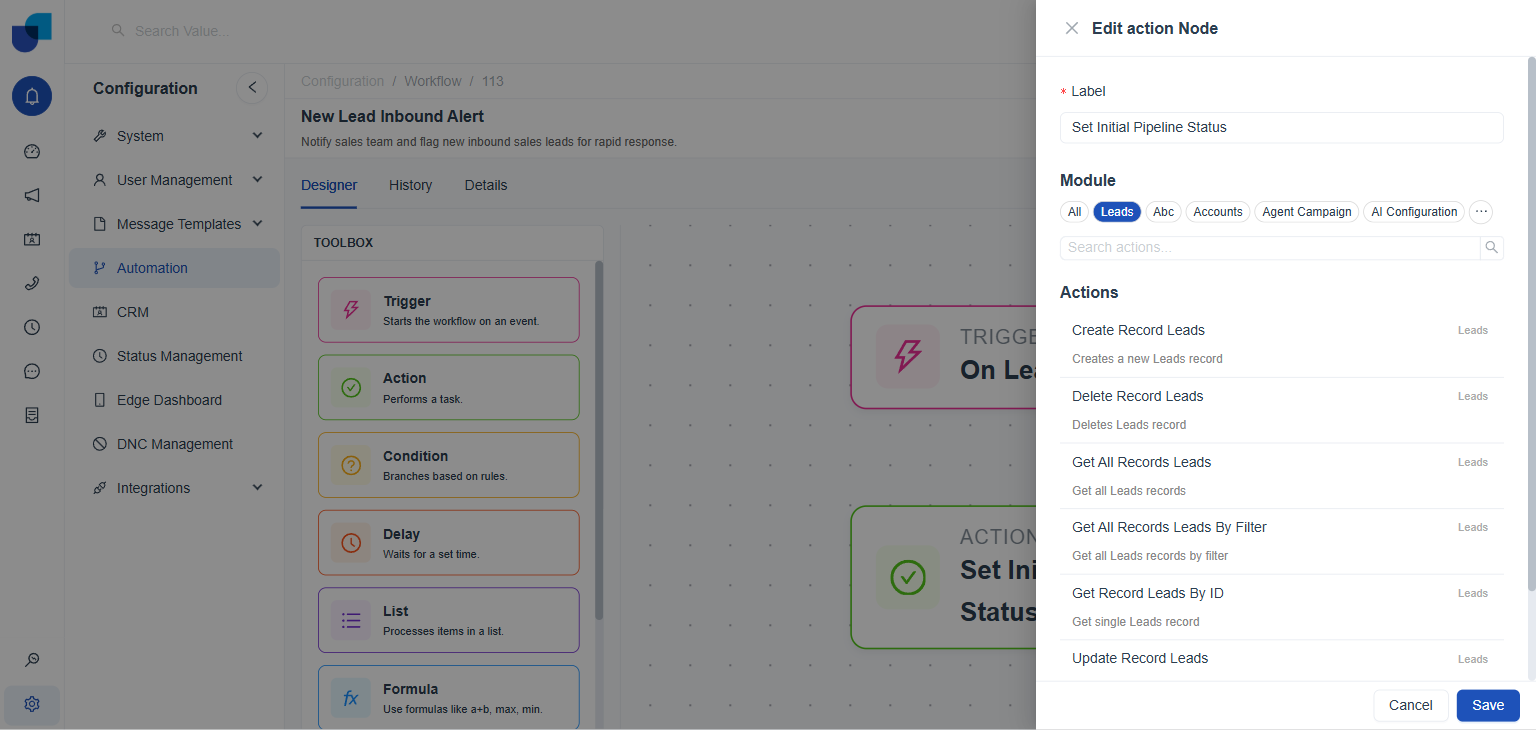 Figure 2. The Edit action Node panel, filtered to the Leads module. The same six actions appear, renamed for its own module, on every other CRM module.
| ACTION | WHAT IT DOES |
|---|---|
Create Record [Module] | Creates a new record in the chosen module. |
Get Record [Module] By ID | Retrieves a single record by its system ID. |
Get All Records [Module] | Retrieves records from the module with optional filtering, sorting, and pagination. |
Get All Records [Module] By Filter | Retrieves records matching structured filter rules. |
Update Record [Module] | Updates fields on an existing record. |
Delete Record [Module] | Deletes a record from the module. |
Get All Records Fields
When using Get All Records [Module], the node configuration exposes five parameters:
| FIELD | DESCRIPTION |
|---|---|
Filter Rules | One or more condition rules that returned records must match. |
Sort Rules | The field and direction (ASC / DESC) used to order the returned records. |
Limit | Maximum number of records to return in a single run. |
Search | Free-text search string matched against searchable fields. |
Offset | The index of the first record to return, used alongside Limit for pagination. |
Combine Limit and Offset when paging through large volumes of records across repeated automation runs, or pass the output of a Get All Records action straight into a List node to loop over each record in turn.
AI-Related Actions
Interacting with Uniconnect's AI engines: executing agents, routing tasks, and managing real-time speech-to-text transcription.
Configuration → Automation → a workflow → Designer → Action node → filter by AI Configuration
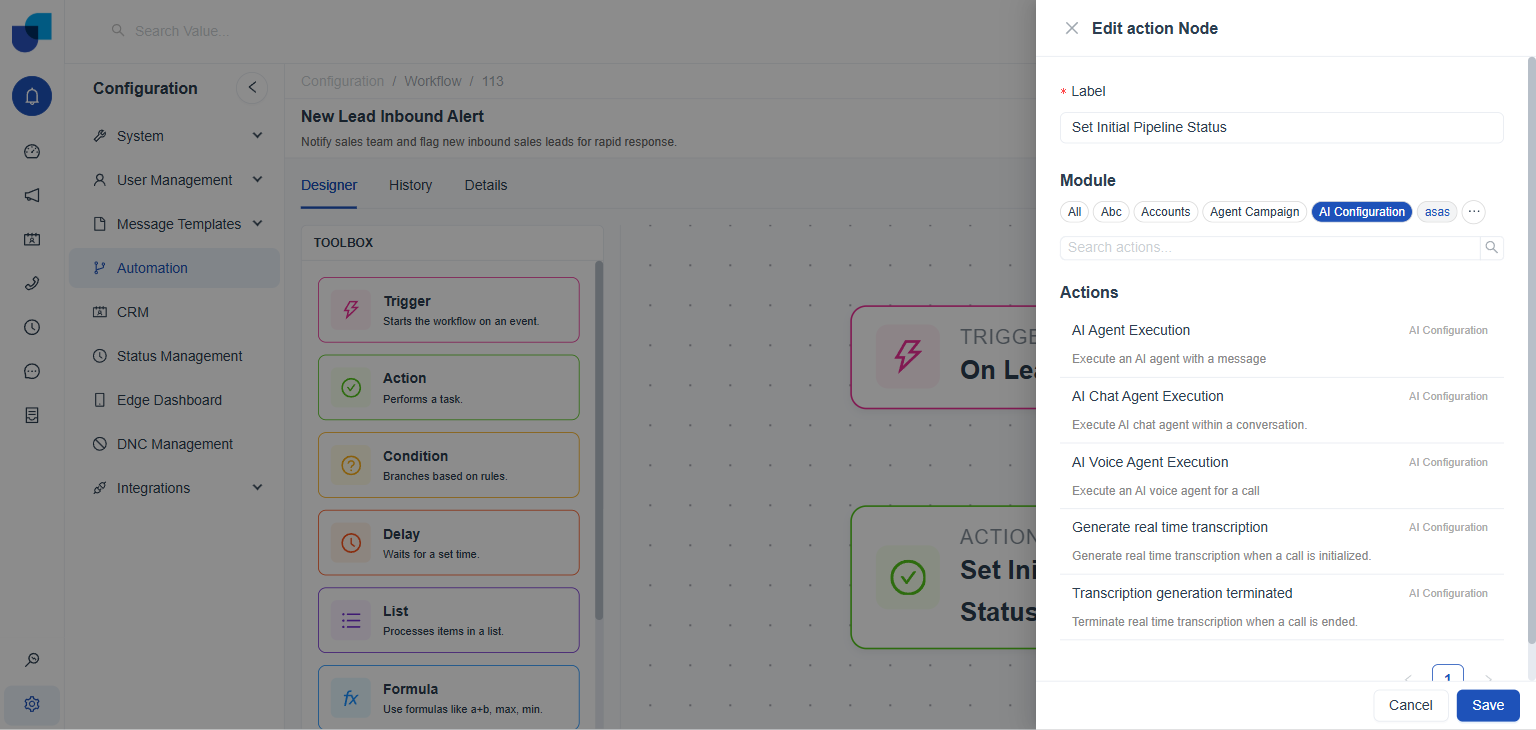 Figure 3. The Edit action Node panel, filtered to the AI Configuration module.
| ACTION | WHAT IT DOES |
|---|---|
AI Agent Execution | Executes a configured Task Agent. |
AI Chat Agent Execution | Executes a configured Chat Agent. |
AI Voice Agent Execution | Executes a configured Voice Agent. |
Generate real time transcription | Starts real-time transcription on an active media stream. |
Transcription generation terminated | Terminates an active real-time transcription session. |
Use AI Agent Execution when you need an LLM to classify an incoming record, summarize call notes, or extract structured entities before passing the data to a downstream CRM action.
Group Actions
Managing user groups and team rosters from inside a workflow.
Configuration → Automation → a workflow → Designer → Action node → filter by Groups
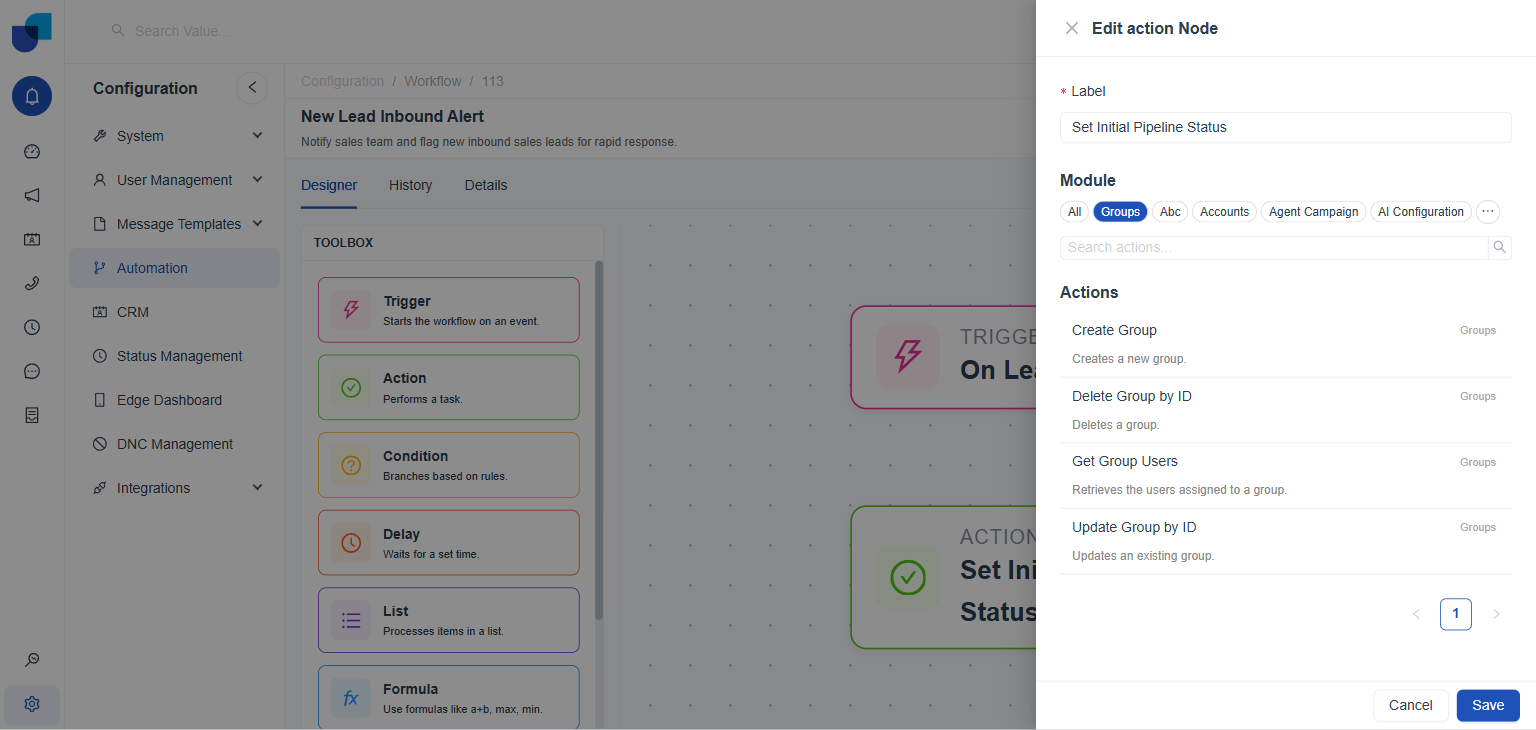 Figure 4. The Edit action Node panel, filtered to the Groups module.
| ACTION | WHAT IT DOES |
|---|---|
Create Group | Creates a new user group. |
Get Group Users | Retrieves the list of users assigned to a group. |
Update Group by ID | Updates an existing group's details. |
Delete Group by ID | Deletes a user group. |
SMS Actions
Sending outbound SMS messages through configured SMS gateways, either as freeform text or using pre-approved SMS templates.
Configuration → Automation → a workflow → Designer → Action node → filter by Messaging
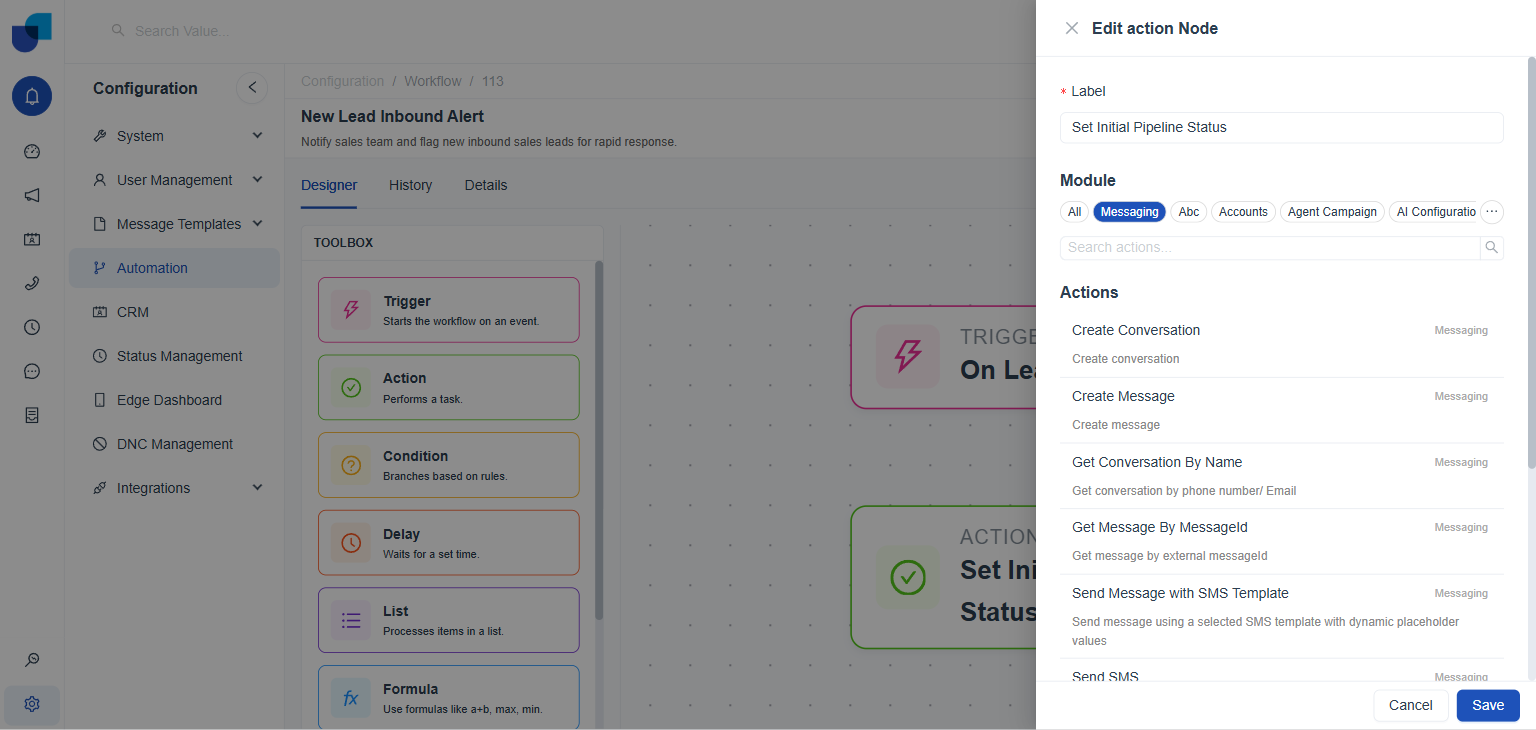 Figure 5. The Edit action Node panel, filtered to the Messaging module. SMS and WhatsApp actions appear together in the same list.
| ACTION | WHAT IT DOES |
|---|---|
Send SMS | Sends an SMS message. |
Send Message with SMS Template | Sends an SMS message using a selected SMS template with dynamic placeholder values. |
The Messaging module also lists WhatsApp and generic conversation actions (Send WhatsApp Template, Send WhatsApp Text, Create Conversation, Create Message, Get Conversation By Name, Get Message By MessageId, Update Message Status) alongside the two SMS actions above. There is no separate WhatsApp or Conversation module filter; all of it is filtered under Messaging. This matches the WhatsApp Trigger as well, confirmed to sit under the same Messaging module.
Email Actions
Sending email from inside a workflow, either as a plain notification or through a saved Email template.
Configuration → Automation → a workflow → Designer → Action node → filter by Email
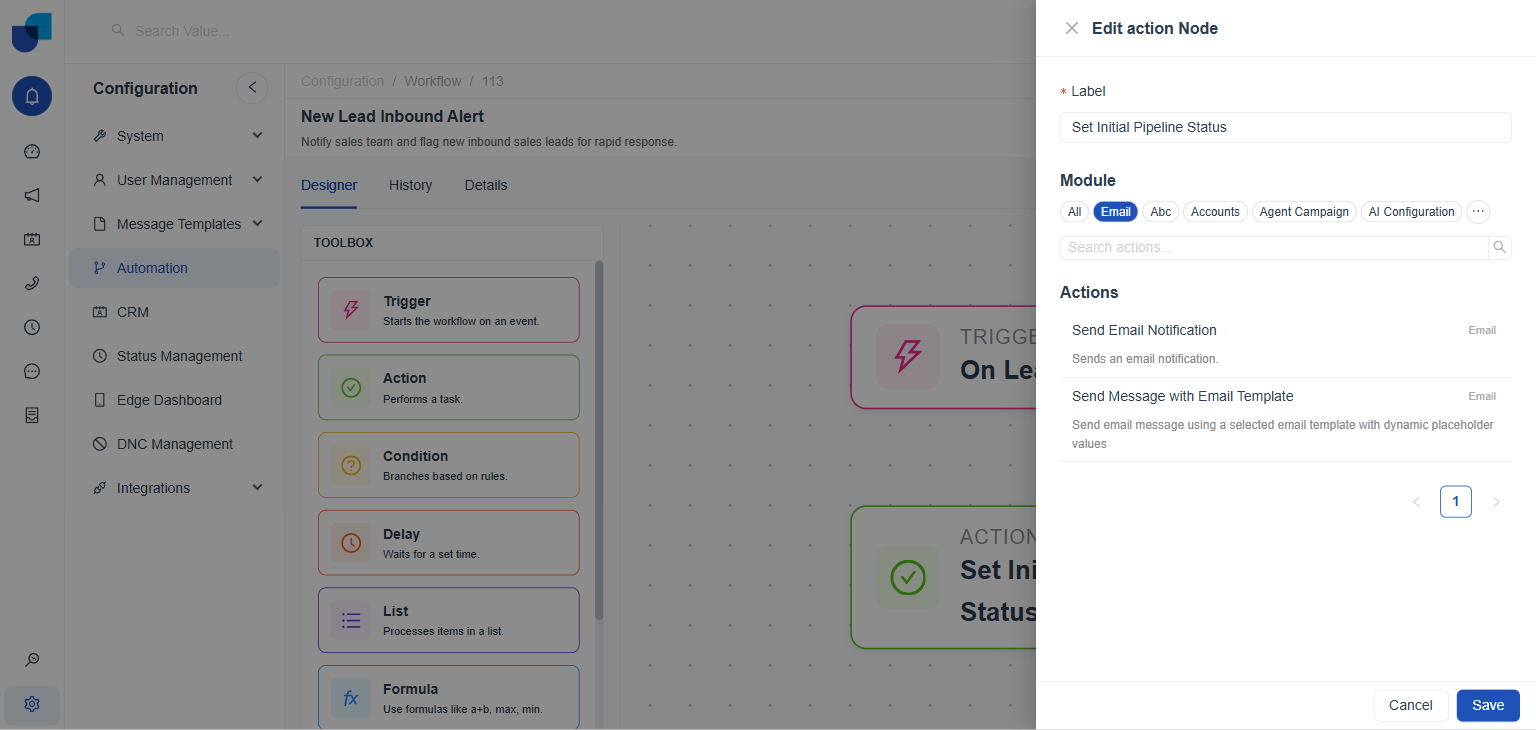 Figure 6. The Edit action Node panel, filtered to the Email module.
| ACTION | WHAT IT DOES |
|---|---|
Send Email Notification | Sends an email notification. |
Send Message with Email Template | Sends an email message using a selected email template with dynamic placeholder values. |
Telephony-Related Actions
Controlling and reading the state of a live call: making it, transferring or dropping it, checking its disposition, and reading or creating its call segments.
Configuration → Automation → a workflow → Designer → Action node → filter by Telephony
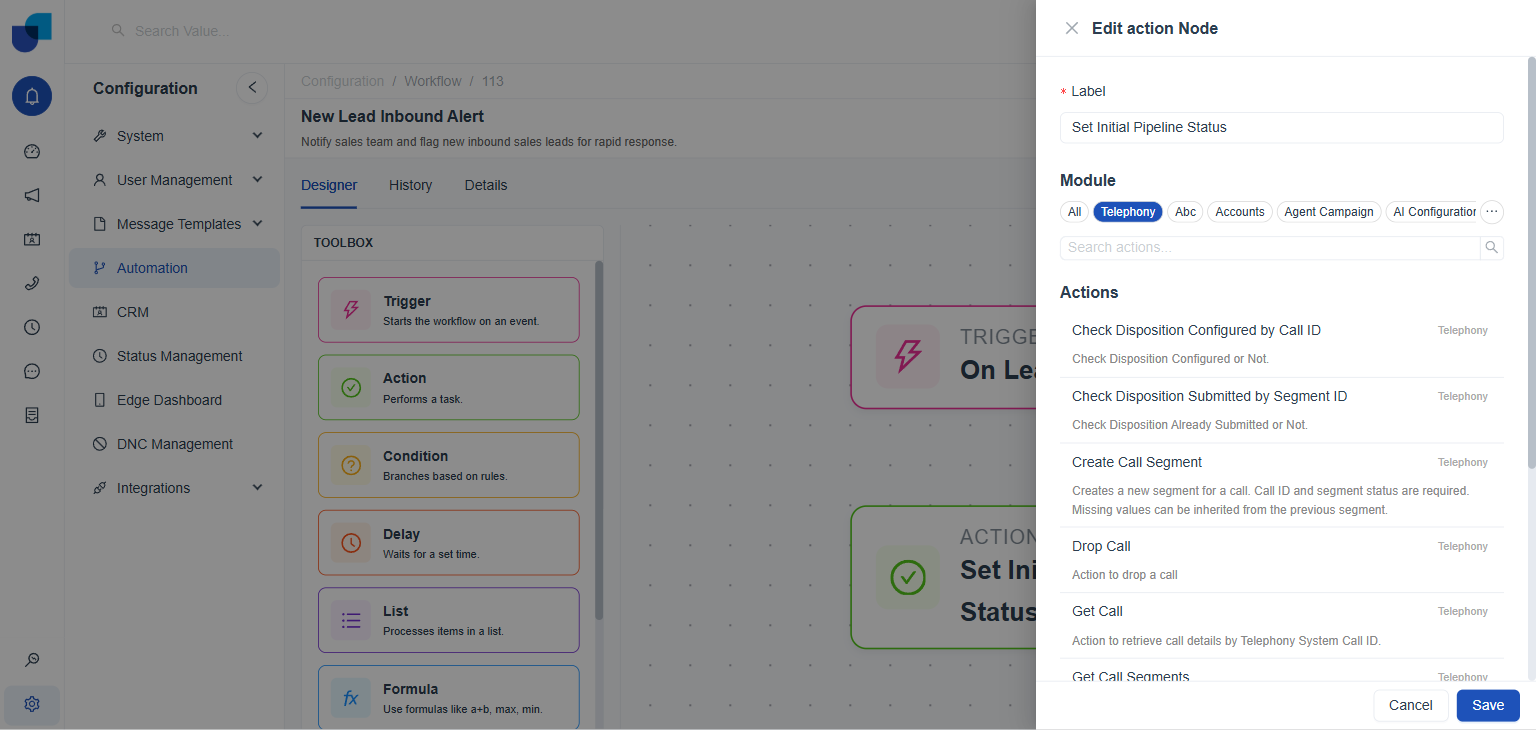 Figure 7. The Edit action Node panel, filtered to the Telephony module.
| ACTION | WHAT IT DOES |
|---|---|
Make Call | Action when a new call is made. |
Transfer Call | Transfers a call to a destination. |
Drop Call | Drops a call. |
Get Call | Retrieves call details by Telephony System Call ID. |
Update Call Status by ID | Changes a call's status. |
Create Call Segment | Creates a new segment for a call. Call ID and segment status are required; missing values can be inherited from the previous segment. |
Get Call Segments | Retrieves every segment of a call, its call flow, in start order, by internal call ID. |
Check Disposition Configured by Call ID | Checks whether a disposition is configured or not. |
Check Disposition Submitted by Segment ID | Checks whether a disposition has already been submitted or not. |
User-Related Actions
Managing platform users and their roles from inside a workflow: creating, reading, updating, and deleting both.
Configuration → Automation → a workflow → Designer → Action node → filter by Users
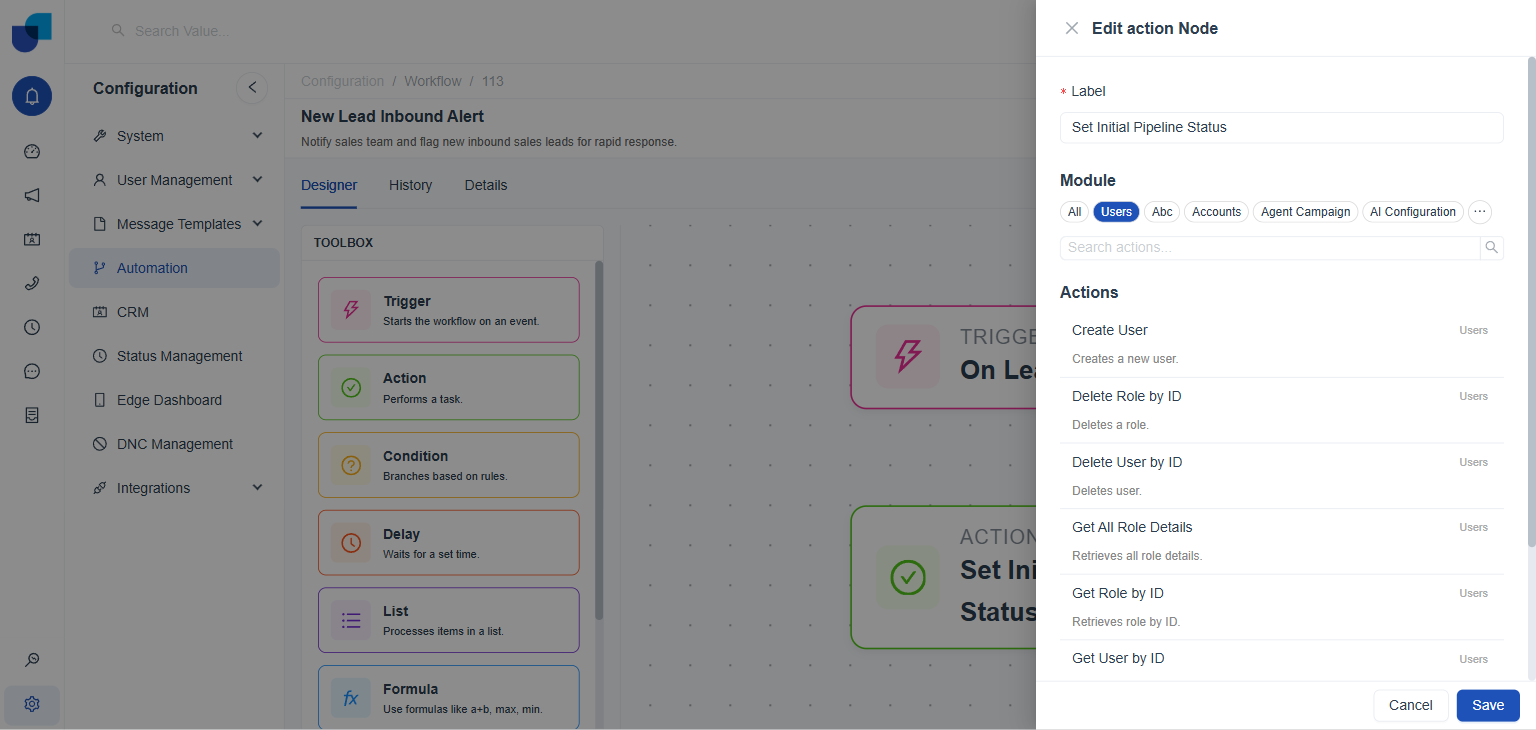 Figure 8. The Edit action Node panel, filtered to the Users module.
| ACTION | WHAT IT DOES |
|---|---|
Create User | Creates a new user. |
Get User by ID | Retrieves user details. |
Update User by ID | Updates user details. |
Delete User by ID | Deletes a user. |
Get Role by ID | Retrieves a role by ID. |
Get All Role Details | Retrieves all role details. |
Delete Role by ID | Deletes a role. |
Web-Related Actions
Web-Related Actions are not a separate module either. They live inside the System Configuration module, alongside configuration and cache actions covered by the same module, so filtering by System Configuration is how they are found.
Configuration → Automation → a workflow → Designer → Action node → filter by System Configuration
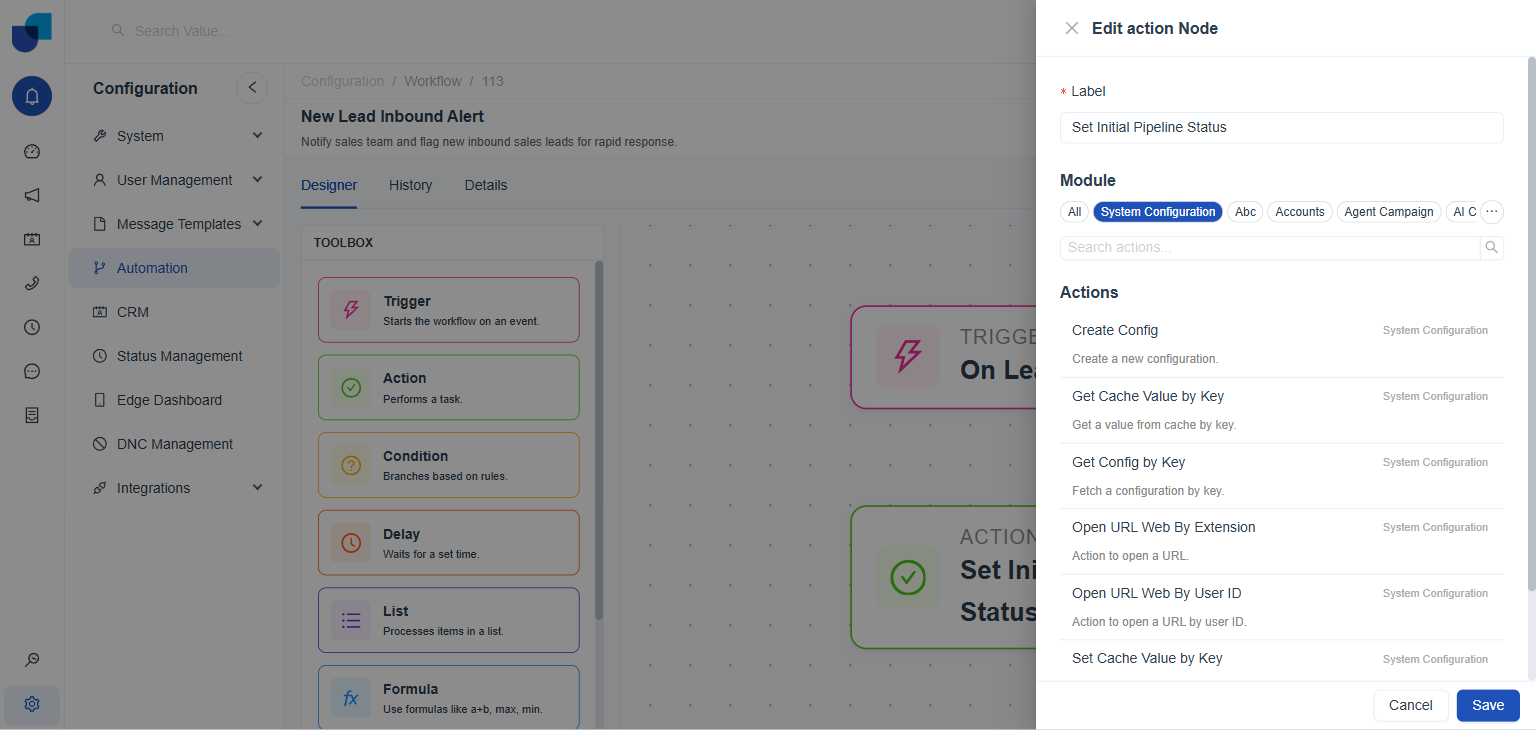 Figure 9. The Edit action Node panel, filtered to the System Configuration module. The two Web actions appear together with configuration and cache actions.
| ACTION | WHAT IT DOES |
|---|---|
Open URL Web By Extension | Opens a URL by user extension. |
Open URL Web By User ID | Opens a URL by user ID. |
The System Configuration module also lists Create Config, Get Config by Key, Get Cache Value by Key, and Set Cache Value by Key alongside the two Web actions above. There is no separate Web module filter; all of it is filtered under System Configuration.
Edge-Related Actions
Opens a URL on a user's Edge client, the same way Web-Related Actions open a URL in a browser, but routed through the Edge Configuration module instead of System Configuration.
Configuration → Automation → a workflow → Designer → Action node → filter by Edge Configuration
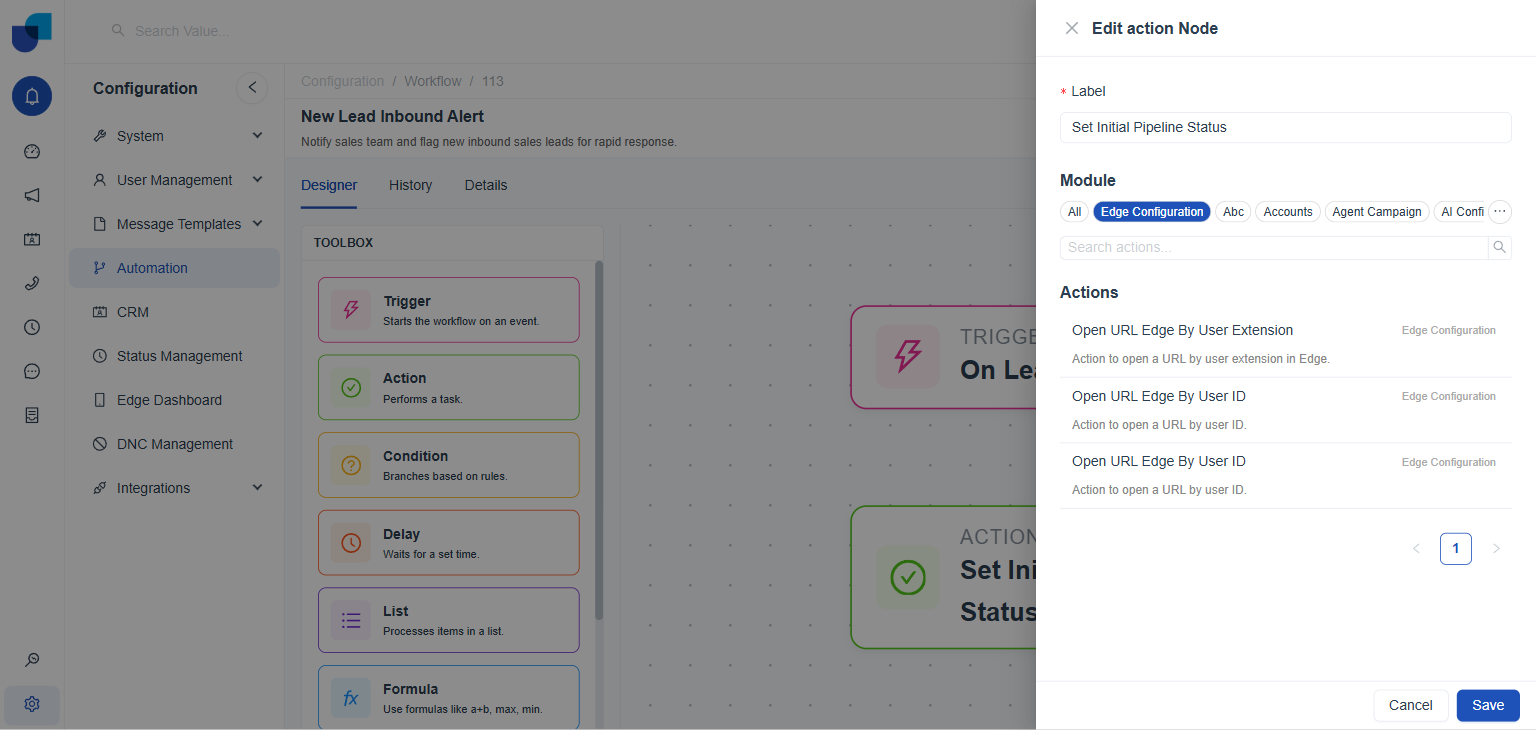 Figure 10. The Edit action Node panel, filtered to the Edge Configuration module.
| ACTION | WHAT IT DOES |
|---|---|
Open URL Edge By User Extension | Opens a URL by user extension in Edge. |
Open URL Edge By User ID | Opens a URL by user ID. |
The live catalog returned Open URL Edge By User ID twice under this module, with identical names and descriptions. This duplicate entry was confirmed directly in the picker, not introduced by this document; treat it as a known data quirk until the platform team resolves it.