Formula
Configuration → Automation → a workflow → Designer → Formula node
A Formula node transforms data using a built-in function, from simple text and math operations to date calculations, and passes the result along to the rest of the workflow. Internally the platform refers to it as an expression node. Like Delay and List, it has a single path in and a single path out; it never branches.
Adding a Formula Node
- Open a workflow's Designer. Configuration → Automation → a workflow. See Workflow Builder.
- Drag the Formula card from the Toolbox onto the canvas. Formula sits sixth in the Toolbox, marked with a blue fx icon and the subtitle Use formulas like a+b, max, min.
- Connect an earlier node's output into the Formula node's top handle, and its own output into whatever should run next.
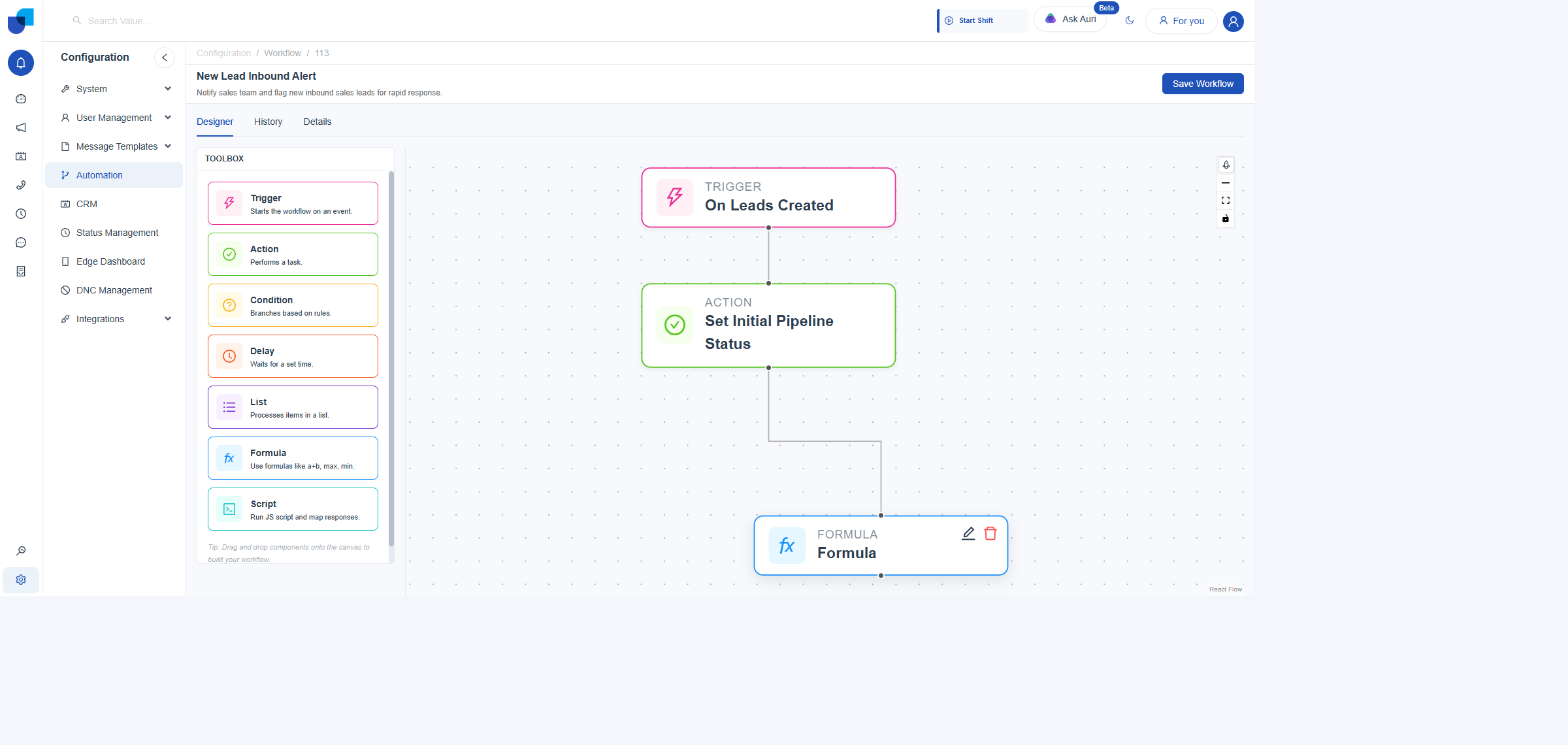
A Formula node placed on the canvas, with a single top and bottom connection point.
Opening the Formula Editor
- Click the Formula node to select it. Reveals its edit and delete icons.
- Click the edit icon. Opens the Edit expression Node panel, with a Label field above a Formula section.
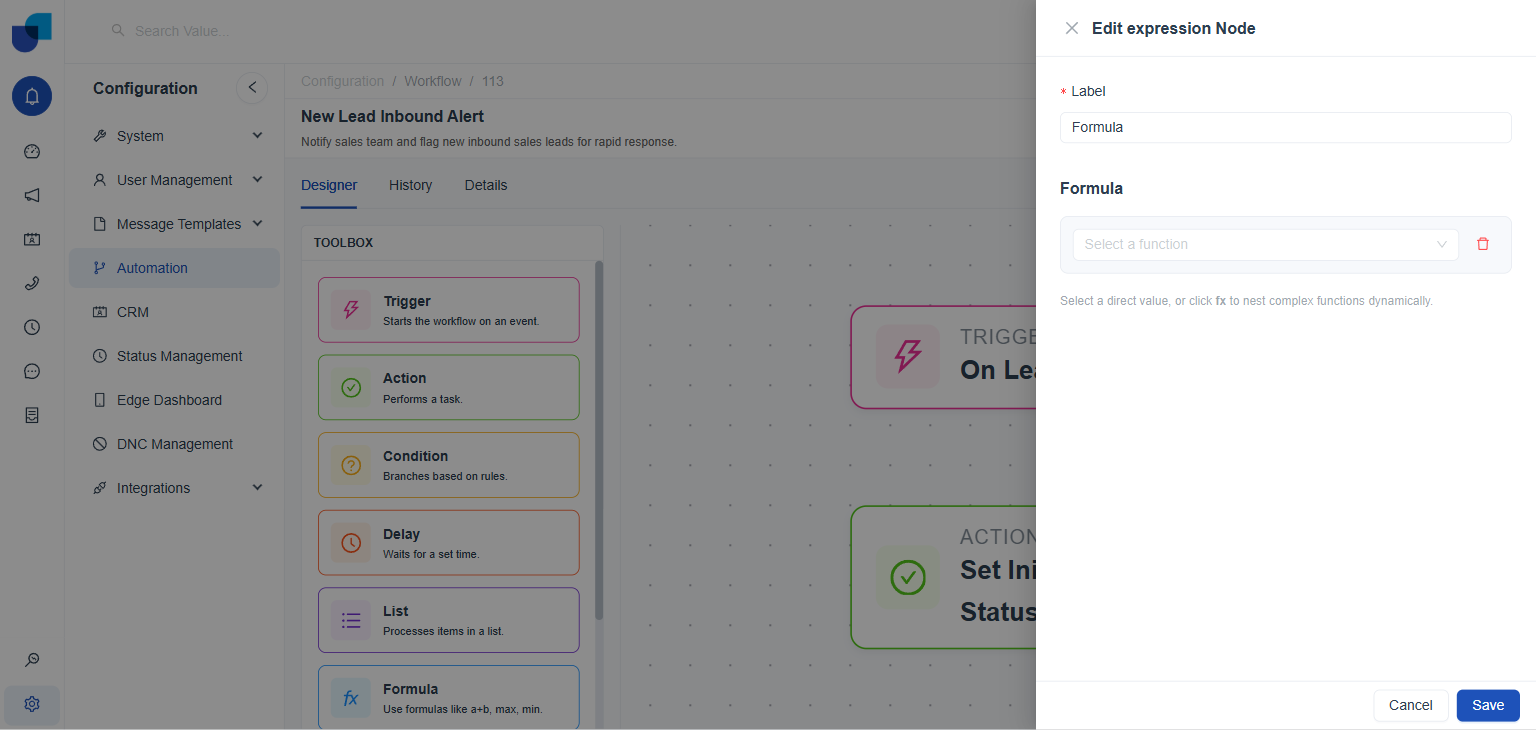
The Edit expression Node panel in its default state, before a function has been chosen.
Available Functions
The Select a function dropdown is grouped into three categories: String-Related Functions, Mathematical Functions, and Date-Related Functions.
String-Related Functions
Text transformations: joining, trimming, slicing, and changing case.
| Function | What it does |
|---|---|
CONCAT | Joins two or more text values into one. |
TRIM | Removes leading and trailing whitespace from a text value. |
LEFT | Takes a given number of characters from the start of a text value. |
RIGHT | Takes a given number of characters from the end of a text value. |
MID | Takes a given number of characters from the middle of a text value, starting at a chosen position. |
UPPER | Converts a text value to uppercase. |
LOWER | Converts a text value to lowercase. |
TO_STRING | Converts a non-text value, such as a number, into text. |
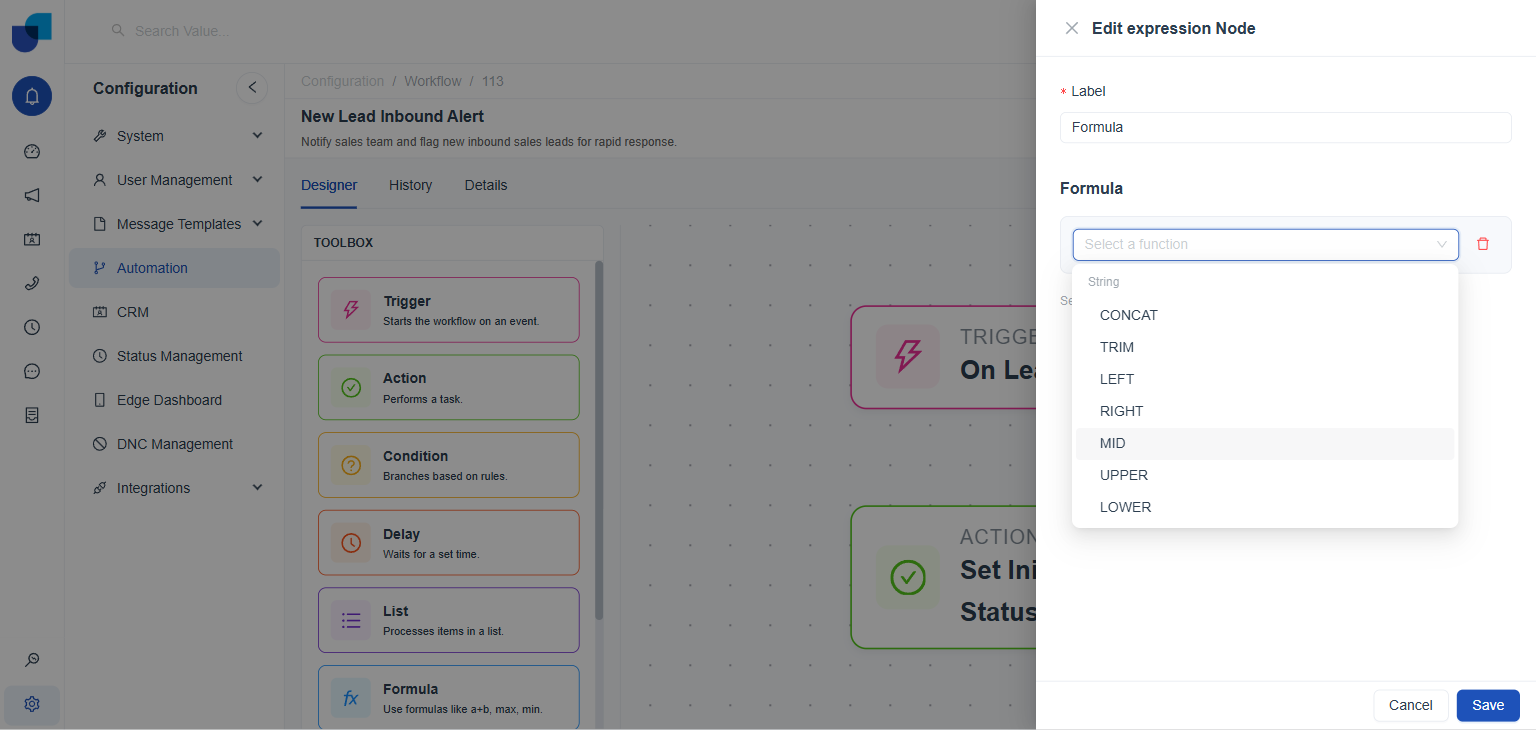
The top of the Select a function list: String-Related Functions.
Mathematical Functions
Arithmetic and numeric operations.
| Function | What it does |
|---|---|
SUM | Adds two numbers together. |
MULTIPLY | Multiplies two numbers together. |
DIVIDE | Divides one number by another. |
ABS | Returns a number's absolute value, dropping any negative sign. |
NEGATIVE | Flips a number's sign. |
LEN | Returns the length of a value, such as the number of characters in a text value. |
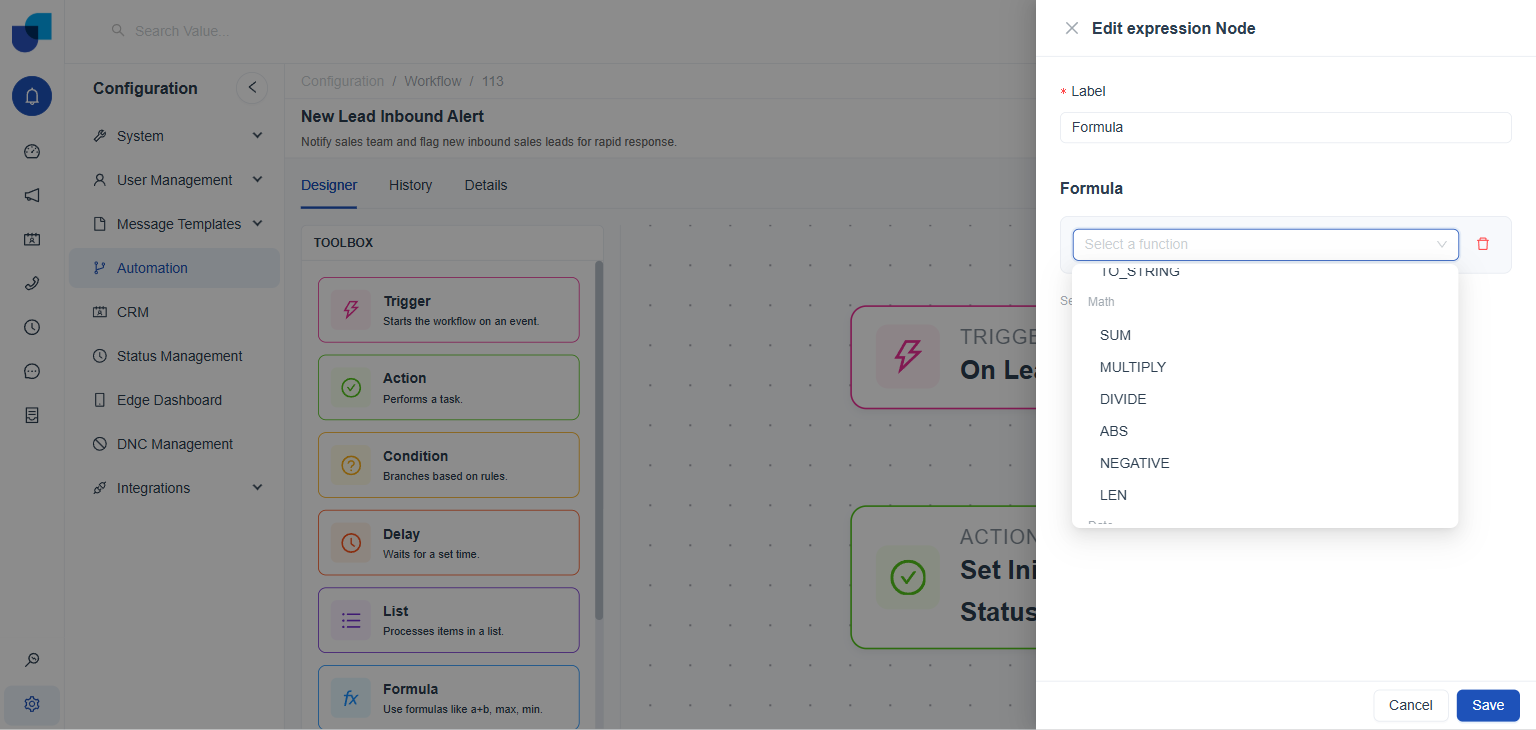
Mathematical Functions, directly below String-Related Functions in the same list.
The Toolbox card's own subtitle reads Use formulas like a+b, max, min, but no MAX or MIN function exists in the live list, which only offers SUM, MULTIPLY, DIVIDE, ABS, NEGATIVE, and LEN. SUM covers the a+b example by adding Number A and Number B together, but there is currently no built-in MAX or MIN.
Date-Related Functions
Reading and calculating with dates and times.
| Function | What it does |
|---|---|
NOW | Returns the current date and time. |
DATE_ADD | Adds a given amount of time to a date. |
DATE_SUBTRACT | Subtracts a given amount of time from a date. |
DATE_DIFF | Returns the difference between two dates, given a Start Date, an End Date, and a Unit such as hours or days. |
FORMAT_DATE | Formats a date into a specific text representation. |
Date-Related Functions, the last of the three categories in the list.
Function names and their argument fields were confirmed directly in the live picker, verified in full for SUM and for DATE_DIFF (Start Date, End Date, Unit). The one-line descriptions above follow each function's self-evident meaning, since the picker does not show explanatory text per function.
Setting Up a Function
Picking a function reveals its own set of argument fields underneath. SUM, for example, asks for two numbers.
- Choose a function from Select a function.
Its arguments appear immediately below, each labeled for what it expects, for example Number A and Number B for
SUM. - Fill in each argument. Each argument has the same @ toggle seen on the Delay node's fields, switching between a direct typed value and a Dynamic Mention pulled from earlier in the workflow.
- Click fx beside an argument to nest another function inside it instead. Lets a formula's input be the result of a second formula, rather than a plain value or a single mentioned field.
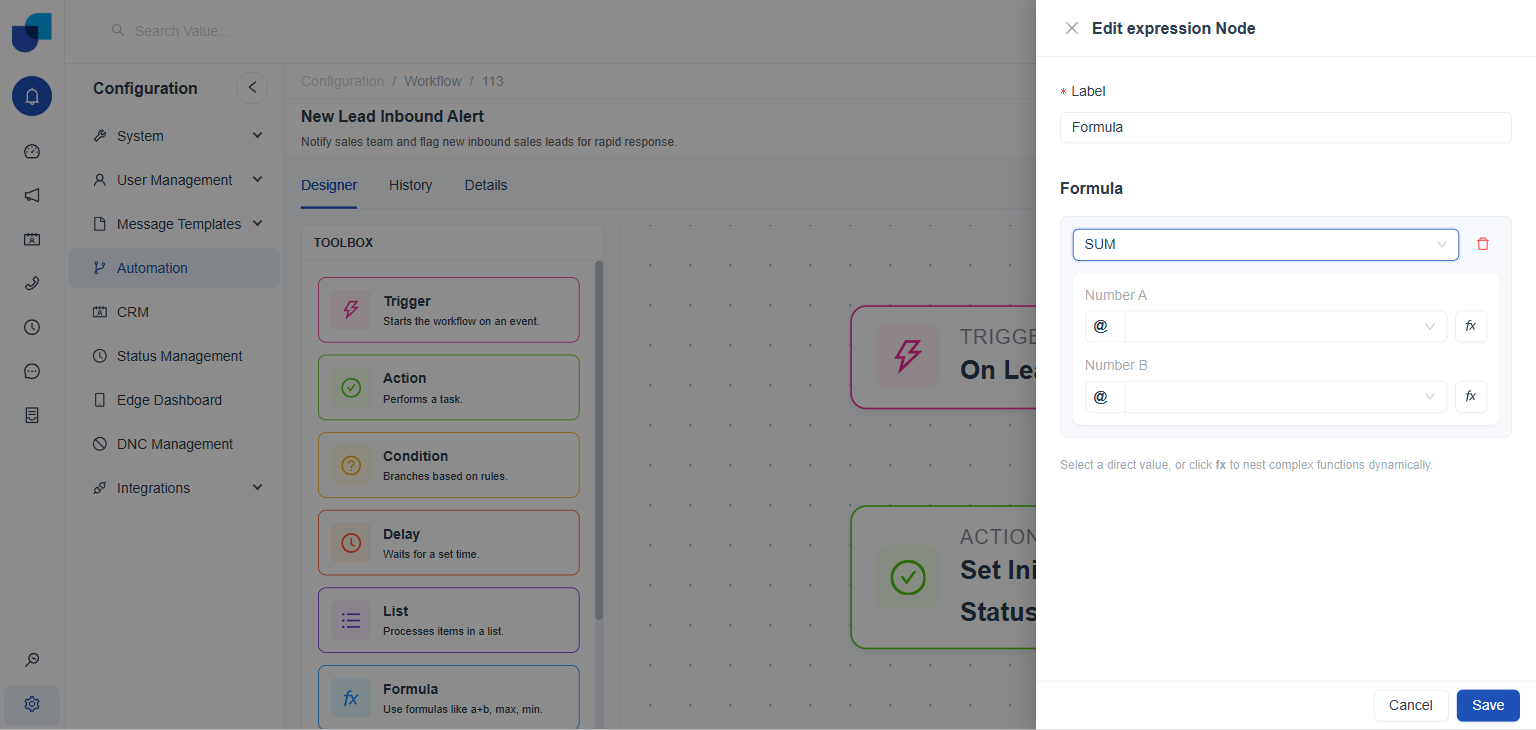
SUM selected: Number A and Number B, each with its own @ toggle and fx button for nesting.
Clicking fx on an argument converts just that argument into its own nested Select a function picker; choosing a function there (for example NOW) sets only that argument's value, leaving the rest of the formula untouched. This is how a DATE_DIFF formula can compute an age using NOW() as its End Date while Start Date stays a plain field reference.
A Formula node is a lighter alternative to a Script node whenever the transformation needed is covered by one of its built-in functions; reaching for a Script node's JavaScript editor is only necessary once a transformation goes beyond what String, Math, and Date here can do. See Configuring a Script.