List
Configuration → Automation → a workflow → Designer → List node
A List node works on an array field coming from an earlier step, such as a set of records returned by a Get All Records action, and picks which item or items from that array the rest of the workflow should use. Internally the platform refers to it as a bulk node, matching its role of handling a batch of items rather than a single one.
Adding a List Node
- Open a workflow's Designer. Configuration → Automation → a workflow. See Workflow Builder.
- Drag the List card from the Toolbox onto the canvas. List sits fifth in the Toolbox, marked with a purple list icon and the subtitle Processes items in a list.
- Connect an earlier node's output into the List node's top handle, and its own output into whatever should run next. Like Delay, List has a single path in and a single path out; it never branches.
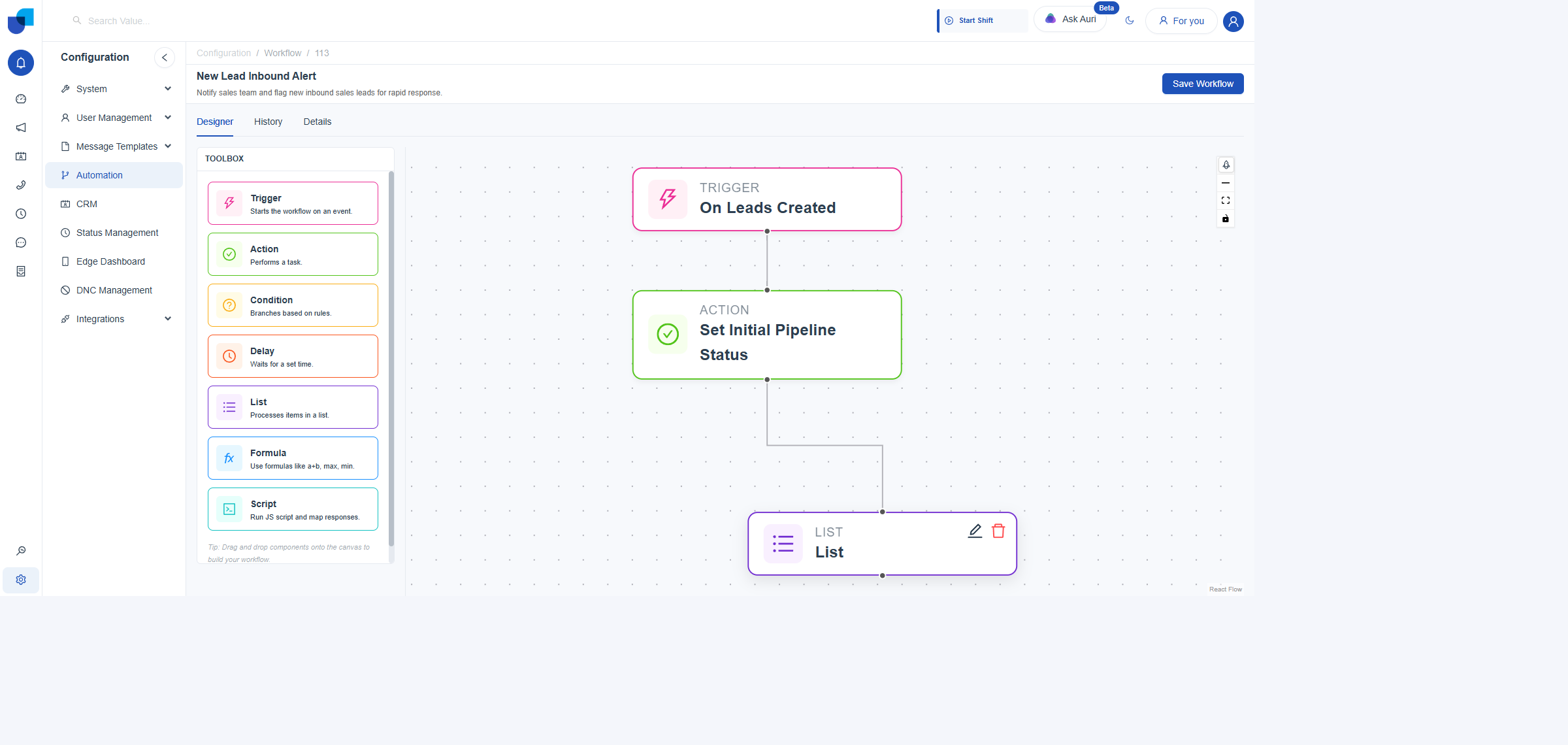
A List node connected into a real workflow, wired to the Action step ahead of it.
Opening the List Editor
- Click the List node to select it. Reveals its edit and delete icons.
- Click the edit icon. Opens the Edit bulk Node panel, with a Label field above Select List Data Field and Processing Item Pattern.
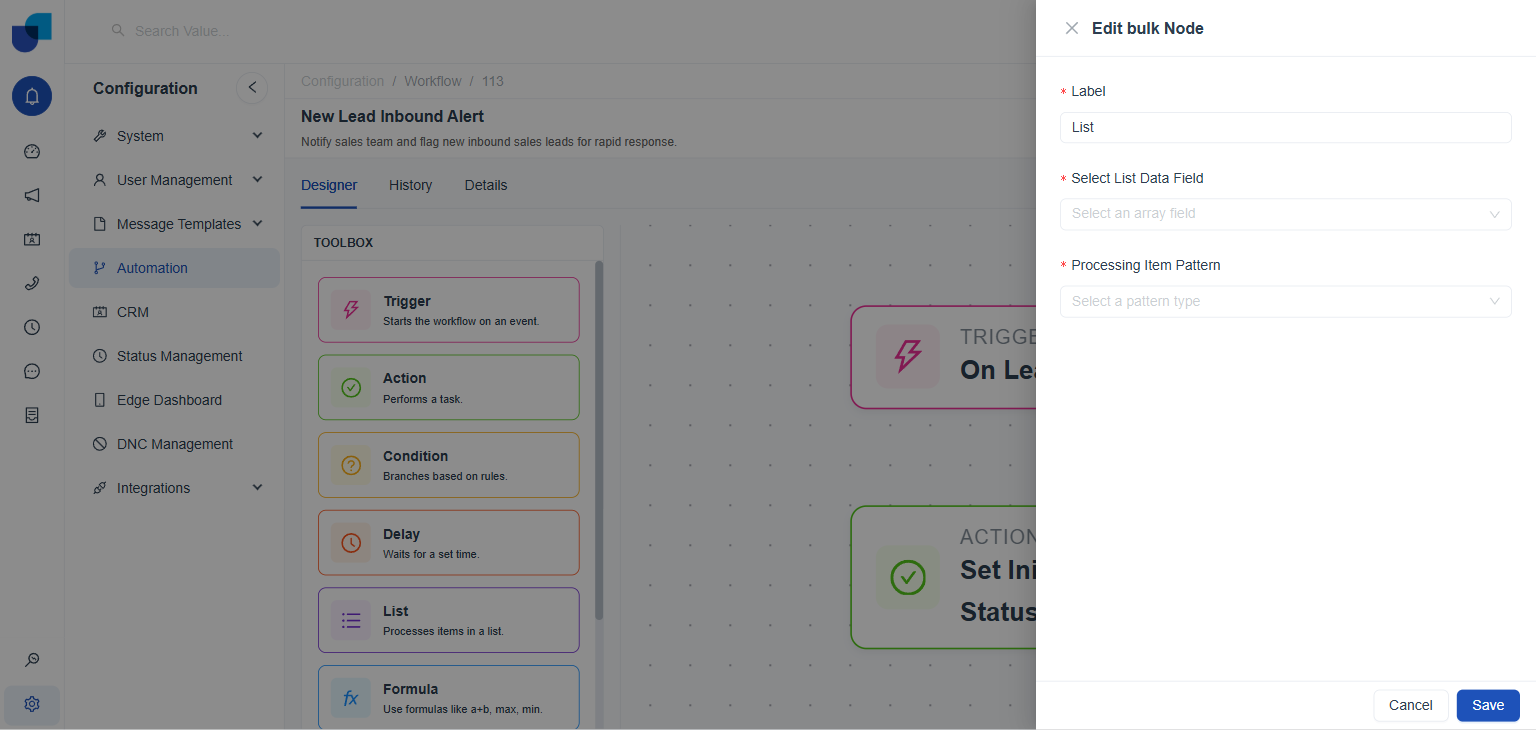
The Edit bulk Node panel in its default state. Both Select List Data Field and Processing Item Pattern are required, marked with a red asterisk.
Select List Data Field
This dropdown lists the array type fields available from earlier in the workflow, such as the results of a Get All Records action. Only fields that actually hold a list of items are eligible here.
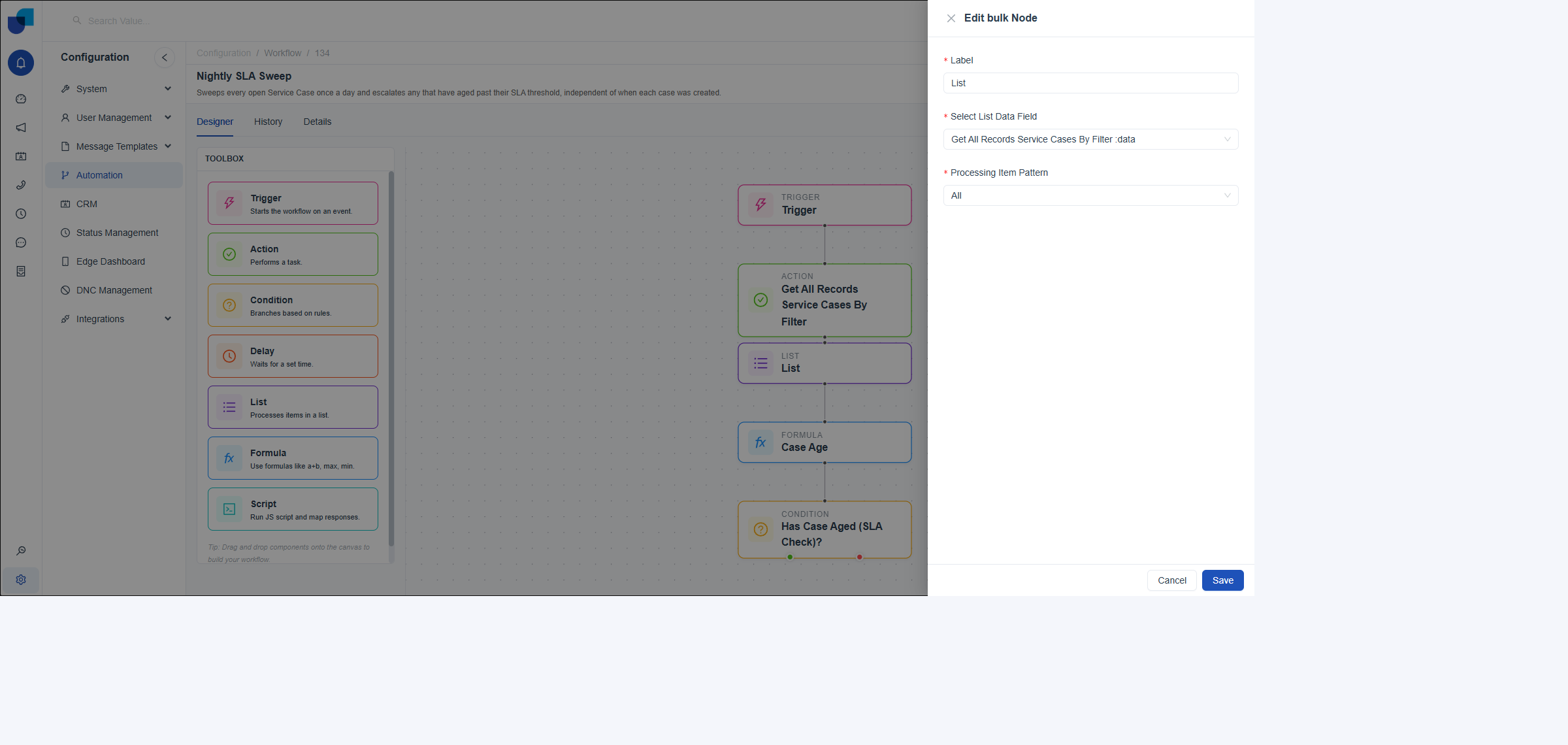
Select List Data Field, populated live once the List node is connected directly after a Get All Records By Filter action.
Connected directly after a single record Trigger, Select List Data Field correctly shows No data, since a single record has no array to offer. Connected after a step that returns an array, such as Get All Records By Filter above, the same dropdown lists and selects that array correctly.
Processing Item Pattern
This dropdown decides which item, or items, from the selected list the rest of the workflow receives.
| Pattern | What it does |
|---|---|
All | Passes every item in the list onward. |
First | Passes only the first item in the list onward. |
Last | Passes only the last item in the list onward. |
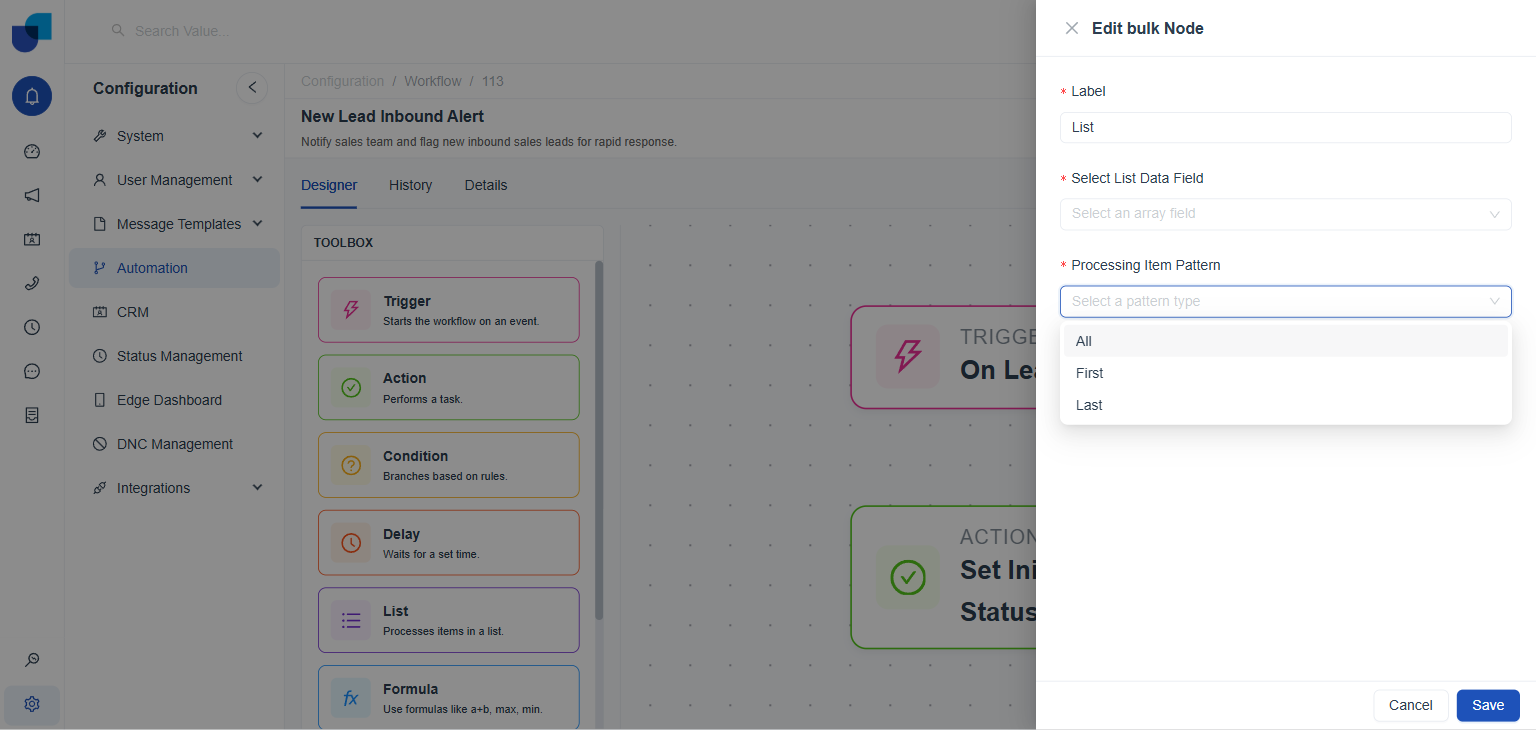
The three Processing Item Pattern options.
First or Last is the simpler choice whenever a workflow only ever needs a single item from a list, for example the most recently created record from a Get All Records By Filter action, rather than looping through every result with All.